
Install the login brute-force protection
Edit on GitHubThis document describes how to install the login brute-force protection. By default, the SecurityBlocker modules count failed logins per IP address, so an attacker who switches IP addresses is never blocked. The login brute-force protection also counts the login attempts per account, regardless of the IP address, and blocks the account after too many attempts. Optionally, it requires a CAPTCHA after repeated failed logins.
The protection uses three counters:
- Account counter: counts every login attempt for one account in the time window. It is reset when the account logs in successfully. When it reaches its limit, the account is blocked for a time period.
- IP counter: counts failed logins from one IP address. When it reaches its limit, the IP address is blocked for a time period. When an account logs in successfully, the failed logins of this account are removed from the counter. The failed logins of other accounts from the same IP address stay counted, so an attacker cannot use their own account to remove the failed logins of the accounts they attacked.
- Realm-wide counter: counts the failed logins of all accounts of a login realm. It never blocks a login. When it reaches its threshold, every login of the realm requires a CAPTCHA, which protects against password spraying, the trying of one password against many accounts. Each IP address adds at most as many failed logins to this counter as the IP challenge threshold of the realm defines, so one IP address cannot require a CAPTCHA for the whole realm.
The account counters and the thresholds are defined per login realm. All logins of a realm share one account counter, so an attacker cannot multiply the attempts by switching between the login surfaces of an account:
| LOGIN REALM | LOGINS |
|---|---|
customer |
Storefront customer login, Glue API and Storefront API POST /access-tokens, Storefront API POST /token |
user |
Back Office login, Merchant Portal login, Merchant Portal agent login, Storefront agent login, Glue API and Storefront API POST /agent-access-tokens, Backend API POST /token |
The block messages are the same for existing and unknown accounts, so they do not reveal which accounts exist.
Prerequisites
Install the required features:
| NAME | INSTALLATION GUIDE |
|---|---|
| Spryker Core | Install the Spryker Core feature |
| Spryker Core Back Office | Install the Spryker Core Back Office feature |
| Optional: Agent Assist | Install the Agent Assist feature |
| Optional: Marketplace Merchant Portal Core | Install the Merchant Portal Core feature |
| Optional: Merchant Portal Agent Assist | Install the Merchant Portal Agent Assist feature |
| Optional: Glue API | Install the Spryker Core Glue API |
| Optional: CAPTCHA | Install the CAPTCHA feature |
1) Install the required modules
- Install the SecurityBlocker modules of the Storefront and the Back Office:
composer require spryker/security-blocker:"^1.5.0" spryker/security-blocker-storefront-customer:"^1.1.0" spryker/security-blocker-backoffice:"^1.1.0" spryker/security-blocker-backoffice-gui:"^1.2.0" spryker-shop/security-blocker-page:"^1.4.0" --update-with-dependencies
- In a marketplace, install the SecurityBlocker modules of the Merchant Portal:
composer require spryker/security-blocker-merchant-portal:"^1.0.0" spryker/security-blocker-merchant-portal-gui:"^1.2.0" --update-with-dependencies
- If you installed the Merchant Portal Agent Assist feature, install the SecurityBlocker module of the Merchant Portal agent login:
composer require spryker/agent-security-blocker-merchant-portal-gui:"^1.2.0" --update-with-dependencies
- If you installed the Glue API, install the SecurityBlocker module of the APIs. Version 1.82.1 of
spryker/glue-applicationpasses the HTTP status of a response to the SecurityBlocker plugins of theaccess-tokensandagent-access-tokensresources of the Storefront API. With an older version, successful logins through these resources are not registered, so the account counter of an API client is never reset, and the client is blocked after nine logins within the time window.
composer require spryker/security-blocker-rest-api:"^1.2.0" spryker/glue-application:"^1.82.1" --update-with-dependencies
Make sure the following packages have been installed with the required versions:
| PACKAGE | VERSION |
|---|---|
spryker/security-blocker |
1.5.0 or later |
spryker/security-blocker-extension |
1.1.0 or later |
spryker/security-blocker-storefront-customer |
1.1.0 or later |
spryker/security-blocker-backoffice |
1.1.0 or later |
spryker/security-blocker-backoffice-gui |
1.2.0 or later |
spryker-shop/security-blocker-page |
1.4.0 or later |
spryker/security-blocker-merchant-portal |
1.0.0 or later |
spryker/security-blocker-merchant-portal-gui |
1.2.0 or later |
spryker/agent-security-blocker-merchant-portal-gui |
1.2.0 or later |
spryker/security-blocker-rest-api |
1.2.0 or later |
spryker/glue-application |
1.82.1 or later |
2) Set up the configuration
-
Review the account lock of the login realms. The account lock is set in the Back Office, in Configuration > Security > Login Lock, with one group of settings for each realm: Customer Accounts for the
customerrealm and User Accounts for theuserrealm. The SecurityBlockerStorefrontCustomer and SecurityBlockerBackoffice modules define these settings and read them with version 3.84.0 or later ofspryker/kernel.console configuration:syncregisters them, and the defaults apply until an administrator changes them.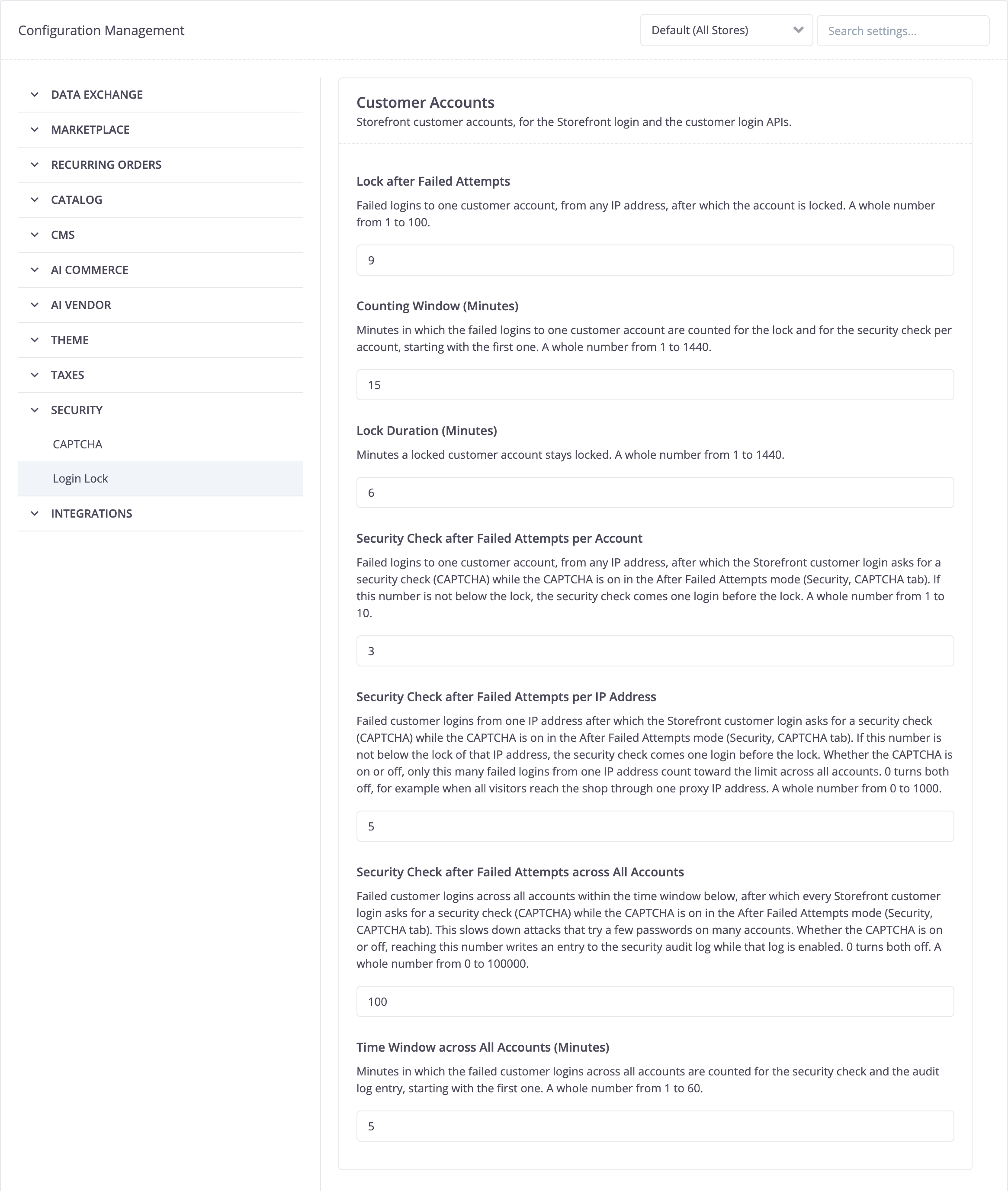
| SETTING | KEY | DEFAULT | SPECIFICATION |
|---|---|---|---|
| Lock after Failed Attempts | security:login_lock:customer:number_of_failed_attempts, security:login_lock:user:number_of_failed_attempts |
9 | Defines the number of login attempts to one account, from any IP address, within the counting window before the account is locked. A whole number from 1 to 100. |
| Counting Window (Minutes) | security:login_lock:customer:counting_window, security:login_lock:user:counting_window |
15 | Defines the time period in minutes, starting with the first failed login, within which the login attempts of an account are counted for the lock and for the CAPTCHA per account. A whole number from 1 to 1440. |
| Lock Duration (Minutes) | security:login_lock:customer:lock_duration, security:login_lock:user:lock_duration |
6 | Defines the time period in minutes for which a locked account stays locked. Further attempts do not extend the lock. A whole number from 1 to 1440. |
- Review the challenge thresholds of the login realms. They are in the same groups of the Login Lock tab, next to the lock that counts the same failed logins, and apply with the
ip-and-accountlogin protection strategy of step 4. When the failed logins reach a threshold, the SecurityBlocker modules require a login challenge. If you installed the CAPTCHA feature, the login forms answer a required challenge with a CAPTCHA while the CAPTCHA is switched on in the After Failed Attempts CAPTCHA mode. The Back Office calls the login challenge a security check, the term of the CAPTCHA messages, and shows the thresholds in every CAPTCHA mode, because the settings page holds only the open tab. For the CAPTCHA mode, see Install the CAPTCHA feature.
| SETTING | KEY | DEFAULT (CUSTOMER / USER) | SPECIFICATION |
|---|---|---|---|
| Security Check after Failed Attempts per Account | security:login_lock:customer:challenge_account_number_of_failed_attempts, security:login_lock:user:challenge_account_number_of_failed_attempts |
3 / 3 | Defines the number of failed logins to one account after which its login form requires a CAPTCHA. A whole number from 1 to 10. |
| Security Check after Failed Attempts per IP Address | security:login_lock:customer:challenge_ip_number_of_failed_attempts, security:login_lock:user:challenge_ip_number_of_failed_attempts |
5 / 5 | Defines the number of failed logins from one IP address after which the login form requires a CAPTCHA. With or without the CAPTCHA, it also limits the failed logins that one IP address adds to the realm-wide counter. 0 disables both. A whole number from 0 to 1000. |
| Security Check after Failed Attempts across All Accounts | security:login_lock:customer:challenge_all_accounts_number_of_failed_attempts, security:login_lock:user:challenge_all_accounts_number_of_failed_attempts |
100 / 30 | Defines the number of failed logins across all accounts within the time window after which every login of the realm requires a CAPTCHA. With or without the CAPTCHA, reaching it writes the login_global_challenge_threshold_reached entry to the security audit log of step 6. 0 disables both. A whole number from 0 to 100000. |
| Time Window across All Accounts (Minutes) | security:login_lock:customer:challenge_all_accounts_time_window, security:login_lock:user:challenge_all_accounts_time_window |
5 / 5 | Defines the time period in minutes, starting with the first failed login, within which the failed logins across all accounts are counted. A whole number from 1 to 60. |
If a challenge threshold is not lower than the lock that counts the same failed logins, the login form requires the CAPTCHA one login before that lock: the per-account threshold before the account lock, and the per-IP threshold before the IP lock of the login form.
- In a marketplace, add the configuration that counts failed Merchant Portal logins per IP address:
| CONFIGURATION | SPECIFICATION | NAMESPACE |
|---|---|---|
| SecurityBlockerMerchantPortalConstants::MERCHANT_PORTAL_USER_BLOCK_FOR_SECONDS | Defines the time period in seconds for which an IP address is blocked after too many failed Merchant Portal logins. | Spryker\Shared\SecurityBlockerMerchantPortal |
| SecurityBlockerMerchantPortalConstants::MERCHANT_PORTAL_USER_BLOCKING_TTL | Defines the time period in seconds within which the failed logins of an IP address are counted. | Spryker\Shared\SecurityBlockerMerchantPortal |
| SecurityBlockerMerchantPortalConstants::MERCHANT_PORTAL_USER_BLOCKING_NUMBER_OF_ATTEMPTS | Defines the number of failed logins of an IP address within the MERCHANT_PORTAL_USER_BLOCKING_TTL time period before the IP address is blocked. |
Spryker\Shared\SecurityBlockerMerchantPortal |
config/Shared/config_default.php
use Spryker\Shared\SecurityBlockerMerchantPortal\SecurityBlockerMerchantPortalConstants;

$config[SecurityBlockerMerchantPortalConstants::MERCHANT_PORTAL_USER_BLOCK_FOR_SECONDS] = 360;
$config[SecurityBlockerMerchantPortalConstants::MERCHANT_PORTAL_USER_BLOCKING_TTL] = 900;
$config[SecurityBlockerMerchantPortalConstants::MERCHANT_PORTAL_USER_BLOCKING_NUMBER_OF_ATTEMPTS] = 9;
End-to-end tests usually send many failed logins from one IP address with the same test accounts. Import the settings of such an environment with the configuration-value data import. The following example raises the account lock to its maximum and switches off the per-IP and all-accounts challenge thresholds:
>setting_key,scope,scope_identifier,value
security:login_lock:customer:number_of_failed_attempts,global,,100
security:login_lock:user:number_of_failed_attempts,global,,100
security:login_lock:customer:challenge_ip_number_of_failed_attempts,global,,0
security:login_lock:customer:challenge_all_accounts_number_of_failed_attempts,global,,0
security:login_lock:user:challenge_ip_number_of_failed_attempts,global,,0
security:login_lock:user:challenge_all_accounts_number_of_failed_attempts,global,,0
For the CAPTCHA in test environments, see Install the CAPTCHA feature.
- Select the login protection strategy of every login surface.
The login protection strategy defines how a login is protected. The same strategy constants exist in the configuration of every module that protects a login:
| STRATEGY | BEHAVIOR |
|---|---|
LOGIN_PROTECTION_STRATEGY_IP (ip), default |
Failed logins are counted and blocked per IP address only. In the after_failed_attempts CAPTCHA mode, only the IP challenge threshold can require a CAPTCHA. |
LOGIN_PROTECTION_STRATEGY_IP_AND_ACCOUNT (ip-and-account) |
Adds the account counter and the realm-wide counter. In the after_failed_attempts CAPTCHA mode, their challenge thresholds can require a CAPTCHA as well. |
With the ip-and-account strategy, each login request is processed as follows:
- If the account or the IP address is blocked, the request is rejected with the
429 Too Many Requestsstatus. The block is checked before the CAPTCHA, so a blocked user sees the block, and the CAPTCHA solution of a blocked request stays unused. - If the login requires a CAPTCHA, the CAPTCHA feature verifies the submitted solution. A missing, invalid, expired, or reused solution rejects the request with an error message. The password is not checked, and the attempt is not counted.
- The attempt is counted against the account before the password is checked, so that parallel requests cannot exceed the limit of the account.
- A successful login resets the account counter and removes the failed logins of the account from the IP counter. A failed login increases the IP counter and the realm-wide counter. As a result, a user who needed a CAPTCHA after their own failed logins does not need one at the next login, unless other accounts failed to log in from the same IP address.
src/Pyz/Yves/SecurityBlockerPage/SecurityBlockerPageConfig.php
<?php

namespace Pyz\Yves\SecurityBlockerPage;

use SprykerShop\Yves\SecurityBlockerPage\SecurityBlockerPageConfig as SprykerSecurityBlockerPageConfig;

class SecurityBlockerPageConfig extends SprykerSecurityBlockerPageConfig
{
    protected const string LOGIN_PROTECTION_STRATEGY = self::LOGIN_PROTECTION_STRATEGY_IP_AND_ACCOUNT;
}
src/Pyz/Zed/SecurityBlockerBackofficeGui/SecurityBlockerBackofficeGuiConfig.php
<?php

namespace Pyz\Zed\SecurityBlockerBackofficeGui;

use Spryker\Zed\SecurityBlockerBackofficeGui\SecurityBlockerBackofficeGuiConfig as SprykerSecurityBlockerBackofficeGuiConfig;

class SecurityBlockerBackofficeGuiConfig extends SprykerSecurityBlockerBackofficeGuiConfig
{
    protected const string LOGIN_PROTECTION_STRATEGY = self::LOGIN_PROTECTION_STRATEGY_IP_AND_ACCOUNT;

    protected const string IP_COUNTER_KEY_STRATEGY = self::IP_COUNTER_KEY_STRATEGY_IP_AND_USERNAME;
}
src/Pyz/Zed/SecurityBlockerMerchantPortalGui/SecurityBlockerMerchantPortalGuiConfig.php
<?php

namespace Pyz\Zed\SecurityBlockerMerchantPortalGui;

use Spryker\Zed\SecurityBlockerMerchantPortalGui\SecurityBlockerMerchantPortalGuiConfig as SprykerSecurityBlockerMerchantPortalGuiConfig;

class SecurityBlockerMerchantPortalGuiConfig extends SprykerSecurityBlockerMerchantPortalGuiConfig
{
    protected const string LOGIN_PROTECTION_STRATEGY = self::LOGIN_PROTECTION_STRATEGY_IP_AND_ACCOUNT;

    protected const string IP_COUNTER_KEY_STRATEGY = self::IP_COUNTER_KEY_STRATEGY_IP_AND_USERNAME;
}
src/Pyz/Zed/AgentSecurityBlockerMerchantPortalGui/AgentSecurityBlockerMerchantPortalGuiConfig.php
<?php

namespace Pyz\Zed\AgentSecurityBlockerMerchantPortalGui;

use Spryker\Zed\AgentSecurityBlockerMerchantPortalGui\AgentSecurityBlockerMerchantPortalGuiConfig as SprykerAgentSecurityBlockerMerchantPortalGuiConfig;

class AgentSecurityBlockerMerchantPortalGuiConfig extends SprykerAgentSecurityBlockerMerchantPortalGuiConfig
{
    protected const string LOGIN_PROTECTION_STRATEGY = self::LOGIN_PROTECTION_STRATEGY_IP_AND_ACCOUNT;

    protected const string IP_COUNTER_KEY_STRATEGY = self::IP_COUNTER_KEY_STRATEGY_IP_AND_USERNAME;
}
src/Pyz/Glue/SecurityBlockerRestApi/SecurityBlockerRestApiConfig.php
<?php

namespace Pyz\Glue\SecurityBlockerRestApi;

use Spryker\Glue\SecurityBlockerRestApi\SecurityBlockerRestApiConfig as SprykerSecurityBlockerRestApiConfig;

class SecurityBlockerRestApiConfig extends SprykerSecurityBlockerRestApiConfig
{
    protected const string LOGIN_PROTECTION_STRATEGY = self::LOGIN_PROTECTION_STRATEGY_IP_AND_ACCOUNT;
}
- Select the IP counter key strategy of the Back Office, Merchant Portal, and Merchant Portal agent logins.
The IP counter of these logins counts failed logins per IP address. If the application receives the IP address of a load balancer instead of the IP address of the client, all users share one IP counter. With the default ip key strategy, nine failed logins by anyone then block the login of every user for six minutes. The ip-and-username key strategy counts the failed logins of one IP address separately for each submitted username. The examples in the previous step select it.
| IP COUNTER KEY STRATEGY | COUNTER KEY |
|---|---|
IP_COUNTER_KEY_STRATEGY_IP (ip), default |
The IP address. All users behind one IP address share one counter. |
IP_COUNTER_KEY_STRATEGY_IP_AND_USERNAME (ip-and-username) |
The IP address and a SHA-256 hash of the submitted username. The username is normalized the same way as for the account counter: it is trimmed, its case is folded, and its accents are stripped. A login without a username uses the IP address only. |
The key strategy applies to both login protection strategies and to the IP challenge threshold of the CAPTCHA requirement plugin of the login. With ip-and-username, one IP address gets a separate counter for each username, so the per-IP protection against password spraying from one IP address is weaker. The account counter and the realm-wide counter of the ip-and-account strategy still apply.
- Optional: To write account blocks to the audit log, enable the security audit log of the SecurityBlocker client. A blocked account is logged with the
login_account_lockedtag, and a reached realm-wide threshold is logged with thelogin_global_challenge_threshold_reachedtag. The log entries contain neither the login identifier in clear text nor the IP address.
src/Pyz/Client/SecurityBlocker/SecurityBlockerConfig.php
<?php

namespace Pyz\Client\SecurityBlocker;

use Spryker\Client\SecurityBlocker\SecurityBlockerConfig as SprykerSecurityBlockerConfig;

class SecurityBlockerConfig extends SprykerSecurityBlockerConfig
{
    protected const bool IS_SECURITY_AUDIT_LOG_ENABLED = true;
}
3) Add translations
- Append the glossary. The block messages do not mention the IP address, because the block can also apply to the account:
data/import/common/common/glossary.csv
>security_blocker_page.error.account_blocked,"Too many login attempts. Please wait %minutes% minutes before trying again.",en_US
security_blocker_page.error.account_blocked,"Zu viele Anmeldeversuche. Bitte warten Sie %minutes% Minuten, bevor Sie es erneut versuchen.",de_DE
security_blocker_backoffice_gui.error.account_blocked,"Too many login attempts. Please wait %minutes% minutes before trying again.",en_US
security_blocker_backoffice_gui.error.account_blocked,"Zu viele Anmeldeversuche. Bitte warten Sie %minutes% Minuten, bevor Sie es erneut versuchen.",de_DE
security_blocker_merchant_portal_gui.error.account_blocked,"Too many login attempts. Please wait %minutes% minutes before trying again.",en_US
security_blocker_merchant_portal_gui.error.account_blocked,"Zu viele Anmeldeversuche. Bitte warten Sie %minutes% Minuten, bevor Sie es erneut versuchen.",de_DE
agent_security_blocker_merchant_portal_gui.error.account_blocked,"Too many login attempts. Please wait %minutes% minutes before trying again.",en_US
agent_security_blocker_merchant_portal_gui.error.account_blocked,"Zu viele Anmeldeversuche. Bitte warten Sie %minutes% Minuten, bevor Sie es erneut versuchen.",de_DE
- Import data:
console data:import glossary
Make sure that, in the database, the configured data has been added to the spy_glossary_key and spy_glossary_translation tables.
4) Set up behavior
Set up the login realms
| PLUGIN | SPECIFICATION | PREREQUISITES | NAMESPACE |
|---|---|---|---|
| CustomerSecurityBlockerLoginRealmConfigurationExpanderPlugin | Provides the account lock and the challenge thresholds of the customer login realm. |
Spryker\Client\SecurityBlockerStorefrontCustomer\Plugin\SecurityBlocker | |
| UserSecurityBlockerLoginRealmConfigurationExpanderPlugin | Provides the account lock and the challenge thresholds of the user login realm. |
Spryker\Client\SecurityBlockerBackoffice\Plugin\SecurityBlocker | |
| MerchantPortalUserSecurityBlockerConfigurationSettingsExpanderPlugin | Expands the SecurityBlocker configuration settings with the IP settings of the Merchant Portal login. | Marketplace only. | Spryker\Client\SecurityBlockerMerchantPortal\Plugin\SecurityBlocker |
If no plugin provides a realm, the realm uses the module defaults of Spryker\Client\SecurityBlocker\SecurityBlockerConfig::getDefaultLoginRealmConfiguration(), and a warning is logged.
src/Pyz/Client/SecurityBlocker/SecurityBlockerDependencyProvider.php
<?php

namespace Pyz\Client\SecurityBlocker;

use Spryker\Client\SecurityBlocker\SecurityBlockerDependencyProvider as SprykerSecurityBlockerDependencyProvider;
use Spryker\Client\SecurityBlockerBackoffice\Plugin\SecurityBlocker\UserSecurityBlockerLoginRealmConfigurationExpanderPlugin;
use Spryker\Client\SecurityBlockerMerchantPortal\Plugin\SecurityBlocker\MerchantPortalUserSecurityBlockerConfigurationSettingsExpanderPlugin;
use Spryker\Client\SecurityBlockerStorefrontCustomer\Plugin\SecurityBlocker\CustomerSecurityBlockerLoginRealmConfigurationExpanderPlugin;

class SecurityBlockerDependencyProvider extends SprykerSecurityBlockerDependencyProvider
{
    /**
     * @return list<\Spryker\Client\SecurityBlockerExtension\Dependency\Plugin\SecurityBlockerConfigurationSettingsExpanderPluginInterface>
     */
    protected function getSecurityBlockerConfigurationSettingsExpanderPlugins(): array
    {
        return [
            // ...
            new MerchantPortalUserSecurityBlockerConfigurationSettingsExpanderPlugin(),
        ];
    }

    /**
     * @return list<\Spryker\Client\SecurityBlockerExtension\Dependency\Plugin\SecurityBlockerLoginRealmConfigurationExpanderPluginInterface>
     */
    protected function getSecurityBlockerLoginRealmConfigurationExpanderPlugins(): array
    {
        return [
            new CustomerSecurityBlockerLoginRealmConfigurationExpanderPlugin(),
            new UserSecurityBlockerLoginRealmConfigurationExpanderPlugin(),
        ];
    }
}
Set up the Merchant Portal login protection
Follow this section if you installed the Marketplace Merchant Portal Core feature. The Merchant Portal agent login is protected by SecurityBlockerAgentMerchantPortalEventDispatcherPlugin, which you register as described in Install the Merchant Portal Agent Assist feature.
| PLUGIN | SPECIFICATION | PREREQUISITES | NAMESPACE |
|---|---|---|---|
| SecurityBlockerMerchantPortalUserEventDispatcherPlugin | Checks, counts, and blocks the Merchant Portal login attempts according to the selected login protection strategy. | Spryker\Zed\SecurityBlockerMerchantPortalGui\Communication\Plugin\EventDispatcher |
src/Pyz/Zed/EventDispatcher/EventDispatcherDependencyProvider.php
<?php

namespace Pyz\Zed\EventDispatcher;

use Spryker\Zed\EventDispatcher\EventDispatcherDependencyProvider as SprykerEventDispatcherDependencyProvider;
use Spryker\Zed\SecurityBlockerMerchantPortalGui\Communication\Plugin\EventDispatcher\SecurityBlockerMerchantPortalUserEventDispatcherPlugin;

class EventDispatcherDependencyProvider extends SprykerEventDispatcherDependencyProvider
{
    /**
     * @return list<\Spryker\Shared\EventDispatcherExtension\Dependency\Plugin\EventDispatcherPluginInterface>
     */
    protected function getEventDispatcherPlugins(): array
    {
        return [
            // ...
            new SecurityBlockerMerchantPortalUserEventDispatcherPlugin(),
        ];
    }
}
The Merchant Portal login form is submitted asynchronously. When a login is blocked, the response redirects to the login page and shows the reason as a notification.
Set up the API login protection
Follow this section if you installed the Glue API. The API endpoints do not show a CAPTCHA. The account block and the IP block apply, API login attempts increase the account counter, and failed API logins increase the realm-wide counter. In the after_failed_attempts CAPTCHA mode, these counters can require a CAPTCHA on the login forms of the realm.
| ENDPOINT | PROTECTED BY |
|---|---|
Glue API and Storefront API POST /access-tokens and POST /agent-access-tokens |
The SecurityBlocker plugins of the access-tokens and agent-access-tokens resources, which you register as described in Install the Spryker Core Glue API. The Storefront API runs these plugins through its compatibility bridge. |
Storefront API POST /token with the password grant type |
An event subscriber of the SecurityBlockerRestApi module. API Platform registers it automatically. It protects the endpoint only with the ip-and-account strategy. |
Backend API POST /token |
An event subscriber of the SecurityBlockerRestApi module, in the user login realm. API Platform registers it automatically. It protects the endpoint only with the ip-and-account strategy. |
The strategy of all API endpoints is the strategy of SecurityBlockerRestApiConfig, which you selected in Set up the configuration.
Require a CAPTCHA after failed logins
Follow this section if you installed the CAPTCHA feature. In its default after_failed_attempts CAPTCHA mode, a login form requires a CAPTCHA only while a CAPTCHA requirement plugin requires it, that is, after a challenge threshold is reached for the account, the IP address, or the login realm. The thresholds are the Security Check after Failed Attempts per Account, Security Check after Failed Attempts per IP Address, and Security Check after Failed Attempts across All Accounts settings of the Login Lock tab, one set for each realm, as described in Set up the configuration. Without these plugins, every login form requires a CAPTCHA in this mode, and an error is logged.
| PLUGIN | SPECIFICATION | PREREQUISITES | NAMESPACE |
|---|---|---|---|
| SecurityBlockerLoginCaptchaRequirementPlugin | Requires a CAPTCHA for the storefront_customer_login and storefront_agent_login contexts while a challenge threshold is reached in the customer login realm for the customer login, or in the user login realm for the agent login. Requires a CAPTCHA and logs an error if the counters cannot be read. |
SprykerShop\Yves\SecurityBlockerPage\Plugin\Captcha | |
| SecurityBlockerBackofficeUserCaptchaRequirementPlugin | Requires a CAPTCHA for the backoffice_user_login context while a challenge threshold of the user login realm is reached. Uses the same IP counter key as the counted failed logins. |
Spryker\Zed\SecurityBlockerBackofficeGui\Communication\Plugin\Captcha | |
| SecurityBlockerMerchantPortalUserCaptchaRequirementPlugin | Requires a CAPTCHA for the merchant_portal_user_login context in the same way. |
Marketplace only. | Spryker\Zed\SecurityBlockerMerchantPortalGui\Communication\Plugin\Captcha |
| SecurityBlockerAgentMerchantPortalCaptchaRequirementPlugin | Requires a CAPTCHA for the merchant_portal_agent_login context in the same way. |
The Merchant Portal Agent Assist feature is installed. | Spryker\Zed\AgentSecurityBlockerMerchantPortalGui\Communication\Plugin\Captcha |
With the ip login protection strategy, only the IP challenge threshold can require a CAPTCHA, because the account and realm-wide counters are maintained only by the ip-and-account strategy.
src/Pyz/Yves/Captcha/CaptchaDependencyProvider.php
<?php

namespace Pyz\Yves\Captcha;

use Spryker\Yves\Captcha\CaptchaDependencyProvider as SprykerCaptchaDependencyProvider;
use SprykerShop\Yves\SecurityBlockerPage\Plugin\Captcha\SecurityBlockerLoginCaptchaRequirementPlugin;

class CaptchaDependencyProvider extends SprykerCaptchaDependencyProvider
{
    /**
     * @return list<\Spryker\Shared\CaptchaExtension\Dependency\Plugin\CaptchaRequirementPluginInterface>
     */
    protected function getCaptchaRequirementPlugins(): array
    {
        return [
            new SecurityBlockerLoginCaptchaRequirementPlugin(),
        ];
    }
}
src/Pyz/Zed/Captcha/CaptchaDependencyProvider.php
<?php

namespace Pyz\Zed\Captcha;

use Spryker\Zed\AgentSecurityBlockerMerchantPortalGui\Communication\Plugin\Captcha\SecurityBlockerAgentMerchantPortalCaptchaRequirementPlugin;
use Spryker\Zed\Captcha\CaptchaDependencyProvider as SprykerCaptchaDependencyProvider;
use Spryker\Zed\SecurityBlockerBackofficeGui\Communication\Plugin\Captcha\SecurityBlockerBackofficeUserCaptchaRequirementPlugin;
use Spryker\Zed\SecurityBlockerMerchantPortalGui\Communication\Plugin\Captcha\SecurityBlockerMerchantPortalUserCaptchaRequirementPlugin;

class CaptchaDependencyProvider extends SprykerCaptchaDependencyProvider
{
    /**
     * @return list<\Spryker\Shared\CaptchaExtension\Dependency\Plugin\CaptchaRequirementPluginInterface>
     */
    protected function getCaptchaRequirementPlugins(): array
    {
        return [
            new SecurityBlockerBackofficeUserCaptchaRequirementPlugin(),
            new SecurityBlockerMerchantPortalUserCaptchaRequirementPlugin(),
            new SecurityBlockerAgentMerchantPortalCaptchaRequirementPlugin(),
        ];
    }
}
Make sure the login protection works on every login surface that you installed. The numbers are the defaults of Set up the configuration.
-
Go to the Storefront login page. Enter a wrong password for a customer account nine times. Make sure the next login, even with the correct password, is rejected with the
Too many login attempts. Please wait 6 minutes before trying again.message. -
From another IP address, for example, from another network, log in with the correct password of the same account within six minutes. Make sure the login is rejected with the same message.
-
Repeat the first step on the Back Office login page with a user account and, in a marketplace, on the Merchant Portal login page with a merchant user.
-
If you installed the Glue API, request an access token for a customer with a wrong password nine times. Make sure the next request, even with the correct password, returns the
429 Too Many Requestsstatus with the4401error code. -
Request a token from the Storefront API
POST /tokenendpoint with thepasswordgrant type and a wrong password nine times. Make sure the next request returns the429 Too Many Requestsstatus with the following body:{ "error": "temporarily_unavailable", "error_description": "Too many login attempts. Please try again later." } -
If you installed the CAPTCHA feature, switched on its Enable CAPTCHA setting, and use its default
after_failed_attemptsCAPTCHA mode, go to the Storefront login page and enter a wrong password for a customer account as many times as the Security Check after Failed Attempts per Account setting of the Customer Accounts group defines, three times by default. Make sure the login form then shows the CAPTCHA. -
Solve the CAPTCHA and log in with the correct password. Log out, and go to the login page again. Make sure the login form does not show the CAPTCHA, and the login with the correct password succeeds without a CAPTCHA. Repeat the last two steps on the Back Office login page with a user account.
5) Prepare the infrastructure
Make sure your infrastructure meets the following requirements:
- Configure trusted proxies with the addresses of your load balancers, for example,
HttpConstants::YVES_TRUSTED_PROXIES,HttpConstants::ZED_TRUSTED_PROXIES, and, for the Glue API, the Storefront API, and the Backend API,HttpConstants::GLUE_TRUSTED_PROXIES. Otherwise, all clients share the IP address of the load balancer, or a client can choose its IP address with a spoofedX-Forwarded-Forheader. The account counter does not depend on the IP address. - Configure
real-ipfor the endpoints of all applications in your deploy file, so that every application, including the Back Office and the Merchant Portal, receives the IP address of the client. For details, see Deploy file reference.
x-real-ip: &real-ip
    real-ip:
        from:
            - 10.0.0.0/8 # the network of your load balancers

groups:
    EU:
        applications:
            backoffice:
                application: backoffice
                endpoints:
                    backoffice.eu.mysprykershop.com:
                        <<: *real-ip
- Run the key-value storage database of the SecurityBlocker modules,
SecurityBlockerConstants::SECURITY_BLOCKER_REDIS_DATABASE, with thevolatile-ttleviction policy. All counters have a time to live, so this policy evicts the shortest-lived counters first under memory pressure. On Spryker Cloud, the key-value storage is managed by Spryker: to change its eviction policy, create a support case.
Thank you!
For submitting the form