
Install the CAPTCHA feature
Edit on GitHubThis document describes how to install the CAPTCHA feature. The feature adds a CAPTCHA to the login forms and checks the submitted solution before the password is checked, so that automated password guessing is slowed down. A submission without a valid solution is rejected: the password is not checked, and the attempt is not counted as a failed login.
A CAPTCHA provider creates and verifies the challenges. A project uses one provider:
- ALTCHA: a proof-of-work CAPTCHA. The browser solves it after the user selects its checkbox, without images or calls to third-party services.
- Google reCAPTCHA: reCAPTCHA v2 with the I’m not a robot checkbox, or reCAPTCHA v3 with a score.
The feature protects five login forms. Each form has a CAPTCHA context, which identifies the form. A challenge is bound to the context of its form, so a solution is accepted only by the same form. The contexts are the CONTEXT_* constants of Spryker\Shared\Captcha\CaptchaConfig:
| CONTEXT | LOGIN FORM |
|---|---|
storefront_customer_login |
Storefront customer login, including the login step of the checkout |
storefront_agent_login |
Storefront agent login |
backoffice_user_login |
Back Office login |
merchant_portal_user_login |
Merchant Portal login |
merchant_portal_agent_login |
Merchant Portal agent login |
Prerequisites
Install the required features:
| NAME | INSTALLATION GUIDE |
|---|---|
| Spryker Core | Install the Spryker Core feature |
| Spryker Core Back Office | Install the Spryker Core Back Office feature |
| Configuration Management | Install the Configuration Management feature |
| Customer Account Management | Install the Customer Account Management feature |
| Optional: Agent Assist | Install the Agent Assist feature |
| Optional: Marketplace Merchant Portal Core | Install the Merchant Portal Core feature |
| Optional: Merchant Portal Agent Assist | Install the Merchant Portal Agent Assist feature |
The CAPTCHA mode is a setting of the Configuration Management feature. The CAPTCHA providers store their secrets as secret settings of the feature, so set up the encryption of secret settings when you install it.
1) Install the required modules
- Install the CAPTCHA module, and update the modules of the login forms to the versions that add the CAPTCHA field:
composer require spryker/captcha:"^1.0.0" spryker/security-gui:"^2.12.0" spryker-shop/customer-page:"^2.90.0" --update-with-dependencies
- If you installed the Agent Assist feature, update the agent login:
composer require spryker-shop/agent-page:"^1.29.0" --update-with-dependencies
- In a marketplace, update the Merchant Portal logins:
composer require spryker/security-merchant-portal-gui:"^4.9.0" spryker/agent-security-merchant-portal-gui:"^2.6.0" --update-with-dependencies
If you installed the multi-factor authentication of the Merchant Portal, update its login handler too. With this version, the Merchant Portal login forms are sent only once:
composer require spryker/multi-factor-auth-merchant-portal:"^2.6.0" --update-with-dependencies
- Install a CAPTCHA provider as described in Install ALTCHA or Install Google reCAPTCHA.
Make sure the following packages have been installed with the required versions:
| PACKAGE | VERSION |
|---|---|
spryker/captcha |
1.0.0 or later |
spryker/captcha-extension |
1.0.0 or later |
2) Set up the configuration
- Add the CAPTCHA configuration:
| CONFIGURATION | SPECIFICATION | NAMESPACE |
|---|---|---|
| CaptchaConstants::REDIS_* | Define the key-value storage (Redis or Valkey) connection that holds the solved challenges, so that each solution is accepted only once, and the counters of the challenge rate limit. | Spryker\Shared\Captcha |
config/Shared/config_default.php
use Spryker\Shared\Captcha\CaptchaConstants;

$config[CaptchaConstants::REDIS_PERSISTENT_CONNECTION] = true;
$config[CaptchaConstants::REDIS_SCHEME] = getenv('SPRYKER_KEY_VALUE_STORE_PROTOCOL') ?: 'tcp';
$config[CaptchaConstants::REDIS_HOST] = getenv('SPRYKER_KEY_VALUE_STORE_HOST');
$config[CaptchaConstants::REDIS_PORT] = getenv('SPRYKER_KEY_VALUE_STORE_PORT');
$config[CaptchaConstants::REDIS_USER] = getenv('SPRYKER_KEY_VALUE_USERNAME');
$config[CaptchaConstants::REDIS_PASSWORD] = getenv('SPRYKER_KEY_VALUE_PASSWORD');
$config[CaptchaConstants::REDIS_DATABASE] = 7;
The example uses the database of the SecurityBlocker module, SecurityBlockerConstants::SECURITY_BLOCKER_REDIS_DATABASE. Both modules store short-lived keys with a time to live, so keep them apart from the storage database, which holds the published data. Run this database with the volatile-ttl eviction policy: under memory pressure, the shortest-lived keys are evicted first.
- Switch on the CAPTCHA and select the CAPTCHA mode.
The Enable CAPTCHA setting, security:captcha:login:is_enabled, switches the CAPTCHA of the login forms on or off. It is off by default, so no login form shows or checks a CAPTCHA until you switch it on. Switch it on only after you have set up a CAPTCHA provider: while no provider is registered, or the provider cannot create or verify challenges, every login that requires a CAPTCHA is rejected. The Back Office prevents this: until you register a provider plugin and save its settings, saving Enable CAPTCHA in the on state fails with the Set up the CAPTCHA provider under Integrations before turning on the CAPTCHA. message. The data import and the configuration console commands run the same check. Switching the CAPTCHA off always succeeds. The Back Office does not stop you from removing the provider settings while the CAPTCHA is on. While the CAPTCHA is off, the Back Office hides the other settings of the Login Forms group.
The CAPTCHA mode defines when the login forms require a CAPTCHA. It is a Back Office setting, so you can change it without a deployment, and it applies to all login forms:
| CAPTCHA MODE | BEHAVIOR |
|---|---|
after_failed_attempts (After Failed Attempts), default |
A login form shows and checks the CAPTCHA only after repeated failed logins. The CAPTCHA requirement plugins of the login brute-force protection decide when a CAPTCHA is required. Without these plugins, every login form shows the CAPTCHA, and an error is logged. For the plugins and their thresholds, see Install the login brute-force protection. |
always (Always) |
Every login form shows the CAPTCHA every time it is rendered, and every login submission is checked. |
Enable CAPTCHA and the CAPTCHA mode work together. Enable CAPTCHA switches the CAPTCHA on or off, and the mode defines when a login requires the CAPTCHA while it is switched on. An unknown mode value is treated as always.
In the after_failed_attempts mode, the login brute-force protection decides when a login form requires a CAPTCHA. The numbers of failed logins after which it requires one, per account, per IP address, and across all accounts, are its Security Check after Failed Attempts settings in Configuration > Security > Login Lock, next to the account lock that counts the same failed logins. For these settings, see Install the login brute-force protection.
The Back Office and the Merchant Portal read these settings from the database, so they apply a change at once. The Storefront reads them from the key-value storage, so it applies a change after the sync.storage.configuration queue has been processed.
Register the settings in the Back Office by synchronizing the configuration schema:
console configuration:sync
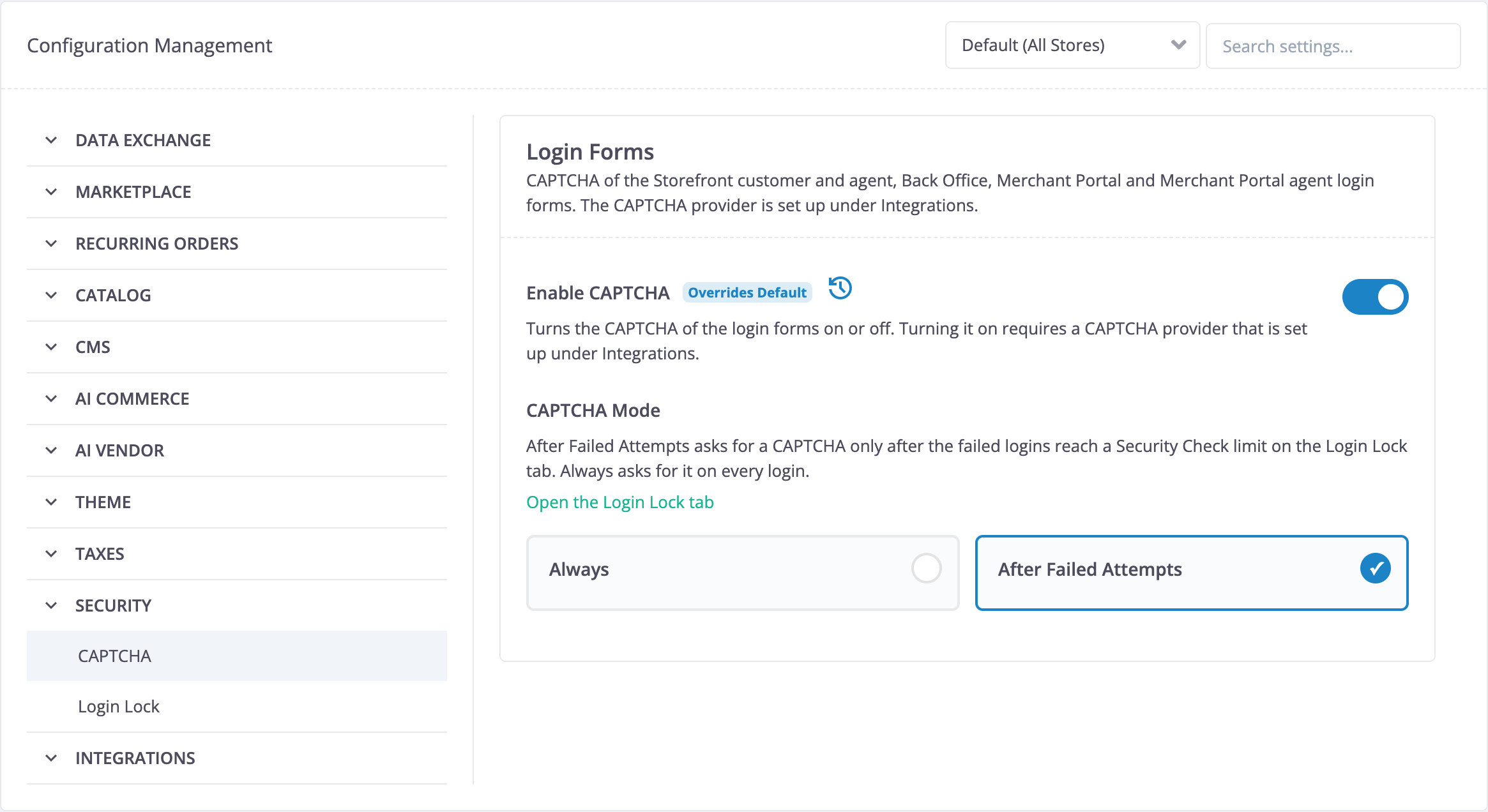
To change the mode, in the Back Office, go to Configuration, select Security in the sidebar, and open the CAPTCHA tab. In the Login Forms group, switch on Enable CAPTCHA, and select the CAPTCHA Mode. The key of the mode setting is security:captcha:login:mode. Both settings have the global scope.
To set the settings during deployment, for example, in a test environment, import them with the configuration-value data importer, as described in Configuration Management. The data importer validates each value against the range of its setting, as the Back Office does, and rejects any other value. The following example switches the CAPTCHA on in the after_failed_attempts mode, lowers the number of failed logins to one account after which a login form requires a CAPTCHA, and switches off the per-IP address and all-accounts challenge thresholds of the login brute-force protection, because all tests log in from one IP address:
>setting_key,scope,scope_identifier,value
security:captcha:login:is_enabled,global,,true
security:captcha:login:mode,global,,after_failed_attempts
security:login_lock:customer:challenge_account_number_of_failed_attempts,global,,2
security:login_lock:user:challenge_account_number_of_failed_attempts,global,,2
security:login_lock:customer:challenge_ip_number_of_failed_attempts,global,,0
security:login_lock:customer:challenge_all_accounts_number_of_failed_attempts,global,,0
security:login_lock:user:challenge_ip_number_of_failed_attempts,global,,0
security:login_lock:user:challenge_all_accounts_number_of_failed_attempts,global,,0
In the Back Office, go to Configuration > Security > CAPTCHA. Make sure the following applies:
-
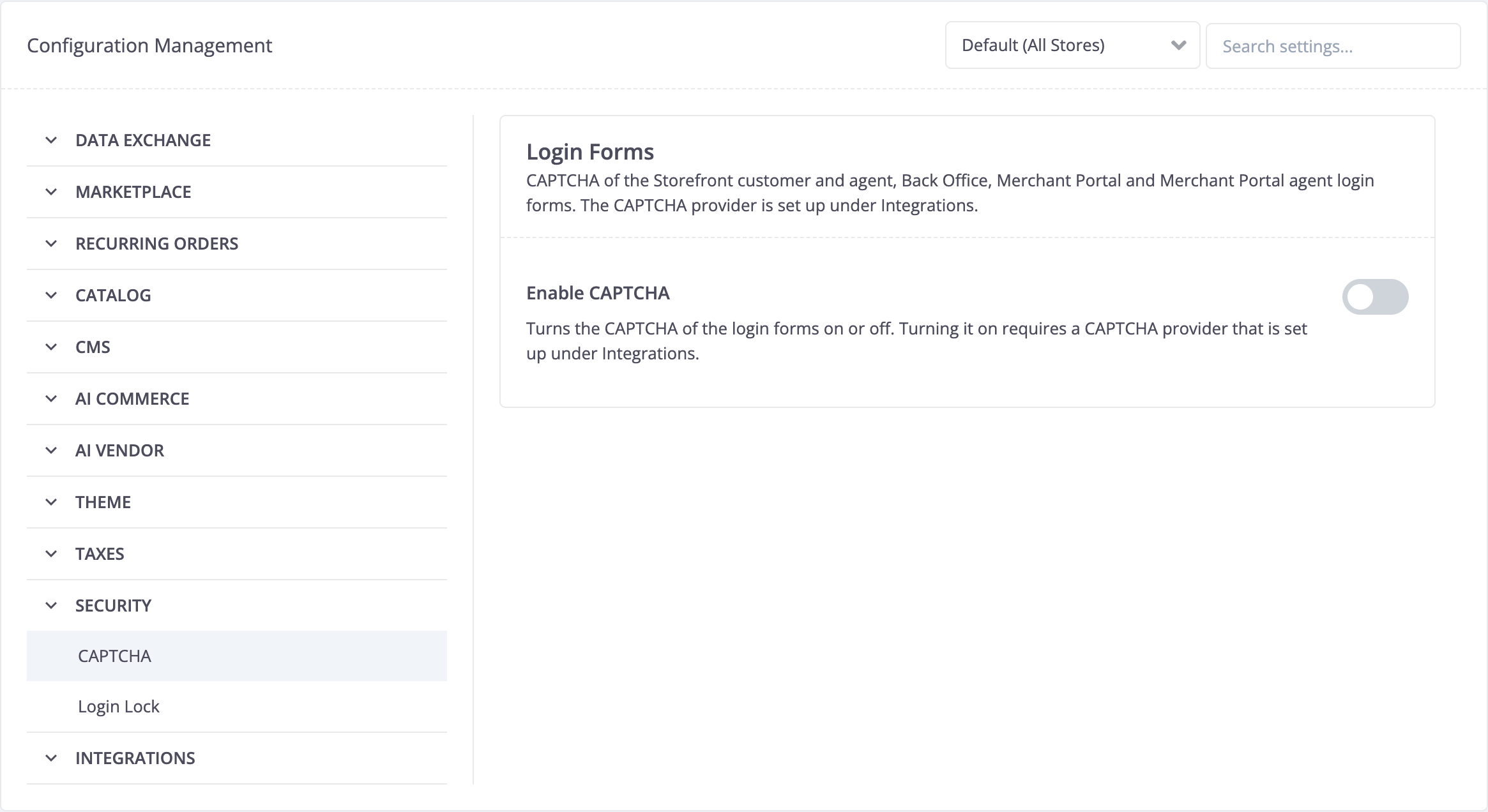
The Login Forms group contains the Enable CAPTCHA setting, and it is off. The Back Office hides the other settings of the group.
-
When you switch on Enable CAPTCHA, the CAPTCHA Mode setting appears with the After Failed Attempts and Always options, and After Failed Attempts is selected. The Open the Login Lock tab link below its description opens Configuration > Security > Login Lock.
-
The Login Forms group contains no other settings. The numbers of failed logins are in Configuration > Security > Login Lock.
-
If you have not set up a CAPTCHA provider, saving Enable CAPTCHA in the on state fails with the
Set up the CAPTCHA provider under Integrations before turning on the CAPTCHA.message below the setting.
End-to-end tests cannot solve a CAPTCHA. Keep the CAPTCHA switched off in such an environment, which is the default. To test the CAPTCHA itself, switch it on by importing true for security:captcha:login:is_enabled, and keep the default after_failed_attempts CAPTCHA mode. Then only the tests that make failed logins have to solve a CAPTCHA. To make these tests shorter, import a lower number of failed attempts, as shown in the previous example.
- Optional: Adjust the rate limit of the challenge endpoints.
A CAPTCHA provider that implements CaptchaChallengeUrlProviderPluginInterface, such as ALTCHA, lets its widget fetch the challenge from a challenge endpoint. The endpoints count the challenge requests in fixed time windows. A window starts with its first request.
| CONFIGURATION | SPECIFICATION | NAMESPACE |
|---|---|---|
| CaptchaConfig::getChallengeRateLimitPerIp() | Defines the number of challenge requests per window for one context and one IP address. A request that exceeds this limit gets the 429 status with a Retry-After header. Default: 30. |
Spryker\Client\Captcha |
| CaptchaConfig::getChallengeRateWarningThresholdPerContext() | Defines the number of challenge requests per window for one context from all IP addresses together, at which a warning is logged, once per window. This count never rejects a request, because a limit for all visitors of a login form would let a few hundred requests lock every visitor out of the form. 0 disables the count. Default: 600. |
Spryker\Client\Captcha |
| CaptchaConfig::getChallengeRateLimitWindowSeconds() | Defines the length of a window in seconds. Default: 60. |
Spryker\Client\Captcha |
A request rejected for its IP address is not added to the count of the context. The CAPTCHA key-value storage holds the counters in the captcha:challenge-rate:{<context>}:ip:<hash> and captcha:challenge-rate:{<context>}:all keys. <hash> is the SHA-256 hash of the IP address, so the key-value storage holds no IP address in clear text. An IPv6 address is counted for its /64 network, and an IPv4-mapped IPv6 address for its IPv4 address. If the key-value storage fails, the endpoint answers with the 503 status and logs an error.
To limit challenge requests from many IP addresses, use the rate limiting of your load balancer or web application firewall for the challenge endpoints.
To change a value, override its method:
src/Pyz/Client/Captcha/CaptchaConfig.php
<?php

namespace Pyz\Client\Captcha;

use Spryker\Client\Captcha\CaptchaConfig as SprykerCaptchaConfig;

class CaptchaConfig extends SprykerCaptchaConfig
{
    public function getChallengeRateWarningThresholdPerContext(): int
    {
        return 1200;
    }
}
3) Set up transfer objects
Generate transfer changes:
console transfer:generate
Make sure the following transfer objects have been generated in src/Generated/Shared/Transfer/: CaptchaChallengeDataRequestTransfer, CaptchaChallengeDataResponseTransfer, CaptchaChallengeRequestTransfer, CaptchaChallengeResponseTransfer, CaptchaLoginFormTransfer, CaptchaRequirementRequestTransfer, CaptchaVerificationRequestTransfer, CaptchaVerificationResponseTransfer, and CaptchaWidgetTransfer.
4) Add translations
- Append the glossary with the messages of the Storefront login forms:
data/import/common/common/glossary.csv
>captcha.error.required,"Please complete the security check.",en_US
captcha.error.required,"Bitte schließen Sie die Sicherheitsprüfung ab.",de_DE
captcha.error.invalid,"The security check could not be verified. Please try again.",en_US
captcha.error.invalid,"Die Sicherheitsprüfung konnte nicht bestätigt werden. Bitte versuchen Sie es erneut.",de_DE
captcha.error.expired,"The security check has expired. Please try again.",en_US
captcha.error.expired,"Die Sicherheitsprüfung ist abgelaufen. Bitte versuchen Sie es erneut.",de_DE
captcha.error.unavailable,"The security check is currently unavailable. Please try again later.",en_US
captcha.error.unavailable,"Die Sicherheitsprüfung ist derzeit nicht verfügbar. Bitte versuchen Sie es später erneut.",de_DE
captcha.noscript,"Please enable JavaScript to complete the security check.",en_US
captcha.noscript,"Bitte aktivieren Sie JavaScript, um die Sicherheitsprüfung abzuschließen.",de_DE
- Import data:
console data:import glossary
- The messages of the Back Office and the Merchant Portal, and the names and descriptions of the CAPTCHA Mode setting, are Zed translation files of the CAPTCHA module. Generate the translation cache:
console translator:generate-cache
Make sure that, in the database, the configured data has been added to the spy_glossary_key and spy_glossary_translation tables.
5) Set up behavior
LoginCaptchaEventDispatcherPlugin checks the CAPTCHA of a submitted login form after the login blockers check whether the login is blocked, and before they count the attempt and the firewall processes the login. A login form expander plugin adds the CAPTCHA field to each login form.
LoginCaptchaEventDispatcherPlugin of Yves checks both Storefront login forms, and LoginCaptchaEventDispatcherPlugin of Zed checks the Back Office, Merchant Portal, and Merchant Portal agent login forms. If a checked login form has no CAPTCHA field, every login through this form is rejected with the Please complete the security check. message: in the always CAPTCHA mode at once, and in the after_failed_attempts CAPTCHA mode once a CAPTCHA is required. So, register the expander plugin of every login form that your project has, together with LoginCaptchaEventDispatcherPlugin.
Set up the Storefront login forms
| PLUGIN | SPECIFICATION | PREREQUISITES | NAMESPACE |
|---|---|---|---|
| LoginCaptchaEventDispatcherPlugin | Checks the CAPTCHA of a submitted customer or agent login form. Tells the forms apart by the login check route. A submission without a valid solution is rejected: the customer or agent is redirected to the login page with an error message, or the multi-factor authentication script receives a JSON response. Does nothing while the Enable CAPTCHA setting is off, or in the after_failed_attempts CAPTCHA mode while no CAPTCHA is required. |
Register it before SecurityBlockerCustomerEventDispatcherPlugin and SecurityBlockerAgentEventDispatcherPlugin. |
Spryker\Yves\Captcha\Plugin\EventDispatcher |
| CaptchaRouteProviderPlugin | Adds the captcha-challenge route, /captcha/challenge, from which the widget of the Storefront login forms fetches its challenge. Without the route, the login forms create their challenge while the page renders and log an error that names CaptchaRouteProviderPlugin. |
Spryker\Yves\Captcha\Plugin\Router | |
| CustomerLoginFormCaptchaExpanderPlugin | Adds the CAPTCHA field with the storefront_customer_login context to the customer login form, including the login step of the checkout. In the always CAPTCHA mode, adds the field every time the form is rendered. In the after_failed_attempts CAPTCHA mode, adds the field only while a CAPTCHA is required. Adds nothing while the Enable CAPTCHA setting is off. |
Spryker\Yves\Captcha\Plugin\CustomerPage | |
| AgentLoginFormCaptchaExpanderPlugin | Adds the CAPTCHA field with the storefront_agent_login context to the agent login form, in the same way as CustomerLoginFormCaptchaExpanderPlugin. |
The Agent Assist feature is installed. | Spryker\Yves\Captcha\Plugin\AgentPage |
src/Pyz/Yves/EventDispatcher/EventDispatcherDependencyProvider.php
<?php

namespace Pyz\Yves\EventDispatcher;

use Spryker\Yves\Captcha\Plugin\EventDispatcher\LoginCaptchaEventDispatcherPlugin;
use Spryker\Yves\EventDispatcher\EventDispatcherDependencyProvider as SprykerEventDispatcherDependencyProvider;
use SprykerShop\Yves\SecurityBlockerPage\Plugin\EventDispatcher\SecurityBlockerAgentEventDispatcherPlugin;
use SprykerShop\Yves\SecurityBlockerPage\Plugin\EventDispatcher\SecurityBlockerCustomerEventDispatcherPlugin;

class EventDispatcherDependencyProvider extends SprykerEventDispatcherDependencyProvider
{
    /**
     * @return list<\Spryker\Shared\EventDispatcherExtension\Dependency\Plugin\EventDispatcherPluginInterface>
     */
    protected function getEventDispatcherPlugins(): array
    {
        return [
            new LoginCaptchaEventDispatcherPlugin(),
            new SecurityBlockerCustomerEventDispatcherPlugin(),
            new SecurityBlockerAgentEventDispatcherPlugin(),
        ];
    }
}
src/Pyz/Yves/Router/RouterDependencyProvider.php
<?php

namespace Pyz\Yves\Router;

use Spryker\Yves\Captcha\Plugin\Router\CaptchaRouteProviderPlugin;
use Spryker\Yves\Router\RouterDependencyProvider as SprykerRouterDependencyProvider;

class RouterDependencyProvider extends SprykerRouterDependencyProvider
{
    /**
     * @return list<\Spryker\Yves\RouterExtension\Dependency\Plugin\RouteProviderPluginInterface>
     */
    protected function getRouteProvider(): array
    {
        return [
            new CaptchaRouteProviderPlugin(),
        ];
    }
}
src/Pyz/Yves/CustomerPage/CustomerPageDependencyProvider.php
<?php

namespace Pyz\Yves\CustomerPage;

use Spryker\Yves\Captcha\Plugin\CustomerPage\CustomerLoginFormCaptchaExpanderPlugin;
use SprykerShop\Yves\CustomerPage\CustomerPageDependencyProvider as SprykerShopCustomerPageDependencyProvider;

class CustomerPageDependencyProvider extends SprykerShopCustomerPageDependencyProvider
{
    /**
     * @return list<\SprykerShop\Yves\CustomerPageExtension\Dependency\Plugin\CustomerLoginFormExpanderPluginInterface>
     */
    protected function getCustomerLoginFormExpanderPlugins(): array
    {
        return [
            new CustomerLoginFormCaptchaExpanderPlugin(),
        ];
    }
}
src/Pyz/Yves/AgentPage/AgentPageDependencyProvider.php
<?php

namespace Pyz\Yves\AgentPage;

use Spryker\Yves\Captcha\Plugin\AgentPage\AgentLoginFormCaptchaExpanderPlugin;
use SprykerShop\Yves\AgentPage\AgentPageDependencyProvider as SprykerAgentPageDependencyProvider;

class AgentPageDependencyProvider extends SprykerAgentPageDependencyProvider
{
    /**
     * @return list<\SprykerShop\Yves\AgentPageExtension\Dependency\Plugin\AgentLoginFormExpanderPluginInterface>
     */
    protected function getAgentLoginFormExpanderPlugins(): array
    {
        return [
            new AgentLoginFormCaptchaExpanderPlugin(),
        ];
    }
}
To render the CAPTCHA widget in the Storefront forms, register the form theme of the CAPTCHA module:
src/Pyz/Yves/ShopApplication/ShopApplicationConfig.php
<?php

namespace Pyz\Yves\ShopApplication;

use SprykerShop\Yves\ShopApplication\ShopApplicationConfig as SprykerShopApplicationConfig;

class ShopApplicationConfig extends SprykerShopApplicationConfig
{
    public function getFormThemes(): array
    {
        return array_merge(parent::getFormThemes(), [
            '@Captcha/resources/form/captcha.twig',
        ]);
    }
}
The Storefront login forms render the CAPTCHA field through the form molecule, so the login templates need no changes.
- In the Back Office, go to Configuration > Security > CAPTCHA. Switch on Enable CAPTCHA, select Always as the CAPTCHA Mode, and save. Go to the Storefront login page. Make sure the login form shows the CAPTCHA widget.
- Enter the email address and the correct password of a customer, but do not complete the CAPTCHA. Submit the form.
Make sure the login is rejected with the
Please complete the security check.message. - Complete the CAPTCHA, enter the correct password, and submit the form. Make sure the customer is logged in.
- Make sure the log contains no error that names
CaptchaRouteProviderPlugin. - If you installed the Agent Assist feature, repeat the previous steps on the agent login page,
https://mysprykershop.com/agent/login, with an agent account. - Set Enable CAPTCHA and CAPTCHA Mode back to the values you use.
Set up the Back Office login form
| PLUGIN | SPECIFICATION | PREREQUISITES | NAMESPACE |
|---|---|---|---|
| LoginCaptchaEventDispatcherPlugin | Checks the CAPTCHA of a submitted Back Office, Merchant Portal, or Merchant Portal agent login form. Recognizes the forms by their names: auth, security-merchant-portal-gui, and agent-security-merchant-portal-gui. A submission without a valid solution is rejected: the user is redirected to the login page with an error message. An asynchronous submission, such as one by the multi-factor authentication script of the Back Office or by the Merchant Portal login form, receives a JSON response instead. A request that contains two login forms is rejected. Does nothing while the Enable CAPTCHA setting is off, or in the after_failed_attempts CAPTCHA mode while no CAPTCHA is required. |
Register it before the event dispatcher plugins of the SecurityBlocker modules. | Spryker\Zed\Captcha\Communication\Plugin\EventDispatcher |
| UserLoginFormCaptchaExpanderPlugin | Adds the CAPTCHA field with the backoffice_user_login context to the Back Office login form. In the always CAPTCHA mode, adds the field every time the form is rendered. In the after_failed_attempts CAPTCHA mode, adds the field only while a CAPTCHA is required. Adds nothing while the Enable CAPTCHA setting is off. |
Spryker\Zed\Captcha\Communication\Plugin\SecurityGui |
src/Pyz/Zed/EventDispatcher/EventDispatcherDependencyProvider.php
<?php

namespace Pyz\Zed\EventDispatcher;

use Spryker\Zed\Captcha\Communication\Plugin\EventDispatcher\LoginCaptchaEventDispatcherPlugin;
use Spryker\Zed\EventDispatcher\EventDispatcherDependencyProvider as SprykerEventDispatcherDependencyProvider;
use Spryker\Zed\SecurityBlockerBackofficeGui\Communication\Plugin\EventDispatcher\SecurityBlockerBackofficeUserEventDispatcherPlugin;

class EventDispatcherDependencyProvider extends SprykerEventDispatcherDependencyProvider
{
    /**
     * @return list<\Spryker\Shared\EventDispatcherExtension\Dependency\Plugin\EventDispatcherPluginInterface>
     */
    protected function getEventDispatcherPlugins(): array
    {
        return [
            new LoginCaptchaEventDispatcherPlugin(),
            new SecurityBlockerBackofficeUserEventDispatcherPlugin(),
        ];
    }

    /**
     * @return list<\Spryker\Shared\EventDispatcherExtension\Dependency\Plugin\EventDispatcherPluginInterface>
     */
    protected function getBackofficeEventDispatcherPlugins(): array
    {
        return [
            new LoginCaptchaEventDispatcherPlugin(),
            new SecurityBlockerBackofficeUserEventDispatcherPlugin(),
        ];
    }
}
The Merchant Portal application runs the plugins of getEventDispatcherPlugins() through EventDispatcherApplicationPlugin, so this registration of LoginCaptchaEventDispatcherPlugin also covers the Merchant Portal login forms.
src/Pyz/Zed/SecurityGui/SecurityGuiDependencyProvider.php
<?php

namespace Pyz\Zed\SecurityGui;

use Spryker\Zed\Captcha\Communication\Plugin\SecurityGui\UserLoginFormCaptchaExpanderPlugin;
use Spryker\Zed\SecurityGui\SecurityGuiDependencyProvider as SprykerSecurityGuiDependencyProvider;

class SecurityGuiDependencyProvider extends SprykerSecurityGuiDependencyProvider
{
    /**
     * @return list<\Spryker\Zed\SecurityGuiExtension\Dependency\Plugin\UserLoginFormExpanderPluginInterface>
     */
    protected function getUserLoginFormExpanderPlugins(): array
    {
        return [
            new UserLoginFormCaptchaExpanderPlugin(),
        ];
    }
}
To render the CAPTCHA widget in the Back Office and Merchant Portal forms, register the Zed form theme of the CAPTCHA module. The Gui module does not depend on the CAPTCHA module, so its default form themes do not contain this theme, and each project adds it:
src/Pyz/Zed/Gui/GuiConfig.php
<?php

namespace Pyz\Zed\Gui;

use Spryker\Zed\Gui\GuiConfig as SprykerGuiConfig;

class GuiConfig extends SprykerGuiConfig
{
    public function getDefaultTemplateFileNames(): array
    {
        return array_merge(parent::getDefaultTemplateFileNames(), [
            '@Captcha/Form/Type/captcha.twig',
        ]);
    }
}
The default Back Office login template renders the CAPTCHA field before the submit button. If your project overrides @SecurityGui/Login/index.twig, add the field to your template:
{% if form.captcha is defined %}{{ form_row(form.captcha) }}{% endif %}
The CAPTCHA widget requests its challenge before the user is logged in, so the challenge endpoint of the Back Office must allow anonymous access. Add captcha/challenge$ to the routes that the Back Office firewall ignores. The $ keeps every other path that starts with captcha/challenge behind the login. If your project already overrides the pattern, add captcha/challenge$ to its alternatives:
src/Pyz/Zed/SecurityGui/SecurityGuiConfig.php
<?php

namespace Pyz\Zed\SecurityGui;

use Spryker\Zed\SecurityGui\SecurityGuiConfig as SprykerSecurityGuiConfig;

class SecurityGuiConfig extends SprykerSecurityGuiConfig
{
    /**
     * @var string
     */
    protected const IGNORABLE_ROUTE_PATTERN = '^/(security-gui|captcha/challenge$)';
}
Allow the challenge endpoints in the access control rules. The second rule is for the Merchant Portal endpoint:
src/Pyz/Zed/Acl/AclConfig.php
<?php

namespace Pyz\Zed\Acl;

use Spryker\Shared\Acl\AclConstants;
use Spryker\Zed\Acl\AclConfig as SprykerAclConfig;

class AclConfig extends SprykerAclConfig
{
    /**
     * @return array<int, array<string, mixed>>
     */
    public function getRules(): array
    {
        $rules = [
            // ...
            [
                'bundle' => 'captcha',
                'controller' => 'challenge',
                'action' => 'index',
                'type' => AclConstants::ALLOW,
            ],
            [
                'bundle' => 'captcha',
                'controller' => 'merchant-portal-challenge',
                'action' => 'index',
                'type' => AclConstants::ALLOW,
            ],
        ];

        return array_merge($rules, $this->rules);
    }
}
Without anonymous access, the challenge endpoints redirect to the login page instead of returning a challenge. The widget then gets no challenge to solve, so every login that requires a CAPTCHA fails.
- In the Back Office, go to Configuration > Security > CAPTCHA. Switch on Enable CAPTCHA, select Always as the CAPTCHA Mode, and save. Log out. Make sure the login form shows the CAPTCHA widget.
- Complete the CAPTCHA, enter the correct password of a user, and submit the form. Make sure you are logged in to the Back Office.
- Set Enable CAPTCHA and CAPTCHA Mode back to the values you use.
Set up the Merchant Portal login forms
Follow this section if you installed the Marketplace Merchant Portal Core feature.
| PLUGIN | SPECIFICATION | PREREQUISITES | NAMESPACE |
|---|---|---|---|
| MerchantPortalLoginFormCaptchaExpanderPlugin | Adds the CAPTCHA field with the merchant_portal_user_login context to the Merchant Portal login form. In the always CAPTCHA mode, adds the field every time the form is rendered. In the after_failed_attempts CAPTCHA mode, adds the field only while a CAPTCHA is required. Adds nothing while the Enable CAPTCHA setting is off. |
Spryker\Zed\Captcha\Communication\Plugin\SecurityMerchantPortalGui | |
| AgentMerchantPortalLoginFormCaptchaExpanderPlugin | Adds the CAPTCHA field with the merchant_portal_agent_login context to the Merchant Portal agent login form, in the same way as MerchantPortalLoginFormCaptchaExpanderPlugin. |
The Merchant Portal Agent Assist feature is installed. | Spryker\Zed\Captcha\Communication\Plugin\AgentSecurityMerchantPortalGui |
| ConfigurationApplicationPlugin | Provides the settings of the Configuration Management feature, including the secret settings, to the Merchant Portal. The CAPTCHA provider reads its secret with it. Without the plugin, the Merchant Portal sends every CAPTCHA challenge and solution to the Backend Gateway and logs a warning. | If you already registered it as described in Install the Merchant Portal Core feature, skip it. | Spryker\Zed\Configuration\Communication\Plugin\Application |
src/Pyz/Zed/SecurityMerchantPortalGui/SecurityMerchantPortalGuiDependencyProvider.php
<?php

namespace Pyz\Zed\SecurityMerchantPortalGui;

use Spryker\Zed\Captcha\Communication\Plugin\SecurityMerchantPortalGui\MerchantPortalLoginFormCaptchaExpanderPlugin;
use Spryker\Zed\SecurityMerchantPortalGui\SecurityMerchantPortalGuiDependencyProvider as SprykerSecurityMerchantPortalGuiDependencyProvider;

class SecurityMerchantPortalGuiDependencyProvider extends SprykerSecurityMerchantPortalGuiDependencyProvider
{
    /**
     * @return list<\Spryker\Zed\SecurityMerchantPortalGuiExtension\Dependency\Plugin\MerchantPortalLoginFormExpanderPluginInterface>
     */
    protected function getMerchantPortalLoginFormExpanderPlugins(): array
    {
        return [
            new MerchantPortalLoginFormCaptchaExpanderPlugin(),
        ];
    }
}
src/Pyz/Zed/AgentSecurityMerchantPortalGui/AgentSecurityMerchantPortalGuiDependencyProvider.php
<?php

namespace Pyz\Zed\AgentSecurityMerchantPortalGui;

use Spryker\Zed\AgentSecurityMerchantPortalGui\AgentSecurityMerchantPortalGuiDependencyProvider as SprykerAgentSecurityMerchantPortalGuiDependencyProvider;
use Spryker\Zed\Captcha\Communication\Plugin\AgentSecurityMerchantPortalGui\AgentMerchantPortalLoginFormCaptchaExpanderPlugin;

class AgentSecurityMerchantPortalGuiDependencyProvider extends SprykerAgentSecurityMerchantPortalGuiDependencyProvider
{
    /**
     * @return list<\Spryker\Zed\SecurityMerchantPortalGuiExtension\Dependency\Plugin\MerchantPortalLoginFormExpanderPluginInterface>
     */
    protected function getMerchantPortalAgentLoginFormExpanderPlugins(): array
    {
        return [
            new AgentMerchantPortalLoginFormCaptchaExpanderPlugin(),
        ];
    }
}
src/Pyz/Zed/MerchantPortalApplication/MerchantPortalApplicationDependencyProvider.php
<?php

namespace Pyz\Zed\MerchantPortalApplication;

use Spryker\Zed\Configuration\Communication\Plugin\Application\ConfigurationApplicationPlugin;
use Spryker\Zed\MerchantPortalApplication\MerchantPortalApplicationDependencyProvider as SprykerMerchantPortalApplicationDependencyProvider;

class MerchantPortalApplicationDependencyProvider extends SprykerMerchantPortalApplicationDependencyProvider
{
    /**
     * @return array<\Spryker\Shared\ApplicationExtension\Dependency\Plugin\ApplicationPluginInterface>
     */
    protected function getMerchantPortalApplicationPlugins(): array
    {
        return [
            // ...
            new ConfigurationApplicationPlugin(),
        ];
    }
}
The default Merchant Portal login templates render the CAPTCHA field before the submit button. If your project overrides @SecurityMerchantPortalGui/Login/index.twig or @AgentSecurityMerchantPortalGui/Login/index.twig, add the field to your template with form_widget. The Merchant Portal form item, web-spy-form-item, places only the form control into its field area, so form_row does not show the CAPTCHA widget.
{% if form.captcha is defined %}<div class="ant-form-item">{{ form_widget(form.captcha) }}</div>{% endif %}
The Merchant Portal login form is submitted asynchronously. When the CAPTCHA is rejected, the response redirects to the login page and shows the reason as a notification.
A CAPTCHA solution and the CSRF token of the login form can be used only once. If the login form were sent a second time, for example after a double-click on the login button, the second request would fail and show an error message after the first request has logged the user in. The multi-factor authentication handler of the Merchant Portal sends a login form only once when the template marks the form as a login form. If your project overrides one of the Merchant Portal login templates, pass isLogin: true to the handler:
{% include '@MultiFactorAuthMerchantPortal/Partials/mp-mfa-handler.twig' ignore missing with {
    formSelector: "form[name=#{form.vars.name}]",
    url: form.vars.action,
    isLogin: true,
} %}
The challenge endpoint of the Merchant Portal must allow anonymous access. The Back Office firewall covers every path of the Merchant Portal application, so add captcha/merchant-portal-challenge$ to the paths that the Merchant Portal firewall ignores. Do not add it to MERCHANT_PORTAL_ROUTE_PATTERN: this pattern also defines the firewall of the multi-factor authentication of the Merchant Portal, which runs without security. If your project already overrides the pattern, add captcha/merchant-portal-challenge$ to its alternatives:
src/Pyz/Zed/SecurityMerchantPortalGui/SecurityMerchantPortalGuiConfig.php
<?php

namespace Pyz\Zed\SecurityMerchantPortalGui;

use Spryker\Zed\SecurityMerchantPortalGui\SecurityMerchantPortalGuiConfig as SprykerSecurityMerchantPortalGuiConfig;

class SecurityMerchantPortalGuiConfig extends SprykerSecurityMerchantPortalGuiConfig
{
    /**
     * @var string
     */
    protected const IGNORABLE_PATH_PATTERN = '^/(security-merchant-portal-gui|captcha/merchant-portal-challenge$)';
}
The access control rule of the Merchant Portal endpoint is part of the AclConfig example in Set up the Back Office login form.
- In the Back Office, go to Configuration > Security > CAPTCHA. Switch on Enable CAPTCHA, select Always as the CAPTCHA Mode, and save. Go to the Merchant Portal login page. Make sure the login form shows the CAPTCHA widget.
- Complete the CAPTCHA, enter the correct password of a merchant user, and submit the form. Make sure you are logged in to the Merchant Portal.
- Log out. Complete the CAPTCHA, enter the correct password, and double-click the login button. Make sure you are logged in to the Merchant Portal and no error message is shown.
- If you installed the Merchant Portal Agent Assist feature, repeat the previous steps on
https://mp.mysprykershop.com/agent-security-merchant-portal-gui/loginwith a merchant agent. - Set Enable CAPTCHA and CAPTCHA Mode back to the values you use.
Challenge endpoints
A CAPTCHA provider that implements CaptchaChallengeUrlProviderPluginInterface, such as ALTCHA, renders its widget without a challenge. The widget fetches the challenge from the challenge endpoint of its application. A login form without a challenge URL, or with a provider that does not implement the interface, creates its challenge while the page renders.
| CHALLENGE ENDPOINT | LOGIN FORMS |
|---|---|
Storefront: /captcha/challenge?context=<context>, with the store and locale prefix of the router. CaptchaRouteProviderPlugin adds it as the captcha-challenge route. |
Customer login and agent login |
Back Office: /captcha/challenge?context=<context> |
Back Office login |
Merchant Portal: /captcha/merchant-portal-challenge?context=<context> |
Merchant Portal login and Merchant Portal agent login |
Each endpoint answers with the Cache-Control: no-store header and one of the following statuses. An error response has a JSON body with an error code, for example, {"error":"rate_limited"}. The codes are the CHALLENGE_RESPONSE_ERROR_* constants of Spryker\Shared\Captcha\CaptchaConfig.
| STATUS | RESPONSE |
|---|---|
200 |
The JSON document of a new challenge. |
404 |
not_found: the context belongs to the login forms of another endpoint, or the context is unknown. |
405 |
method_not_allowed: the Back Office and Merchant Portal endpoints accept only GET and HEAD requests and name them in the Allow header. The Storefront route accepts only GET and HEAD requests, and the router answers other methods with its error page. |
429 |
rate_limited: the request exceeds the rate limit of its IP address. The Retry-After header contains the length of the window in seconds. |
503 |
unavailable: the endpoint fails to create a challenge, for example, because the key-value storage fails or the CAPTCHA provider does not implement CaptchaChallengeUrlProviderPluginInterface. The endpoint logs an error, except when no CAPTCHA provider is registered. |
The Back Office and Merchant Portal endpoints serve the login forms of Spryker\Zed\Captcha\CaptchaConfig::getLoginForms(). Each endpoint serves only the contexts of the forms whose challenge URL is its own path. To protect another Back Office or Merchant Portal login form, override getLoginForms() and append a CaptchaLoginFormTransfer with the following properties:
| PROPERTY | DESCRIPTION |
|---|---|
formName |
The name of the form in the POST body, by which LoginCaptchaEventDispatcherPlugin recognizes a submission. |
context |
The CAPTCHA context of the form. |
usernameFieldName |
The name of the username field of the form. |
loginUrl |
The page to which a submission with a rejected CAPTCHA is redirected. |
rejectionResponseType |
CaptchaConfig::REJECTION_RESPONSE_TYPE_REDIRECT for a Back Office form, CaptchaConfig::REJECTION_RESPONSE_TYPE_ZED_UI for a Merchant Portal form. |
challengeUrl |
The path of the challenge endpoint that serves the form. |
6) Build the frontend
Rebuild the frontends, so that they include the widget of the CAPTCHA provider:
npm run yves
npm run zed
console frontend:mp:build
In deployment pipelines, use npm run yves:production, npm run zed:production, and console frontend:mp:build --environment production.
For the Merchant Portal, use the console command instead of npm run mp:build, which is different from the Storefront and Back Office builds. A CAPTCHA provider is a spryker-eco package. The Merchant Portal builder finds the frontend of the packages in vendor/spryker-eco only through the build configuration that the console command generates, data/cache/MerchantPortal/frontend/build-config.json. This file lists the namespaces of KernelConstants::CORE_NAMESPACES, so make sure that SprykerEco is in this list. Without the file, the Merchant Portal login forms show no CAPTCHA widget.
Make sure the Storefront, Back Office, and Merchant Portal login forms show the CAPTCHA widget of your CAPTCHA provider.
Thank you!
For submitting the form