
Product Availability Display feature overview
Edit on GitHubThe Product Availability Display feature shows stock quantities on product detail pages, in shopping carts, and in the Buy Box in marketplace scenarios. When you enable the feature, availability displays in three states: in stock with quantity, available (for never-out-of-stock products), or out of stock.
Display modes
The feature supports two display modes:
Indicator only: Shows the availability status without quantities. Products display as “Available” or “Out of stock.”
Indicator with quantity: Shows the availability status with exact quantities. Products display as “19 in stock” or “Out of stock.”
Stock display on product detail page
Availability information appears on product detail pages for concrete products (specific product variants).
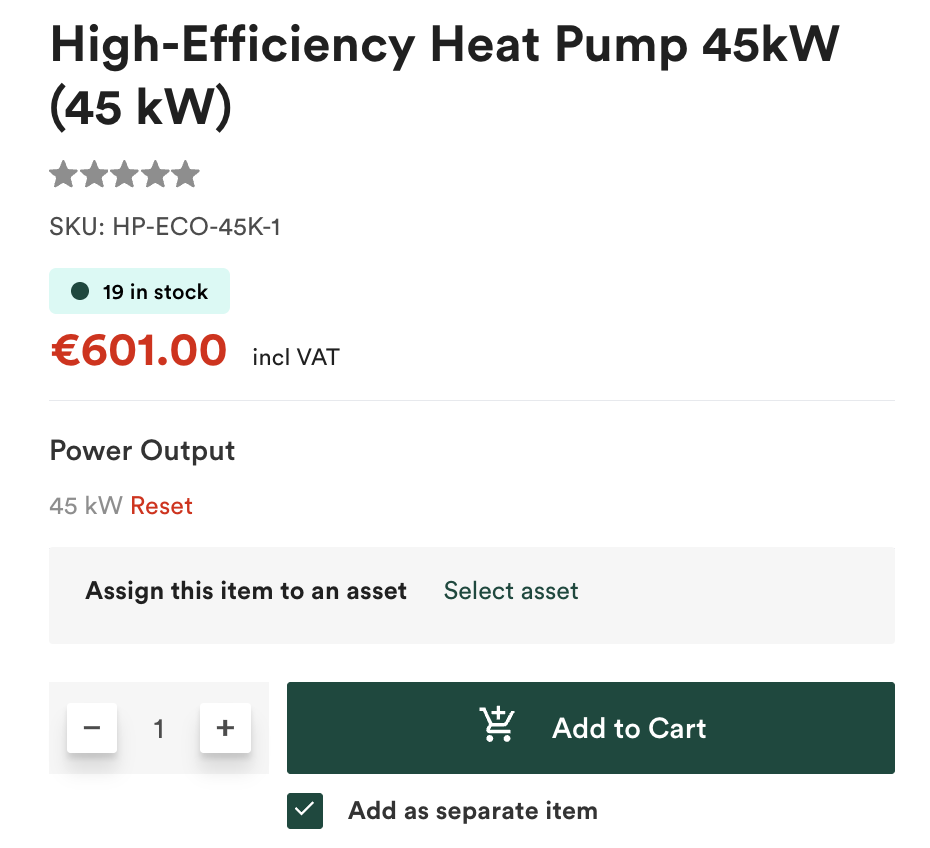
When a product has available inventory, the system displays the quantity. The format is “X in stock,” for example, “19 in stock.”
Never-out-of-stock products
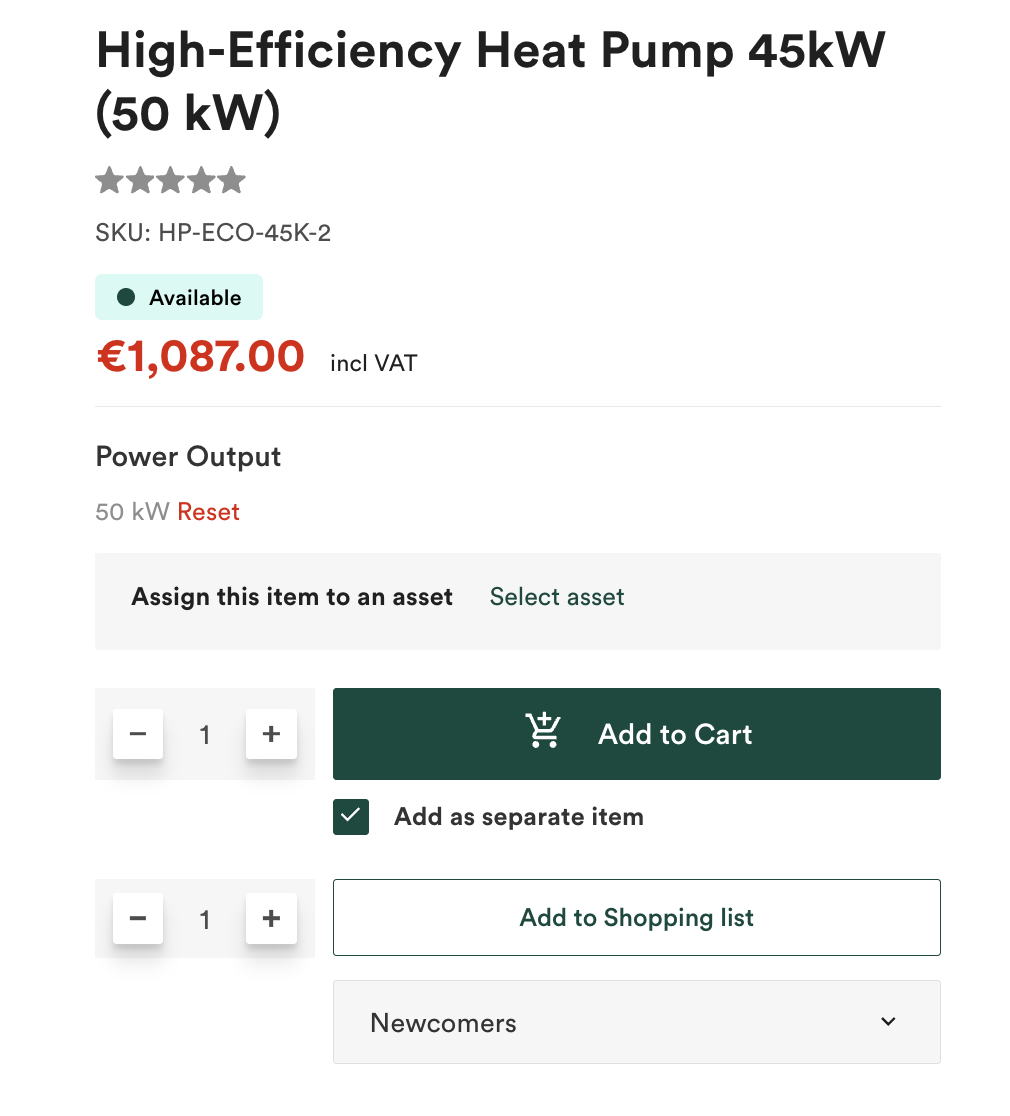
Products marked as never out of stock display “Available” without showing a quantity. These products remain available regardless of inventory levels.
Out of stock
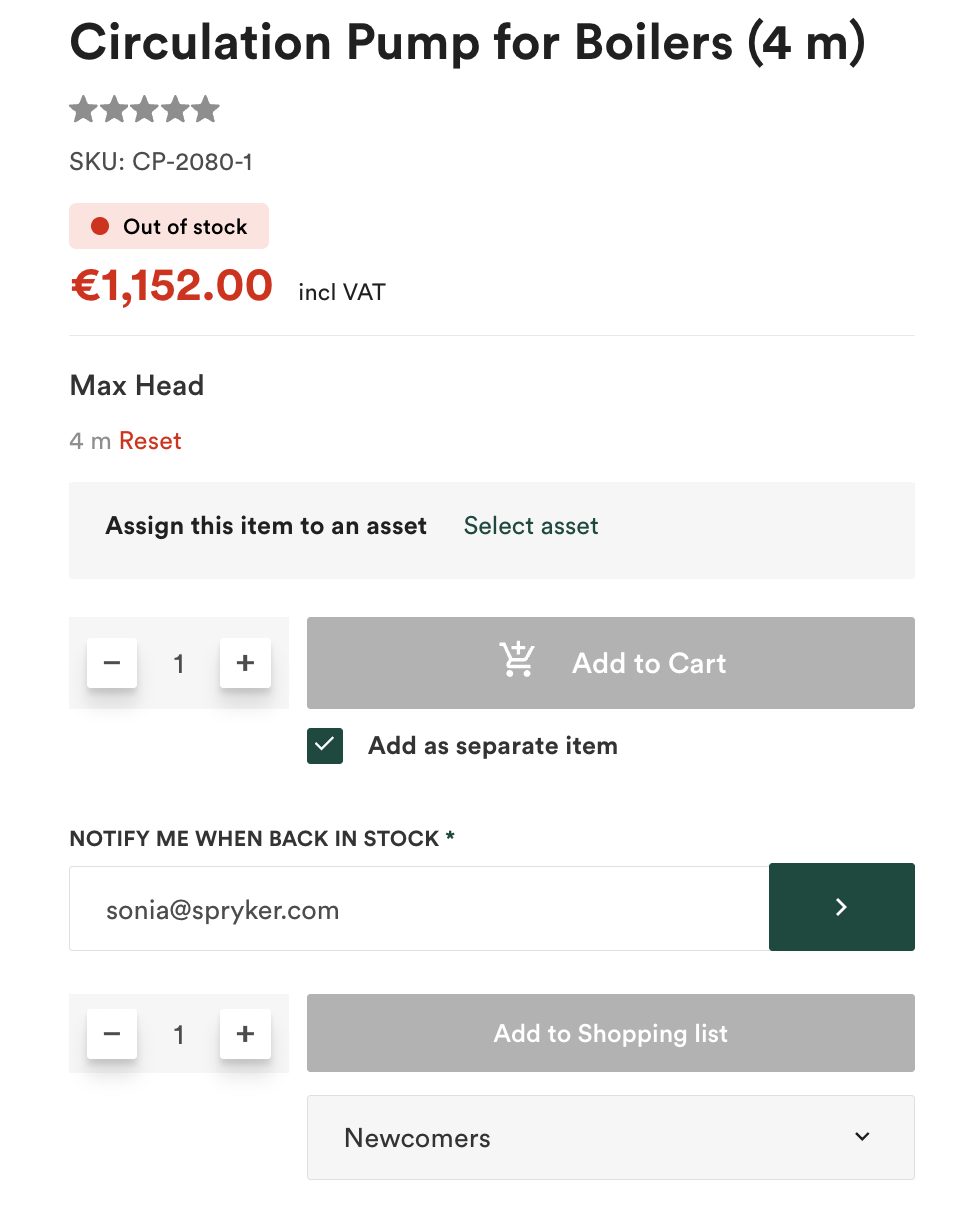
When a product has zero available inventory and is not marked as never out of stock, the system displays “Out of stock”.
Dynamic updates with variant selection
When customers select different product variants, such as color or size, the availability display updates automatically to show stock for the selected variant.
Stock display in shopping cart
Availability information appears for each line item in the shopping cart.
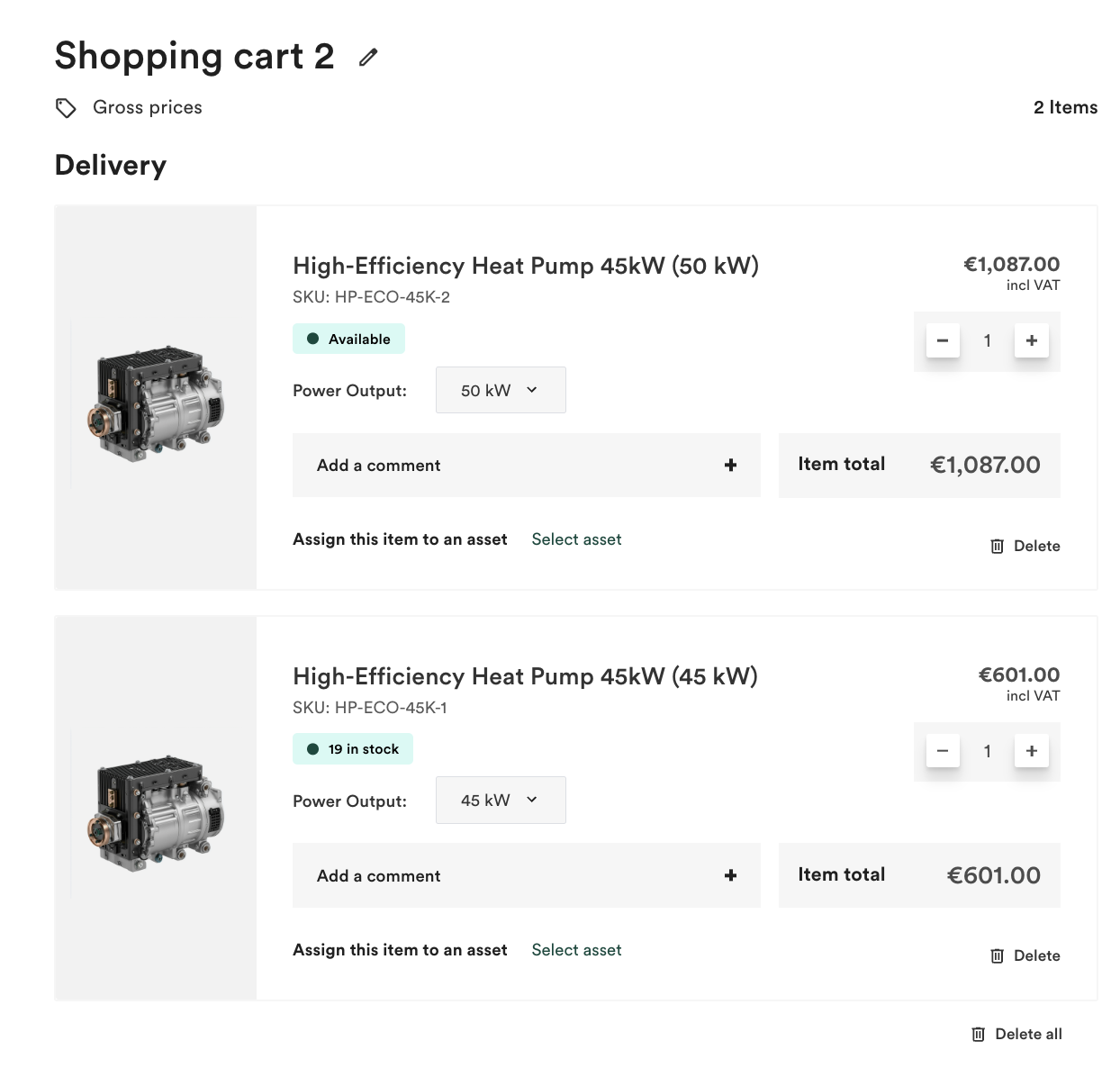
Each cart item displays its current availability status, for example “19 in stock” or “Available”. If stock levels change after a customer adds items to the cart and before checkout, the cart display reflects the current availability.
The system validates stock availability during checkout. If the requested quantity exceeds the available stock, checkout cannot be completed until the customer adjusts the order.
Measurement unit support
When products have measurement units configured, availability displays with the unit.
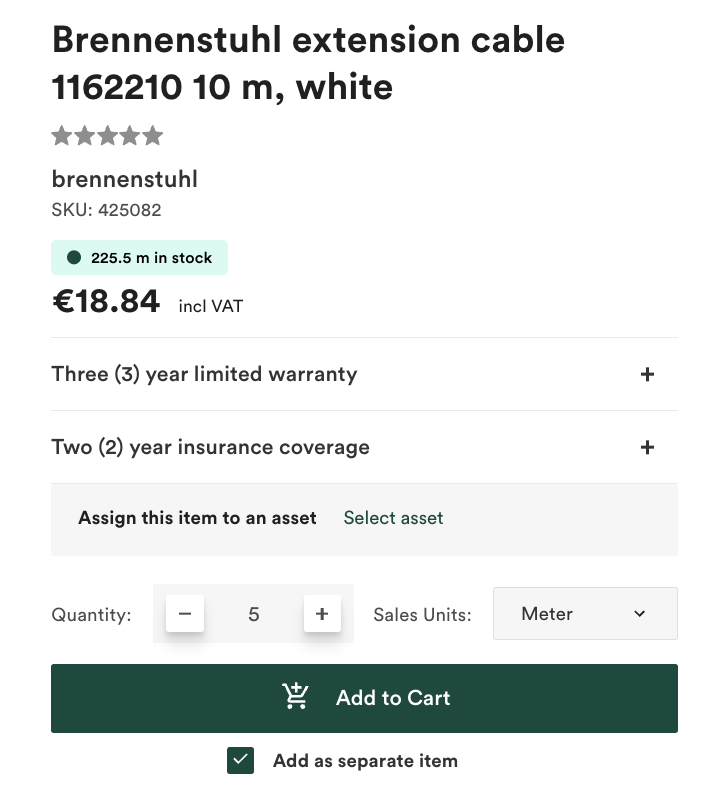
For example, “225.5 m in stock” instead of “225.5 in stock.” The measurement unit is appended to the quantity based on the product’s configured base unit.
Stock display in Buy Box
In marketplace scenarios, when combined with the Buy Box feature, availability information appears per merchant offer. Customers can see stock availability for each merchant selling the product.
For details about Buy Box integration, see Buy Box feature overview.
Configuration
You configure the Product Availability Display feature at the code level. The following configuration options are available:
- Enable or disable stock display: The feature is disabled by default.
- Display mode: Indicator only or indicator with quantity.
- Decimal precision: Number of decimal places for quantities (default: 2).
For configuration details, see Install the Product Availability Display feature.
Use cases
Use this feature when:
- Customers need to see stock quantities to plan purchases
- Customers need to verify availability before ordering
- Multiple merchants sell the same product and stock varies by merchant (marketplace scenarios)
- Products are sold in measurement units and quantities need to display with units
Limitations
- Reserved or allocated stock is not shown separately.
- Backorder management and pre-orders are not supported.
- Per-warehouse availability is not displayed to customers.
- Restock notifications are not provided.
- Inventory forecasting and expected restock dates are not shown.
Related documents
Thank you!
For submitting the form