
View service points
Edit on GitHubThis topic describes how to view service points in the Back Office.
To start working with service points, go to Customer Portal > Service Points.
The Back Office presents service points as read-only information. To create or change them, use the Glue API or data import.
Prerequisites
Import service points, or add them using Glue API. Both active and inactive service points are displayed.
Each section contains reference information. Review it before you start, or look up the necessary information as you go through the process.
View the list of service points
To view all the service points of your project:
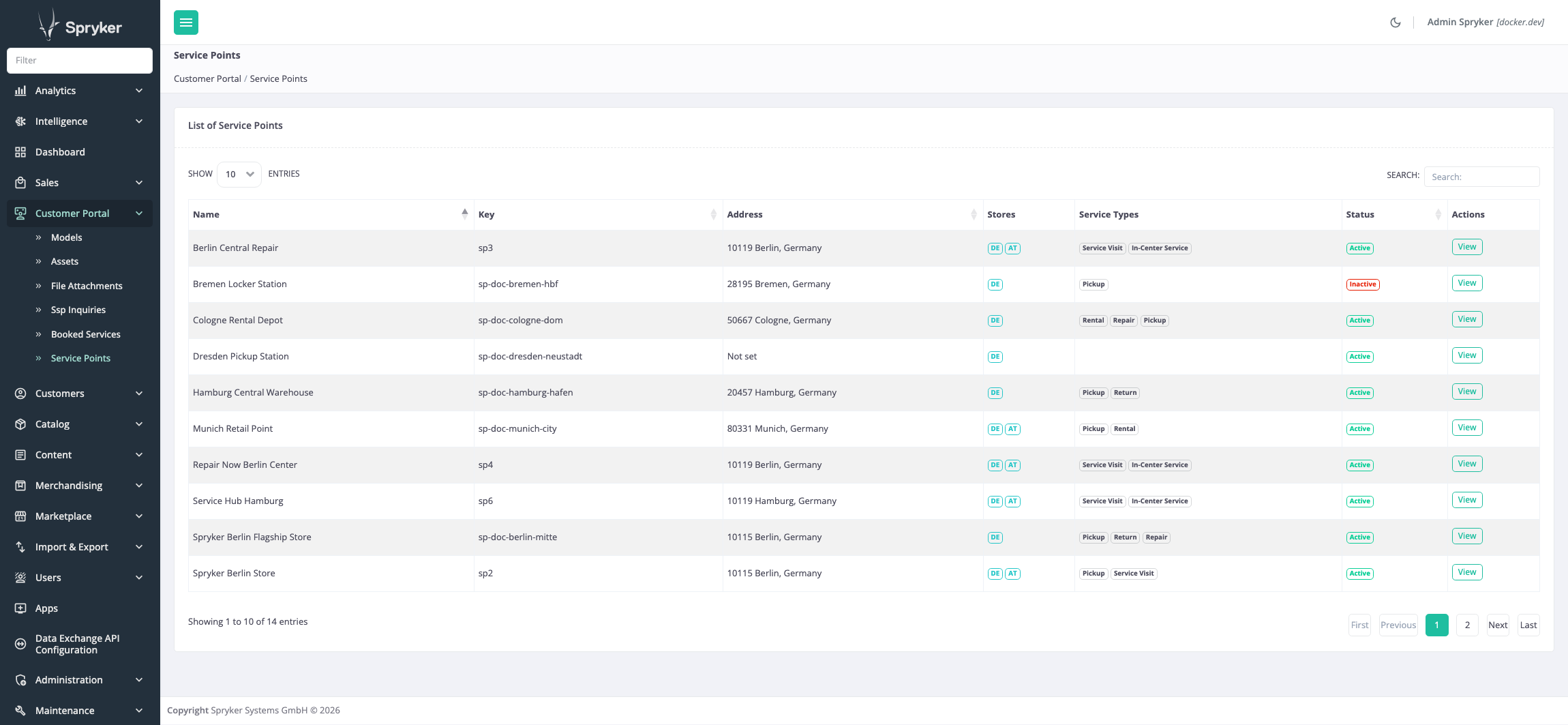
- Go to Customer Portal > Service Points. This opens the Service Points page.
- Optional: To find a specific service point, enter its name, key, city, zip code, or country in Search.
- Optional: To change the order of the records, click a column header.
Tips and tricks
Inactive service points remain in the list and are marked as Inactive. A service point that has no address yet is displayed with Not set in the Address column.
Reference information: View the list of service points
The following table describes the columns of the Service Points page:
| COLUMN | DESCRIPTION |
|---|---|
| Name | Name of the service point. |
| Key | Unique service point identifier. |
| Address | Zip code, city, and country of the service point. Displays Not set if the service point has no address. |
| Stores | All the stores the service point is assigned to. |
| Service Types | Service types of all the services provided at the service point. |
| Status | Defines if the service point is active. Inactive service points are not offered on the Storefront. |
| Actions | Opens the details of the service point. |
View the details of a service point
To view the details of a service point:
- Go to Customer Portal > Service Points.
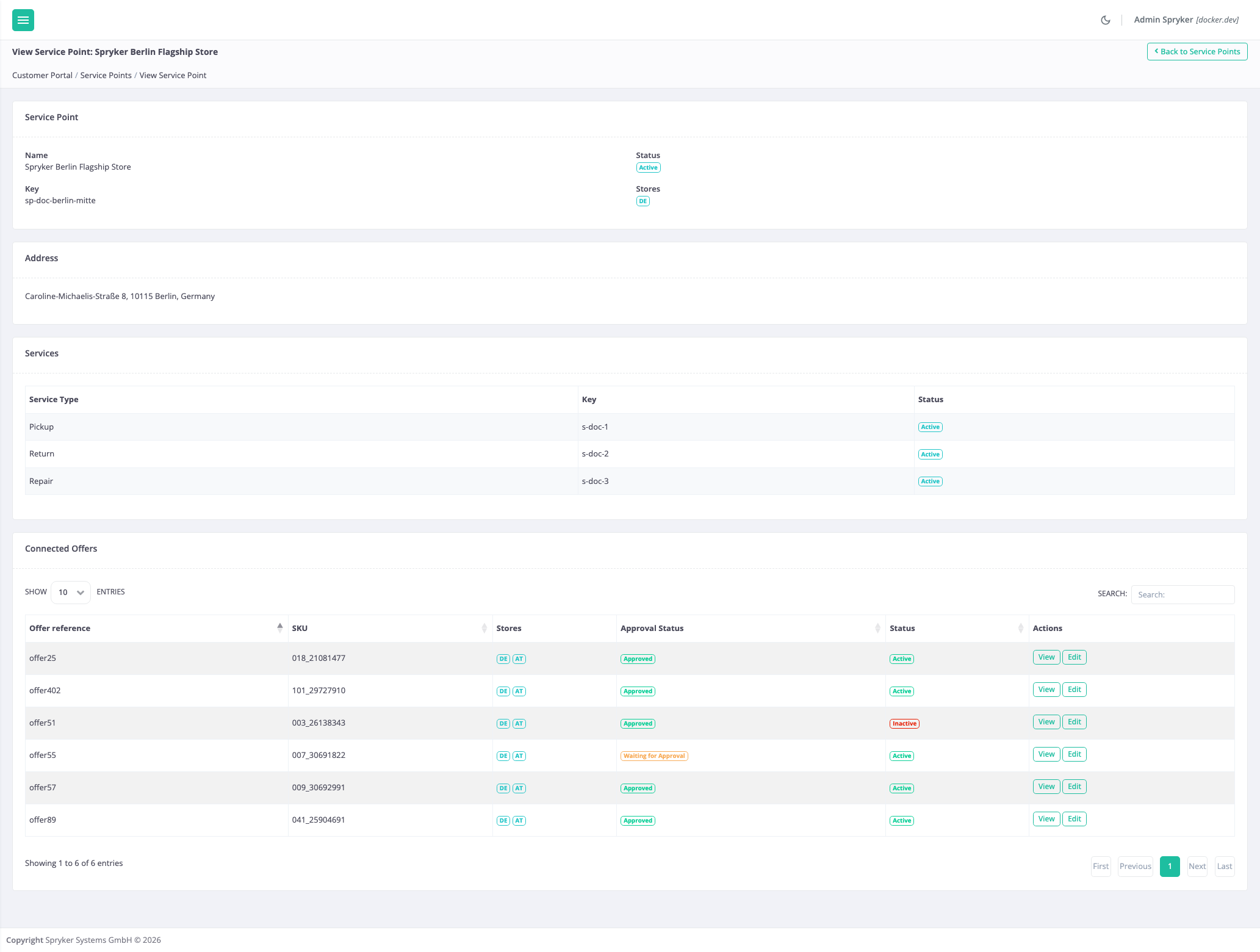
- Next to the service point you want to view, click View. This opens the View Service Point page.
Reference information: View the details of a service point
The following table describes the sections of the View Service Point page:
| SECTION | DESCRIPTION |
|---|---|
| Service Point | Name, key, status, and assigned stores of the service point. |
| Address | Full address of the service point in one line: street, zip code, city, region, and country. Parts that are not defined are omitted. Displays Not set if the service point has no address. |
| Services | All the services provided at the service point, with their service type, key, and status. |
| Connected Offers | All the product offers that are provided through the services of the service point. An offer connected through several services of the same service point is displayed once. |
The following table describes the columns of the Connected Offers section:
| COLUMN | DESCRIPTION |
|---|---|
| Offer Reference | Unique product offer identifier. |
| SKU | SKU of the concrete product the offer belongs to. |
| Stores | All the stores the product offer is assigned to. |
| Approval Status | Approval status of the product offer: Approved, Waiting for Approval, or Denied. |
| Status | Defines if the product offer is active. |
| Actions | Opens or edits the product offer. The actions are displayed only if the corresponding pages are configured in your project. |
Thank you!
For submitting the form