
Recurring Orders feature overview
Edit on GitHubThe Recurring Orders feature lets B2B buyers set up automated repeat purchases directly from the checkout. Once configured, the system places orders automatically at the chosen interval, sends notifications before each execution, and pauses for buyer review when prices change or products become unavailable.
Concepts
| TERM | DESCRIPTION |
|---|---|
| Recurring schedule | The configuration record that drives automated order placement. Stores the cadence, the serialized quote snapshot, and the state machine state. |
| Reference price | The unit price each schedule item is measured against during validation. Captured per item when the schedule is created, and replaced when the buyer accepts a price change during a review. Placing an order does not change it. See Reference prices. |
| Cadence | The interval at which the order is placed. One of: weekly, bi-weekly, monthly, or every N weeks. |
| Trigger date | The date on which the state machine attempts to place the next order. |
| Notification window | The number of hours before the trigger date when the pre-trigger notification is sent to the buyer. |
| Review Required | A state the schedule enters when price increases or product issues are detected at pre-placement validation. The buyer must accept or adjust the order before it is placed. |
| Review scope | Determines whether a change made on the Review Required page applies to every future order (standing) or only to the order being placed (occurrence). |
| One-time item | An item that applies to a single execution only. Items added or increased with the Just this order scope are flagged as one-time and are not carried into the next execution. |
| Cycle total | The estimated total of one execution of the schedule, calculated from the stored quote snapshot. |
| Committed recurring volume | The recurring order volume of the current month, shown in the Back Office. Combines the orders that schedules have already placed with the executions still planned for the rest of the period. |
Setting up a recurring order
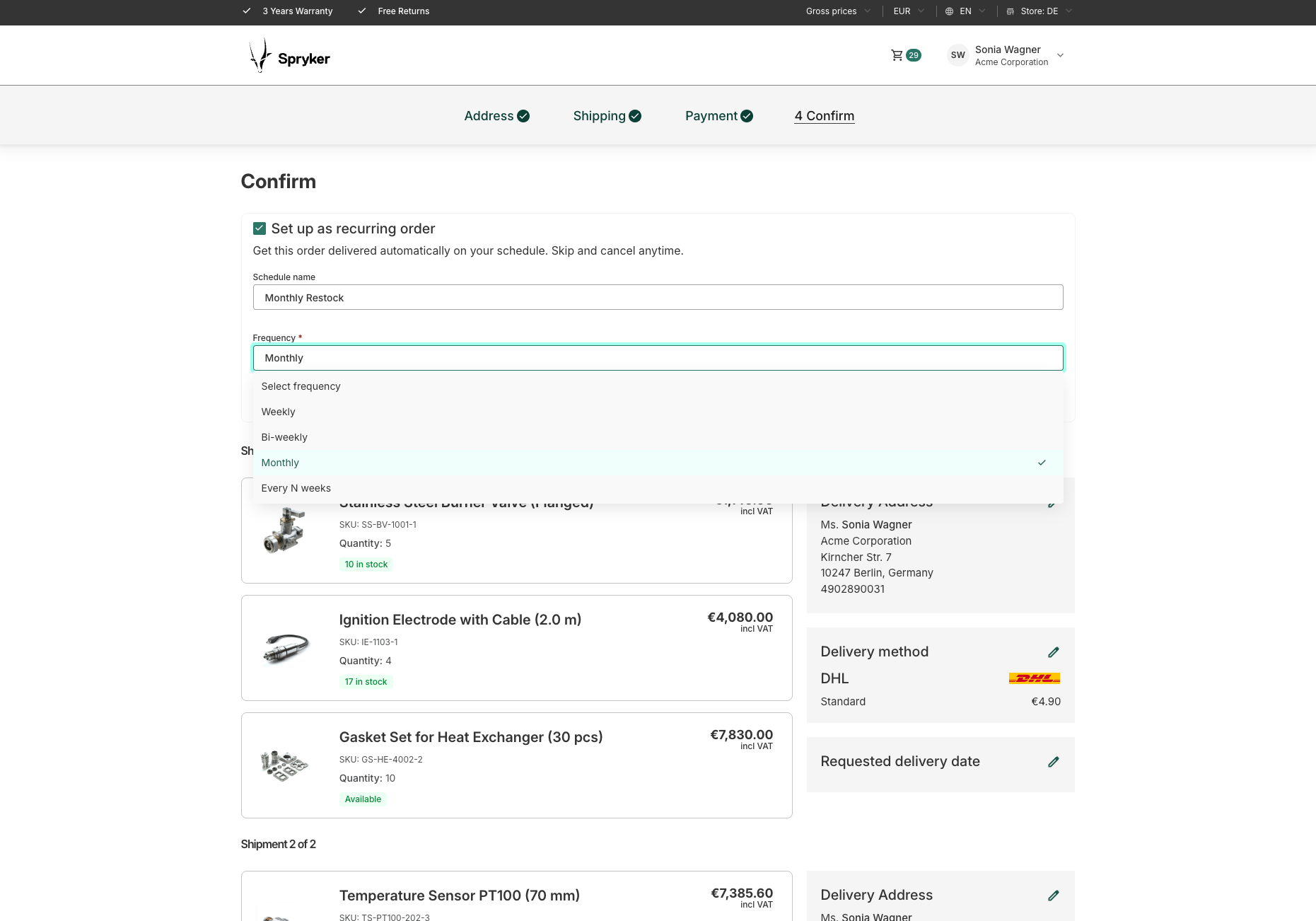
At checkout, an eligible buyer can enable the recurring order setup widget. The buyer selects a cadence (for example, weekly or monthly), a start date, and optionally a schedule name and an interval value for the every N weeks cadence.
When the order is placed, the system:
- Saves a serialized snapshot of the quote—including products, quantities, prices, shipment method, and payment method—and stores the unit price of each item as that item’s reference price.
- Creates a recurring schedule record in
spy_recurring_schedulewith the first trigger date resolved from the start date and the cadence. - Registers the schedule with the
RecurringOrderstate machine in thedraftstate and immediately activates it.
The checkout order itself is placed as usual and is not counted as a recurring execution. The start date determines when the first recurring order is placed:
- If the buyer picks a future date, the first recurring order is placed on that date, and later orders repeat from it at the selected cadence.
- If the start date is today or is not set, the first recurring order is placed one cadence interval later.
- A start date in the past is rejected.
A recurring schedule is only available for quotes that meet all of the following conditions:
- The quote is not locked (not sent for approval).
- The quote does not originate from a Request for Quote (RFQ).
- The customer is not a guest.
- The payment method is invoice-based (
invoice,purchaseOnAccount, or a configured equivalent).
Projects can add their own conditions, and features can contribute conditions of their own. With the Purchasing Control feature installed, a quote carrying a budget that requires approval is rejected—see Budgets that require approval cannot be selected.
Cadence types
| CADENCE | DESCRIPTION |
|---|---|
| Weekly | Places an order every 7 days. |
| Bi-weekly | Places an order every 14 days. |
| Monthly | Places an order on the same calendar day each month. If the scheduled day does not exist in the target month, the date overflows: for example, a schedule anchored to January 31 next fires on March 3 (not February 28), and all subsequent executions are anchored to the third of each month. To avoid drift, use a start date on the twenty-eighth or earlier. |
| Every N weeks | Places an order every N weeks. Requires a positive integer value for N. |
Schedule lifecycle
The recurring schedule moves through states managed by the RecurringOrder state machine. The following diagram describes the full lifecycle:
| STATE | DESCRIPTION |
|---|---|
draft |
Newly created. Transitions to active immediately after checkout. |
active |
Running. The state machine checks the trigger date on every cron run. |
notifying |
The trigger date is within the notification window. The system sends a pre-trigger notification to the buyer. |
pre_trigger_notified |
The buyer has been notified. The schedule waits for the placement window to open or for a manual action (skip or cancel). |
validation |
Pre-placement validation is running. Price and availability are checked. |
confirmed |
Validation passed. The order is ready for placement. |
order_placed |
The checkout has been initiated. The system waits for confirmation. |
completing |
The order was successfully placed. The next trigger date is calculated and the schedule returns to active. |
skipped |
The buyer skipped the current execution. The next trigger date is advanced by one full cadence interval. |
review_required |
Validation detected an issue (price increase or product unavailability). The buyer must review before placement can proceed. Confirming the review moves the schedule to confirmed when the trigger date has been reached, or back to active when it has not—in which case the confirmed changes are placed on the trigger date. |
paused |
The buyer manually paused the schedule. No orders are placed until it is resumed. |
failed |
The last order placement attempt failed. The buyer can retry, which moves the schedule to review_required. |
cancelled |
The schedule has been permanently stopped. This is a terminal state. |
Buyer actions
Buyers can perform the following manual actions from the recurring order detail page on the storefront:
| ACTION | AVAILABLE FROM STATES | DESCRIPTION |
|---|---|---|
| Edit | Any non-terminal state | Opens a modal for editing the schedule name, cadence, interval value, and next execution date. With the Purchasing Control feature installed, the cost center and budget can also be changed. The next execution date cannot be set in the past. |
| Pause | active |
Temporarily stops order placement. The schedule can be resumed at any time with an optional custom resume date. |
| Resume | paused |
Reactivates the schedule. The buyer can set a new next trigger date or keep the existing one. |
| Skip | active, pre_trigger_notified, review_required |
Skips the next scheduled execution. The new trigger date is calculated by advancing the current trigger date by one cadence interval. If the current trigger date is already in the past due to processing lag, the recalculated date may also fall in the past and the schedule will process on the next cron run. |
| Cancel | active, paused, pre_trigger_notified, review_required, failed, draft |
Permanently cancels the schedule. This action cannot be undone. The draft state is transient and is normally activated synchronously at checkout; cancellation from draft is a safety fallback. |
| Review | review_required |
Opens the Review Required page where the buyer can accept price changes, adjust quantities, remove or substitute unavailable items, add products, and place the order. If the trigger date has not been reached yet, confirming the review returns the schedule to active and the confirmed changes are placed on the trigger date. |
| Retry | failed |
Moves the schedule to review_required so the buyer can review and re-attempt placement. |
Notifications
The system sends the following emails to the buyer. All three use CMS blocks for their HTML and text templates, so the content is editable in the Back Office under Content > Blocks.
| WHEN IT IS SENT | CONTENT | |
|---|---|---|
| Upcoming order | Within the configured Schedule Grace Period before the trigger date. | The schedule name, the upcoming execution date, and a link to the schedule detail page where the buyer can skip, pause, or cancel before the order is placed. |
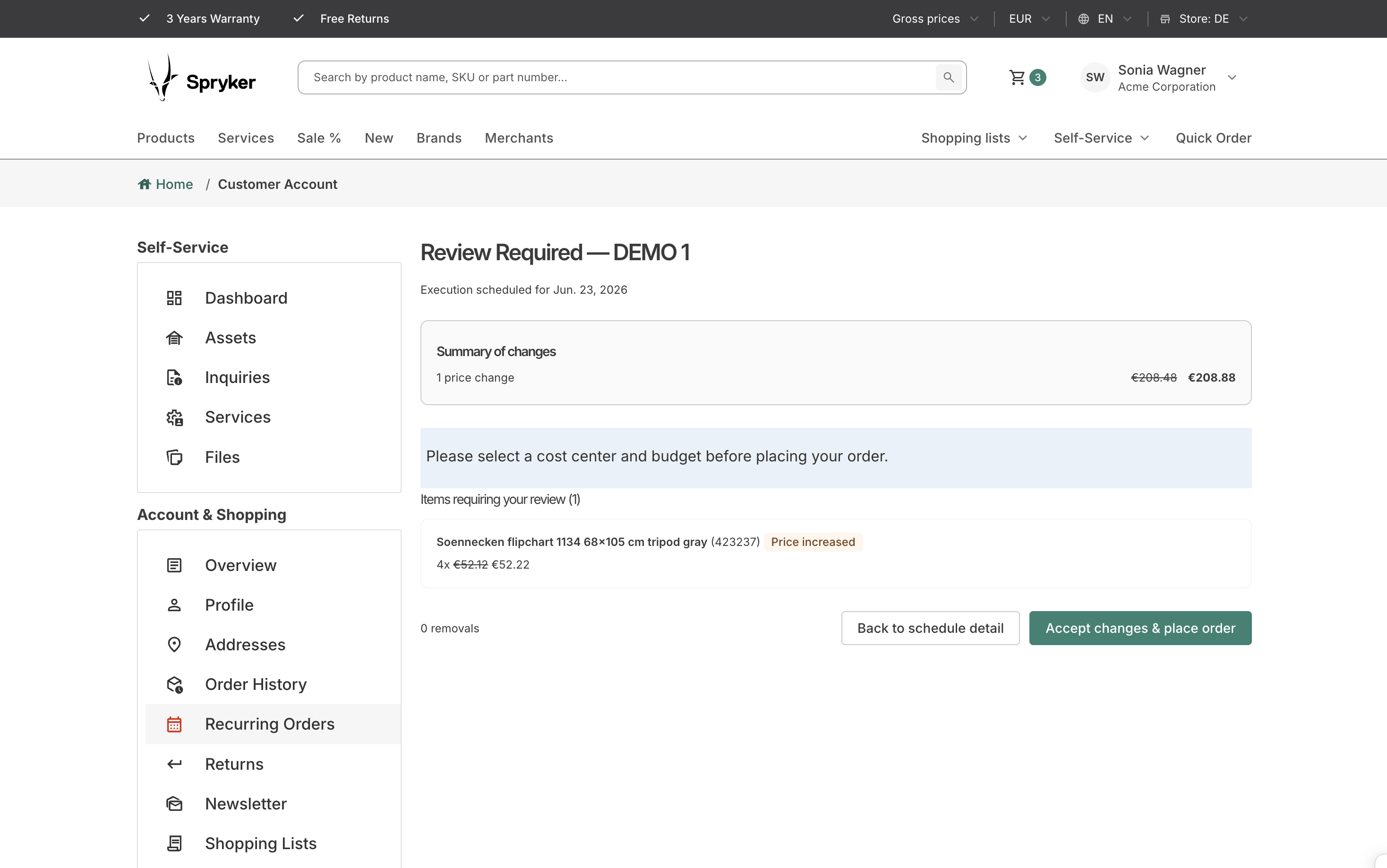
| Review required | When pre-placement validation detects a price increase or a product issue. | A summary of the flagged items and a link to the Review Required page. |
| Placement failure | When an order placement attempt fails. | The failure reason and a link to the schedule detail page, from where the buyer can retry. |
The Schedule Grace Period defaults to 48 hours and is configured globally in the Back Office under Configuration > Recurring Orders > General > Schedule. Individual schedules can override it.
Review Required flow
Before placing each order, the system validates the stored quote snapshot against current product and pricing data. If issues are detected, the schedule moves to the review_required state and the buyer receives a review notification email.
The buyer reviews the flagged items on the Review Required page. The following table lists common issue types. The full set of checkout error types that map to each group is configurable through getReviewReasonGroupMap() in OrderExperienceManagementConfig.
| ISSUE | DESCRIPTION |
|---|---|
| Price increased | The current unit price is higher than that item’s reference price. |
| Unavailable | The product is inactive or blocked by a merchant or product approval rule. |
| Out of stock | The product has no available stock for the store. |
| Packaging unit unavailable | The product packaging unit constraints cannot be satisfied—for example, the required minimum or lead quantity is not available. |
| Discontinued | The product has been discontinued. |
| Substituted | The product has been replaced by another product. |
| Not approved | The product is pending approval and cannot be purchased. |
| Price unavailable | No current price could be resolved for the product. |
| Configurable bundle unavailable | A member of a configurable bundle is unpurchasable, so the entire bundle is dropped. |
Items flagged as unavailable, out of stock, or discontinued are non-purchasable and must be removed or substituted before the order can proceed. Projects can narrow this list through getNonPurchasableReviewReasonGroups() if items of a group should stay purchasable.
Reference prices
Price validation compares the current unit price of each item with that item’s reference price—not with the price of the last order the schedule placed.
A reference price is written in exactly two moments:
- When the schedule is created, from the unit price on the checkout quote.
- When the buyer accepts a price change during a review. The accepted price replaces the stored reference for that item, so the next execution is measured against the price the buyer agreed to.
Nothing else changes it. Placing an order, skipping an execution, pausing, resuming, and editing the schedule all leave reference prices untouched.
Two consequences follow:
- A price the buyer has already accepted does not trigger a review again. The schedule re-anchors to the accepted price, and only movement beyond that point is flagged.
- Re-anchoring happens per item, and only for the items the buyer accepted. An item that was not flagged keeps its existing reference price, so increases too small to require a review stay measured against the earlier price and accumulate across executions until their total exceeds the threshold.
Available review actions
| ACTION | DESCRIPTION |
|---|---|
| Accept a price change | Confirms the new unit price. The current and previous prices are shown side by side. |
| Adjust the quantity | Increases or decreases the quantity of a flagged item. |
| Remove an item | Excludes the item from the order. Removal can be undone before the buyer confirms. |
| Choose a substitute | Replaces a discontinued or substituted product with an alternative. Each option shows whether its price is the same as, lower than, or higher than the original. |
| Add a product | Opens a search modal for adding a product to the order, with a quantity field, the resolved current price, a shipping address and shipment method selector, and—in a marketplace setup—a merchant offer selector. |
Adding products during review
The add-product search bar returns concrete products the buyer can add to the order being placed. For each added product, the buyer selects a shipping address and a shipment method:
- The shipping address choices are grouped by source: the addresses stored with the schedule itself, and the addresses of the buyer’s company business unit. Duplicate addresses are offered once.
- The shipment methods are resolved for the selected address and, in a marketplace setup, for the selected offer.
The following products are not offered in the picker, and are also rejected if they reach the server through a crafted request:
| PRODUCT | REASON |
|---|---|
| Products with no availability | No stock is available for the store. In a marketplace setup, merchant offers with no availability are also hidden from the offer selector. |
| Products with no resolvable price or shipment method | The item could not be placed. |
| Products sold in measurement units | The picker offers no sales unit selector, so a typed quantity would silently mean N times the store default sales unit instead of N base units. |
| Products sold in packaging units | The picker offers no amount input, so the resolved item would carry no amount, stay unsplit, and reserve no stock for the lead product. |
| Service products with an unsupported shipment type | Requires the SSP Service Management feature. A service fulfilled on site or in a service center needs an appointment, which a recurring order places unattended and therefore cannot book. |
Projects can add their own restrictions. See Install the Recurring Orders feature for the extension points.
Review scope
Each change is applied with a scope:
| SCOPE | EFFECT |
|---|---|
| Every future order | The change becomes the new reference state of the schedule and applies to every subsequent execution. |
| Just this order | The change applies to the order being placed only. Items added or increased with this scope are flagged as one-time and are not carried into the next execution. |
Before the order is placed, a confirmation modal summarizes the accepted price changes, the removed items, the substituted products, and the original and new order totals.
The following guards apply while reviewing:
- The schedule can only be reviewed in its own currency and price mode. If the buyer has switched either one, the review page asks them to switch back.
- If prices change again between opening the review page and approving it, the buyer is asked to review the updated order before approving.
- If every item is removed, the order cannot be placed—a schedule cannot be executed without items. The buyer can clear this block by adding at least one product before confirming.
Marketplace and shipment support
Recurring schedule items keep their merchant reference and product offer reference, so schedules created in a marketplace setup are re-placed against the same offers. When the buyer adds a product on the Review Required page and the product is sold by several merchants, an offer selector is displayed.
Products added during review must be shippable with a delivery-like shipment type—by default delivery or on-site-service, in that preference order. When an offer or store exposes several supported types, the first one is used. The system resolves the available shipment methods for the added item and rejects products for which no shipment method, availability, or price can be resolved.
Execution history
Each recurring schedule maintains a full execution history. Every significant event is recorded:
| EVENT | DESCRIPTION |
|---|---|
| Placed | An order was successfully placed. The history entry links to the resulting sales order. |
| Failed | An order placement attempt failed. The entry includes the failure reason. |
| Skipped | The execution was skipped by the buyer. |
| Paused | The schedule was paused. |
| Resumed | The schedule was resumed. |
| Cancelled | The schedule was permanently cancelled. |
Storefront pages
| PAGE | PATH | DESCRIPTION |
|---|---|---|
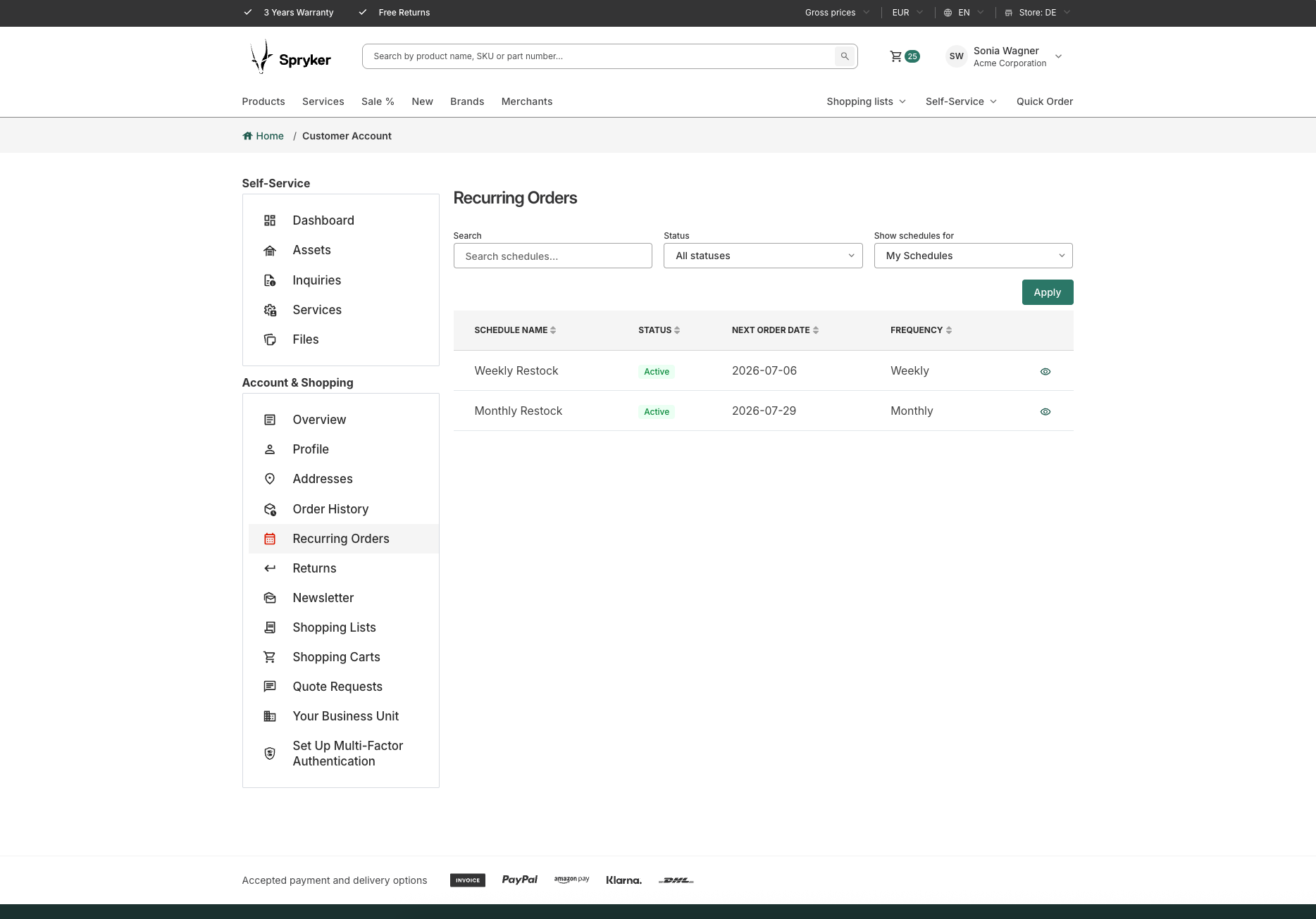
| Recurring order list | /recurring-orders |
Lists all recurring schedules for the current buyer, with status, cadence, and trigger date. The buyer can search by name and filter by status. Company users with the appropriate permission can filter by scope (own, company, or business unit). |
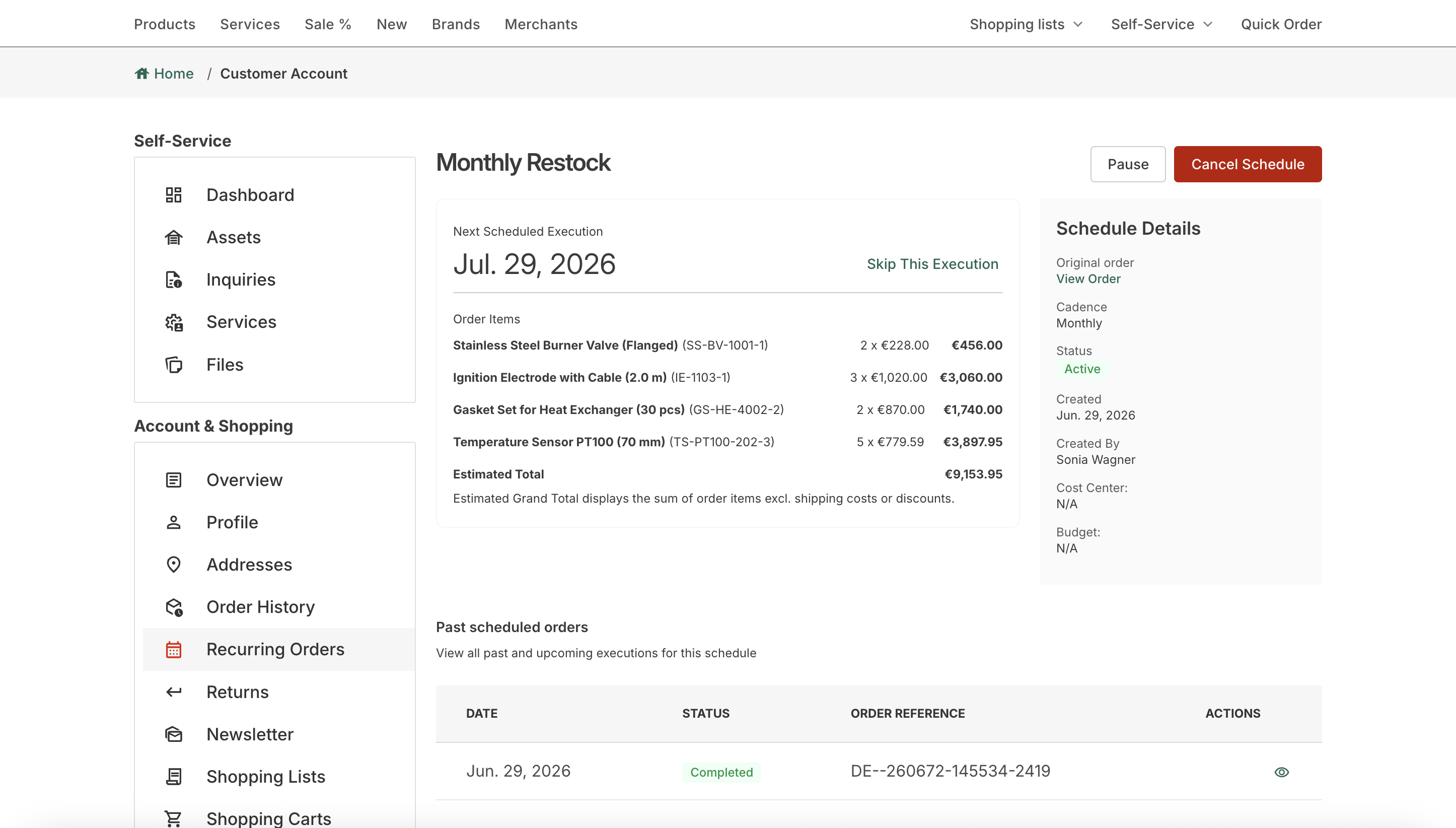
| Recurring order detail | /recurring-orders/{uuid} |
Shows the full schedule configuration, the items and quantities, the next execution date, the cycle total, and the full execution history. All buyer actions are triggered from this page. |
| Review Required | /recurring-orders/{uuid}/review-required |
Shows flagged items with issue reasons and price comparisons. The buyer accepts changes and places the order from this page. |
Back Office
Back Office users manage recurring order schedules under Sales > Recurring Order Schedules. The page is read-only—it is intended for oversight and support, not for editing schedules on the buyer’s behalf.
Recurring Order Schedules list
The list shows the following columns: Name, Company, Business Unit, Owner, Status, Frequency, Cycle Total, Next Trigger Date, and Last Execution. It is sorted by next trigger date in ascending order by default, and can be searched by name.
The following filters are available:
| FILTER | DESCRIPTION |
|---|---|
| Company | Restricts the list to schedules belonging to a company. |
| Business unit | Restricts the list to schedules belonging to a company business unit. Depends on the selected company. |
| Statuses | Multi-select filter over active, paused, review required, cancelled, and failed. |
| Cadence types | Multi-select filter over weekly, bi-weekly, monthly, and every N weeks. |
| Cycle total from/to | Restricts the list by the estimated total of one execution. |
| Next trigger date from/to | Restricts the list by the next trigger date. |
Total Committed Recurring Volume
Above the list, the Total Committed Recurring Volume widget shows the recurring order volume of the current month. The total combines two inputs, and the widget shows both the combined figure and the split between them:
| INPUT | DESCRIPTION |
|---|---|
| Already placed | The sum of the totals of the orders that recurring schedules have already placed within the period, together with the number of those orders. |
| Still planned | The sum of the estimated totals of the active schedules still due to run within the period. Each schedule is weighted by how often it runs in the period, so a weekly schedule contributes several executions, not one. |
Below the figures, a run-rate line summarizes the split—for example, how many orders have already been placed and how many active schedules are still due. When neither input returns anything, the widget reports that there is no recurring order activity for the month.
Totals are grouped by currency, so a multi-currency shop gets one figure per currency. The widget is global—it is not affected by the list filters.
By default, the period covers the whole current calendar month. Projects can narrow it to the remainder of the month instead; the bounds apply to both inputs at once, so the already-placed and still-planned figures always describe the same period.
The forecast is not recalculated on each page load. A scheduled job recalculates it and stores it as a snapshot in spy_recurring_schedule_forecast, and the Back Office reads the stored snapshot. Because of that, the displayed value reflects the last refresh rather than the current second.
Schedule detail view
Opening a schedule shows its configuration, the buyer and company it belongs to, the schedule items with their quantities and merchant names, and a link to the source sales order the schedule was created from. Items that belong to a configurable bundle also show the bundle name.
B2B visibility and permissions
By default, a buyer can only view their own recurring schedules. Company users with additional permissions can view schedules across their organization:
| PERMISSION | DESCRIPTION |
|---|---|
SeeCompanyOrdersPermissionPlugin |
Grants visibility over all recurring schedules within the company. |
SeeBusinessUnitOrdersPermissionPlugin |
Grants visibility over all recurring schedules within the buyer’s business unit. |
These permissions are registered as company role permissions and assigned in the Back Office under Customers > Company Roles.
Cost centers and budgets
With the Purchasing Control feature installed, a recurring order carries a cost center and a budget:
- The selected cost center and budget are displayed on the recurring order detail page, together with a budget usage summary: the total budget amount, the amount already used, the amount remaining, and a bar showing the used percentage.
- The buyer can change them when editing the schedule and when approving a review. In both forms, selecting a cost center and a budget is mandatory.
- Only active cost centers of the buyer’s company business unit are offered, and only in the currency of the recurring order. If the cost center assigned to a schedule is later deactivated, it is no longer displayed on the detail page and the buyer has to select an active one the next time they edit the schedule or approve a review.
- The selected budget must belong to the selected cost center. The form is rejected if it does not.
Budgets that require approval cannot be selected
A recurring order is placed unattended by the state machine, so it cannot wait for a human approval decision at placement time. For that reason, budgets whose enforcement rule requires approval when the budget is exceeded are not offered in the recurring order budget selector.
The same rule is enforced at checkout. If a quote that is being set up as a recurring order carries a budget with the require approval enforcement rule, checkout is blocked and the buyer is asked to select another budget. This check applies regardless of the quote grand total and of the remaining budget amount—the budget does not have to be exceeded for the block to take effect. A regular, non-recurring checkout is not affected.
Only budgets bound to the following enforcement rules can be selected:
| ENFORCEMENT RULE | BEHAVIOR WHEN THE BUDGET IS EXCEEDED | SELECTABLE FOR A RECURRING ORDER |
|---|---|---|
| Block | Blocks order placement. | Yes |
| Warn | Warns the buyer but allows order placement. | Yes |
| Require approval | Sends the order into an approval workflow. | No |
If a cost center has only approval-bound budgets, no budget choices are rendered for it. Buyers who need to assign such a cost center to a recurring order must first have a budget with the block or warn enforcement rule set up for it.
Without the Purchasing Control feature, these fields are not rendered and recurring orders behave as described in the rest of this document.
Attention banner
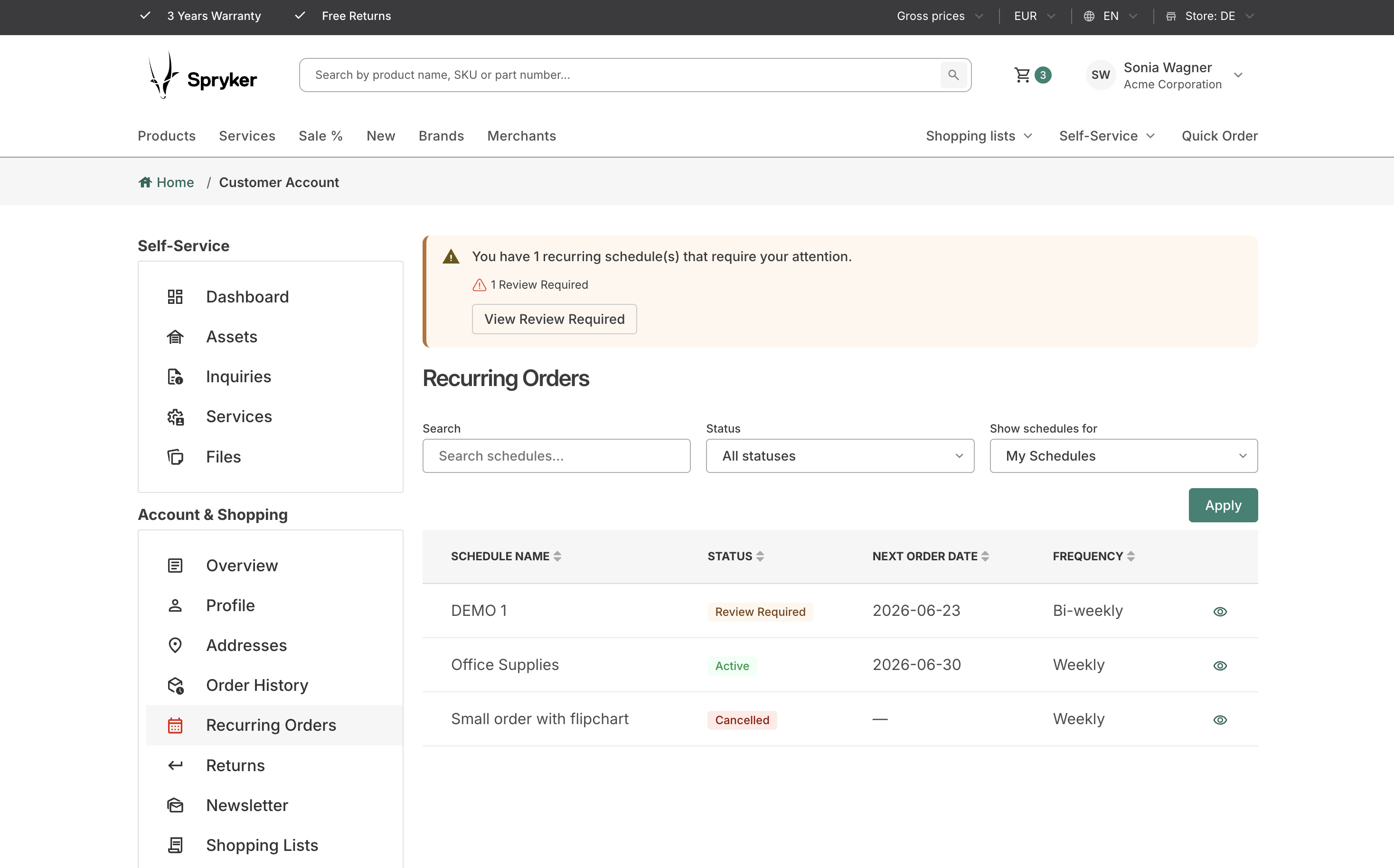
When a buyer has schedules in the paused, review_required, or failed states, an attention banner is displayed on the storefront. The banner shows the count of schedules requiring attention and provides quick-access links to filter the recurring order list by each status.
Related documents
Thank you!
For submitting the form