
Install Google reCAPTCHA
Edit on GitHubThis document describes how to install Google reCAPTCHA as the CAPTCHA provider of the CAPTCHA feature. Google issues and verifies the reCAPTCHA challenges. An alternative provider is ALTCHA, which works without third-party services. Use reCAPTCHA, for example, if your project already uses reCAPTCHA on other pages.
The spryker-eco/captcha-google-recaptcha module supports two versions of reCAPTCHA:
- reCAPTCHA v2: the user selects the I’m not a robot checkbox and sometimes solves an image challenge.
- reCAPTCHA v3: the browser requests a score in the background when the user submits the login form. The user sees no challenge, and the provider rejects a score below the configured minimum.
Prerequisites
Install the required features:
| NAME | INSTALLATION GUIDE |
|---|---|
| CAPTCHA | Install the CAPTCHA feature |
| Configuration Management | Install the Configuration Management feature |
Google issues the reCAPTCHA challenges, so the provider does not use the challenge endpoints of the CAPTCHA feature: each login form renders the reCAPTCHA widget together with the page, and the widget requests its challenge from Google.
The provider stores the reCAPTCHA key as settings of the Configuration Management feature. The secret key is a secret setting, so set up the encryption of secret settings when you install the feature.
1) Install the required modules
composer require spryker-eco/captcha-google-recaptcha:"^1.0.0" --update-with-dependencies
The provider verifies tokens with the google/recaptcha PHP library. On PHP 8.4 or later, Composer installs version 2.x of the library; on PHP 8.3, it installs version 1.3.1.
Make sure the following packages have been installed with the required versions:
| PACKAGE | VERSION |
|---|---|
spryker-eco/captcha-google-recaptcha |
1.0.0 or later |
spryker/captcha |
1.0.0 or later |
spryker/captcha-extension |
1.0.0 or later |
2) Create a reCAPTCHA key
The provider needs a reCAPTCHA key from Google: the site key is used by the widget in the browser, and the secret key verifies tokens on the server.
- In the Google Cloud console, create a reCAPTCHA key of the v2 checkbox type or of the v3 type.
- Add every host that shows a login form: the Storefront, Back Office, and Merchant Portal hosts. The provider uses one key for all applications.
- Keep the domain verification of the key enabled. If you turn it off, for example because the key serves many domains, enter your hosts in the Allowed Hostnames setting, as described in Enter the reCAPTCHA key. Otherwise, any website can use your key.
- Copy the site key and the secret key of the key.
- For production traffic, link a billing account to the Google Cloud project. Without billing, Google answers every token with
successafter the free quota of 10,000 verifications per month is used up. The provider rejects these answers, so the logins that require a CAPTCHA are rejected until the quota resets.
3) Synchronize the configuration schema
The reCAPTCHA settings become available in the Back Office only after the configuration schema is synchronized:
vendor/bin/console configuration:sync
- In the Back Office, go to Configuration.
- In the sidebar, select Integrations, then open the Google reCAPTCHA tab.
- Make sure the reCAPTCHA Key group contains the reCAPTCHA Version, Site Key, and Secret Key settings, and the Token Verification group contains the Allowed Hostnames setting. The Minimum Score (v3) setting of the reCAPTCHA Key group appears when you select v3 Score as the reCAPTCHA Version.
4) Add translations
- Load the Back Office translations of the
spryker-ecopackages. The names and descriptions of the reCAPTCHA settings are translations ofspryker-eco/captcha-google-recaptcha, andSpryker\Zed\Translator\TranslatorConfig::getCoreTranslationFilePathPatterns()loads only the translations ofvendor/spryker,vendor/spryker-shop, andvendor/spryker-feature. If your project does not load the translations ofvendor/spryker-ecoyet, add their path:
src/Pyz/Zed/Translator/TranslatorConfig.php
<?php

namespace Pyz\Zed\Translator;

use Spryker\Zed\Translator\TranslatorConfig as SprykerTranslatorConfig;

class TranslatorConfig extends SprykerTranslatorConfig
{
    /**
     * @return array<string>
     */
    public function getCoreTranslationFilePathPatterns(): array
    {
        $coreTranslationFilePathPatterns = parent::getCoreTranslationFilePathPatterns();
        $coreTranslationFilePathPatterns[] = APPLICATION_VENDOR_DIR . '/spryker-eco/*/data/translation/Zed/[a-z][a-z]_[A-Z][A-Z].csv';

        return $coreTranslationFilePathPatterns;
    }
}
Without this path, the Back Office shows the names and descriptions of the reCAPTCHA settings in English in every interface language.
- Generate the translation cache to make the names and descriptions of the settings available in the Back Office:
vendor/bin/console translator:generate-cache
5) Enter the reCAPTCHA key
In the Back Office, go to Configuration > Integrations > Google reCAPTCHA, and enter the key you created in Create a reCAPTCHA key:
| SETTING | DESCRIPTION |
|---|---|
| reCAPTCHA Version | v2 Checkbox (v2_checkbox) or v3 Score (v3). Must match the type of the key. Default: v2 Checkbox. |
| Site Key | The public key of the widget. It is published to the Storefront. |
| Secret Key | The key that verifies tokens with Google. It is a secret setting: it is stored encrypted and is never published to the Storefront. |
| Minimum Score (v3) | The lowest score of a v3 token that passes the check, from 0.1 to 1.0. Default: 0.5. The Back Office shows this setting only when v3 Score is selected. |
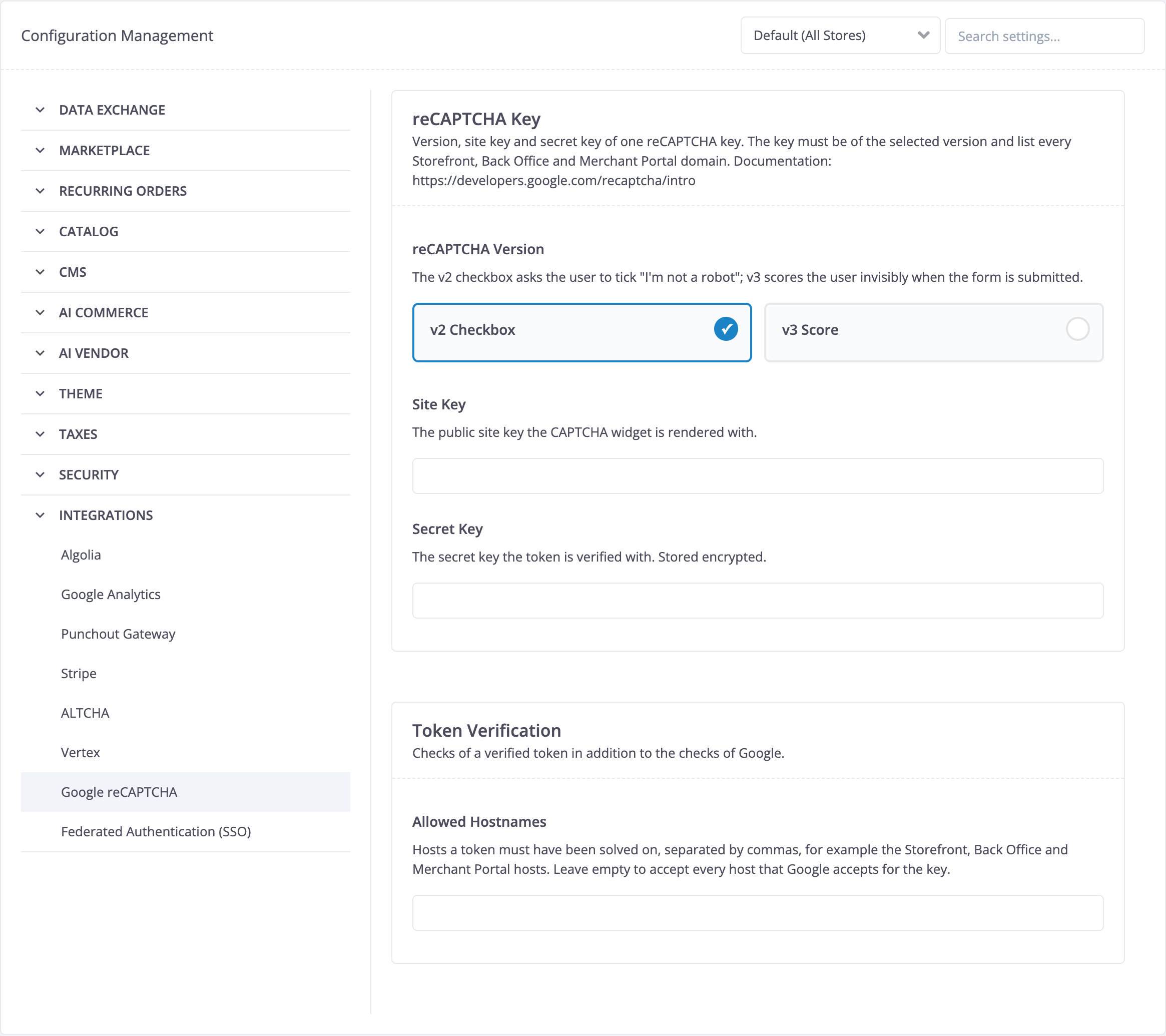
Optional: To accept only tokens solved on your own hosts, open the Token Verification group and enter the hosts in Allowed Hostnames, separated by commas, for example shop.example.com, backoffice.example.com, mp.example.com. A token solved on another host is then rejected, even if the domain verification of the key is turned off. If the setting is empty, the provider accepts every host that Google accepts for the key.
To provide the key during deployment instead, import its version, site key, and secret key from environment variables. The version is v2_checkbox or v3:
vendor/bin/console configuration:import-environment \
    integrations:google_recaptcha:credentials:version=RECAPTCHA_VERSION \
    integrations:google_recaptcha:credentials:site_key=RECAPTCHA_SITE_KEY \
    integrations:google_recaptcha:credentials:secret_key=RECAPTCHA_SECRET_KEY
For details about the command, see Integrate configuration deployment commands. The Storefront reads the version and the site key from the key-value storage, so it uses a changed setting after the sync.storage.configuration queue has been processed.
Until you save the site key and the secret key, the Back Office does not switch the CAPTCHA on: saving Enable CAPTCHA in the on state fails with the Set up the CAPTCHA provider under Integrations before turning on the CAPTCHA. message. The check confirms that both keys have values, not that Google accepts them. The Back Office does not stop you from clearing a key while the CAPTCHA is on.
6) Set up behavior
Only an application that registers ConfigurationApplicationPlugin can read the secret key. The Back Office and the Merchant Portal verify tokens themselves. The Storefront cannot read the secret key, so it sends tokens to the Backend Gateway for verification. The Back Office and the Backend Gateway register ConfigurationApplicationPlugin when you install the Configuration Management feature, so register it only in the Merchant Portal application. If you already registered it as described in Install the Merchant Portal Core feature, skip it. Without the plugin, the Merchant Portal sends its tokens to the Backend Gateway and logs a warning for every token.
| PLUGIN | SPECIFICATION | PREREQUISITES | NAMESPACE |
|---|---|---|---|
| GoogleRecaptchaCaptchaProviderPlugin | Renders the reCAPTCHA widget of the configured version and verifies tokens with Google. Replaces AltchaCaptchaProviderPlugin, because a project uses one CAPTCHA provider. |
SprykerEco\Client\CaptchaGoogleRecaptcha\Plugin\Captcha | |
| ConfigurationApplicationPlugin | Provides the configuration settings, including the secret settings, to the Merchant Portal application. | Marketplace only. | Spryker\Zed\Configuration\Communication\Plugin\Application |
src/Pyz/Client/Captcha/CaptchaDependencyProvider.php
<?php

namespace Pyz\Client\Captcha;

use Spryker\Client\Captcha\CaptchaDependencyProvider as SprykerCaptchaDependencyProvider;
use Spryker\Client\CaptchaExtension\Dependency\Plugin\CaptchaProviderPluginInterface;
use SprykerEco\Client\CaptchaGoogleRecaptcha\Plugin\Captcha\GoogleRecaptchaCaptchaProviderPlugin;

class CaptchaDependencyProvider extends SprykerCaptchaDependencyProvider
{
    protected function getCaptchaProviderPlugin(): ?CaptchaProviderPluginInterface
    {
        return new GoogleRecaptchaCaptchaProviderPlugin();
    }
}
src/Pyz/Zed/MerchantPortalApplication/MerchantPortalApplicationDependencyProvider.php
<?php

namespace Pyz\Zed\MerchantPortalApplication;

use Spryker\Zed\Configuration\Communication\Plugin\Application\ConfigurationApplicationPlugin;
use Spryker\Zed\MerchantPortalApplication\MerchantPortalApplicationDependencyProvider as SprykerMerchantPortalApplicationDependencyProvider;

class MerchantPortalApplicationDependencyProvider extends SprykerMerchantPortalApplicationDependencyProvider
{
    /**
     * @return array<\Spryker\Shared\ApplicationExtension\Dependency\Plugin\ApplicationPluginInterface>
     */
    protected function getMerchantPortalApplicationPlugins(): array
    {
        return [
            // ...
            new ConfigurationApplicationPlugin(),
        ];
    }
}
7) Build the frontend
- Generate transfer changes:
vendor/bin/console transfer:generate
- Rebuild the Storefront, Back Office, and Merchant Portal frontends to include the scripts of the provider. With v2, the script of Google renders the checkbox. With v3, the scripts of the provider request a token when the user submits a login form, with the CAPTCHA context of the form as the action:
storefront_customer_login,storefront_agent_login,backoffice_user_login,merchant_portal_user_login, ormerchant_portal_agent_login.
npm run yves
npm run zed
vendor/bin/console frontend:mp:build
In deployment pipelines, use npm run yves:production, npm run zed:production, and vendor/bin/console frontend:mp:build --environment production. For the Merchant Portal, use the console command instead of npm run mp:build, as described in Install the CAPTCHA feature.
- In the Back Office, go to Configuration > Security > CAPTCHA. Switch on Enable CAPTCHA, and save.
- Go to the Back Office login page. In the default
after_failed_attemptsCAPTCHA mode, first enter a wrong password for a user as many times as the Security Check after Failed Attempts per Account setting of the User Accounts group in Configuration > Security > Login Lock defines, three times by default, and reload the login page. In thealwaysCAPTCHA mode, the login form shows reCAPTCHA right away. For these settings, see Install the CAPTCHA feature and Install the login brute-force protection. - With v2, make sure the login form shows the reCAPTCHA checkbox. With v3, make sure the page shows the reCAPTCHA badge.
- With v2, select the checkbox. Enter the correct password and submit the form. Make sure you are logged in to the Back Office.
- Repeat steps 2 to 4 on the Storefront login page with a customer account and, in a marketplace, on the Merchant Portal login page with a merchant user.
8) Prepare the infrastructure
Make sure your infrastructure meets the following requirements:
-
The default Content Security Policy of Spryker needs no change. If your project extends the
Content-Security-Policyheader, for example, by overridinggetSecurityHeaders()ofSpryker\Yves\Application\ApplicationConfig,Spryker\Zed\Application\ApplicationConfig, orSpryker\Zed\MerchantPortalApplication\MerchantPortalApplicationConfig, which sends the security headers of the Merchant Portal, allow the origins of Google in the extended policy:script-src:https://www.google.com/recaptcha/andhttps://www.gstatic.com/recaptcha/frame-src:https://www.google.com/recaptcha/andhttps://recaptcha.google.com/recaptcha/connect-src:https://www.google.com/recaptcha/
For the default security headers and where to change them, see Security guidelines.
-
Allow outgoing HTTPS requests from the Back Office, the Merchant Portal, and the Backend Gateway to
https://www.google.com/recaptcha/api/siteverify. If Google cannot be reached within 5 seconds, the logins that require a CAPTCHA are rejected. On Spryker Cloud, the network of an environment is managed by Spryker: if outgoing requests to Google are blocked, create a support case. -
reCAPTCHA sends the IP address and browser signals of a visitor to Google and sets the
_GRECAPTCHAcookie. The widget loads only on a login form that requires a CAPTCHA: after failed logins in the defaultafter_failed_attemptsCAPTCHA mode, and on every login form in thealwaysCAPTCHA mode. Cover reCAPTCHA in your privacy policy and cookie notice. -
reCAPTCHA v3 shows the reCAPTCHA badge of Google on the pages that load it. If you hide the badge, show the text “This site is protected by reCAPTCHA” in the form.
If you installed the login brute-force protection, its infrastructure requirements apply as well. For details, see Install the login brute-force protection.
How the provider verifies tokens
A reCAPTCHA token is a base64url string. The provider rejects a token that is not a base64url string of 20 to 4096 characters as invalid, without a request to Google, so that malformed tokens do not cost a request.
The provider sends every other token to the siteverify endpoint of Google and maps the answer as follows. Every answer except a valid token rejects the login that requires a CAPTCHA, and the account block of the login protection applies in every case.
| ANSWER OF GOOGLE | RESULT |
|---|---|
| Success for a host that is not in Allowed Hostnames | The token is invalid, and a warning is logged. |
| v2: success | The token is valid. |
| v3: success, the action matches the CAPTCHA context of the login form, and the score reaches the minimum | The token is valid. |
| v3: success with another action or with a score below the minimum | The token is invalid. |
timeout-or-duplicate |
The token has expired or has already been used. The user is asked to repeat the check. |
| Any other error code | The token is invalid. |
| Empty or wrong secret key, Google cannot be reached, or an unknown version is configured | The check is unavailable, and an error is logged. |
| Success together with error codes, or a v2 success with a score | The check is unavailable, and an error is logged. Google sends this answer above the free quota. |
Thank you!
For submitting the form