
Install ALTCHA
Edit on GitHubThis document describes how to install ALTCHA as the CAPTCHA provider of the CAPTCHA feature. ALTCHA is a proof-of-work CAPTCHA: when the user selects its checkbox, the browser solves a challenge that costs some computing time, without images and without calls to third-party services. The server signs every challenge, and each solution is accepted only once.
Prerequisites
Install the required features:
| NAME | INSTALLATION GUIDE |
|---|---|
| CAPTCHA | Install the CAPTCHA feature |
| Configuration Management | Install the Configuration Management feature |
ALTCHA stores its HMAC secret as a secret setting of the Configuration Management feature, so set up the encryption of secret settings when you install the feature.
1) Install the required modules
- Install the ALTCHA provider:
composer require spryker-eco/captcha-altcha:"^1.0.0" --update-with-dependencies
The provider needs the sodium PHP extension.
- Install the browser widget. The
altchanpm package is declared in thepackage.jsonofspryker-eco/captcha-altcha. Append the package to the existingworkspaceslist of the projectpackage.json, and install the npm dependencies. If the list already contains thevendor/spryker-eco/*entry, this entry covers the package.
package.json
"workspaces": [
    "vendor/spryker-eco/captcha-altcha"
]
npm install
If your project does not use npm workspaces, add the widget to the project package.json instead:
npm install altcha@~3.5.0
Make sure the following packages have been installed with the required versions:
| PACKAGE | VERSION |
|---|---|
spryker-eco/captcha-altcha |
1.0.0 or later |
Make sure the altcha npm package has been installed in node_modules/altcha.
2) Set up the configuration
- Optional: Adjust the proof-of-work:
| CONFIGURATION | SPECIFICATION | NAMESPACE |
|---|---|---|
| CaptchaAltchaConstants::KEY_DERIVATION_ALGORITHM | Defines the proof-of-work algorithm: ARGON2ID or PBKDF2/SHA-256. Argon2id is memory-hard, which limits the speed-up of GPU solvers. Default: ARGON2ID. |
SprykerEco\Shared\CaptchaAltcha |
| CaptchaAltchaConstants::COST | Defines the iterations of one key derivation. Default: 2 for Argon2id, 1000 for PBKDF2. |
SprykerEco\Shared\CaptchaAltcha |
| CaptchaAltchaConstants::MEMORY_COST | Defines the memory of one Argon2id key derivation in KiB. Default: 16384 (16 MiB). |
SprykerEco\Shared\CaptchaAltcha |
| CaptchaAltchaConstants::MINIMUM_COUNTER | Defines the minimum number of key derivations the browser performs to solve a challenge; the actual number is between the minimum and twice the minimum. A higher value makes a challenge slower to solve. Default: 20 for Argon2id, 1000 for PBKDF2. |
SprykerEco\Shared\CaptchaAltcha |
| CaptchaAltchaConstants::CHALLENGE_TTL | Defines the time in seconds during which a challenge can be solved and submitted. Default: 300. |
SprykerEco\Shared\CaptchaAltcha |
config/Shared/config_default.php
use SprykerEco\Client\CaptchaAltcha\CaptchaAltchaConfig;
use SprykerEco\Shared\CaptchaAltcha\CaptchaAltchaConstants;

$config[CaptchaAltchaConstants::KEY_DERIVATION_ALGORITHM] = CaptchaAltchaConfig::KEY_DERIVATION_ALGORITHM_ARGON2ID;
$config[CaptchaAltchaConstants::COST] = 2;
$config[CaptchaAltchaConstants::MEMORY_COST] = 16384;
$config[CaptchaAltchaConstants::MINIMUM_COUNTER] = 20;
$config[CaptchaAltchaConstants::CHALLENGE_TTL] = 300;
Creating an Argon2id challenge with these values costs the server one key derivation: about 10 to 20 ms of CPU time on one core, depending on the CPU, and 16 MiB of memory.
- Optional: Select when the widget starts.
The widget fetches its challenge from the challenge endpoint of its application, so a login page renders without a challenge, and typing in the form creates none. SprykerEco\Client\CaptchaAltcha\CaptchaAltchaConfig::getChallengeUrlWidgetAutoMode() returns the auto attribute of the widget:
| VALUE | BEHAVIOR |
|---|---|
off, default |
The widget starts when the user selects its checkbox. It solves the challenge in about one second and then shows the checkbox as selected. |
onfocus |
The widget starts when the user enters the form. In the Merchant Portal, it starts again after an error or an expiry when the user enters the form again. |
onsubmit |
The widget starts when the user submits the form, and it submits the form after it solves the challenge. |
onload |
The widget starts when the page loads, so every page view creates a challenge. |
With every value, the checkbox is a required field. In the Back Office, the browser asks the user to select the checkbox before it submits the login form. On the Storefront and in the Merchant Portal, the browser sends the login form without it, and the CAPTCHA feature rejects the login with the Please complete the security check. message. If the challenge endpoint answers with the 429 or 503 status, the widget shows the Verification failed. Try again later. error, and the checkbox stays cleared. In the Merchant Portal, with onfocus or onsubmit, a failed verification is logged to the browser console.
To change the value, override the method:
src/Pyz/Client/CaptchaAltcha/CaptchaAltchaConfig.php
<?php

namespace Pyz\Client\CaptchaAltcha;

use SprykerEco\Client\CaptchaAltcha\CaptchaAltchaConfig as SprykerEcoCaptchaAltchaConfig;

class CaptchaAltchaConfig extends SprykerEcoCaptchaAltchaConfig
{
    protected const string WIDGET_AUTO_ONFOCUS = 'onfocus';

    public function getChallengeUrlWidgetAutoMode(): string
    {
        return static::WIDGET_AUTO_ONFOCUS;
    }
}
3) Set up the HMAC secret
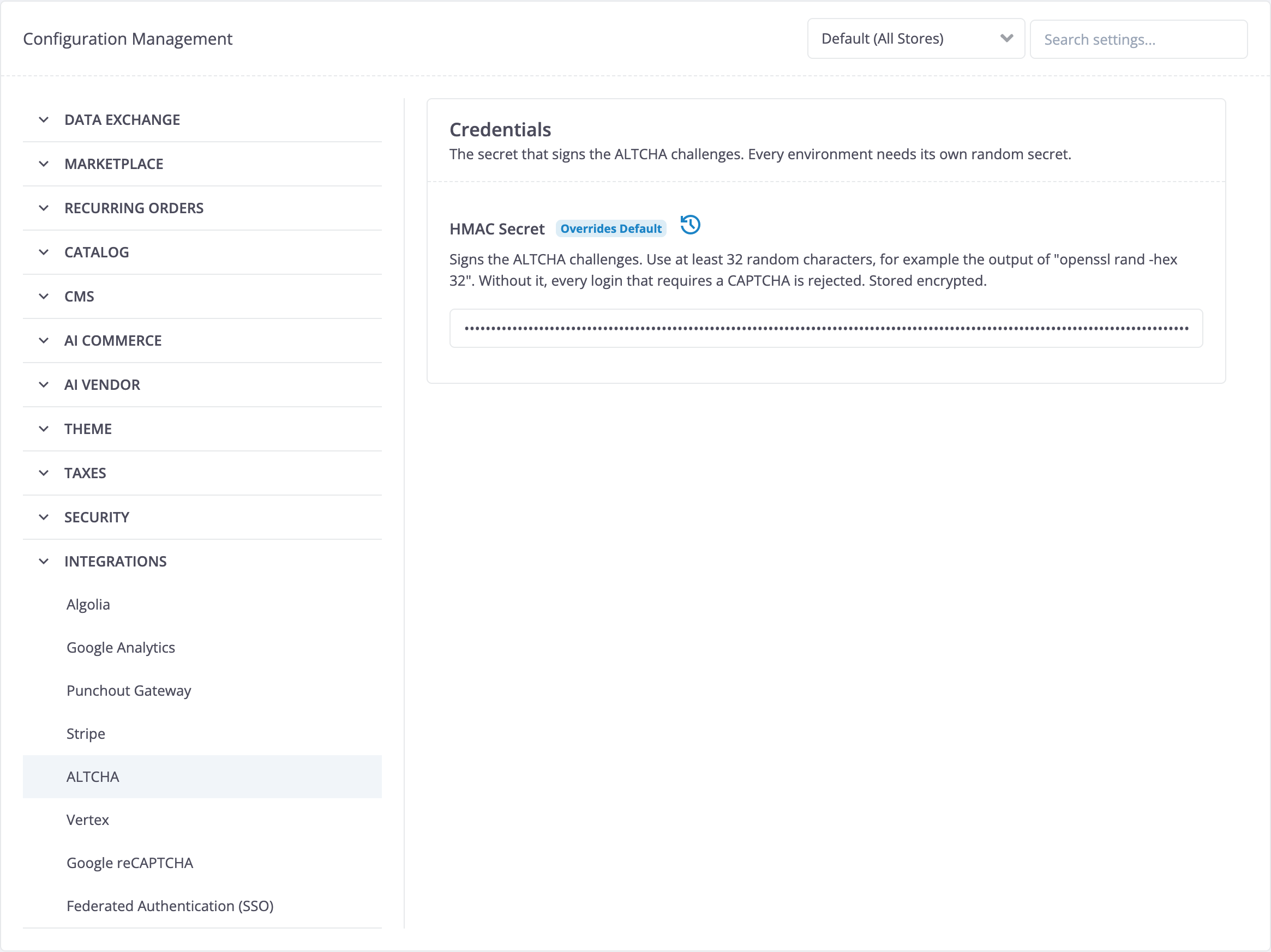
ALTCHA signs every challenge with an HMAC secret and checks the signature when the solution is submitted, so that a client cannot create its own challenges. Each environment needs its own random secret. The secret is a secret setting of the Configuration Management feature: in the Back Office, it is the HMAC Secret setting of Configuration > Integrations > ALTCHA, with the integrations:altcha:credentials:hmac_secret key. The secret must be at least 32 characters long. It is stored encrypted and is never published to the key-value storage.
- Load the Back Office translations of the
spryker-ecopackages. The names and descriptions of the ALTCHA settings are translations ofspryker-eco/captcha-altcha, andSpryker\Zed\Translator\TranslatorConfig::getCoreTranslationFilePathPatterns()loads only the translations ofvendor/spryker,vendor/spryker-shop, andvendor/spryker-feature. If your project does not load the translations ofvendor/spryker-ecoyet, add their path:
src/Pyz/Zed/Translator/TranslatorConfig.php
<?php

namespace Pyz\Zed\Translator;

use Spryker\Zed\Translator\TranslatorConfig as SprykerTranslatorConfig;

class TranslatorConfig extends SprykerTranslatorConfig
{
    /**
     * @return array<string>
     */
    public function getCoreTranslationFilePathPatterns(): array
    {
        $coreTranslationFilePathPatterns = parent::getCoreTranslationFilePathPatterns();
        $coreTranslationFilePathPatterns[] = APPLICATION_VENDOR_DIR . '/spryker-eco/*/data/translation/Zed/[a-z][a-z]_[A-Z][A-Z].csv';

        return $coreTranslationFilePathPatterns;
    }
}
Without this path, the Back Office shows the names and descriptions of the ALTCHA settings in English in every interface language.
- Register the setting in the Back Office by synchronizing the configuration schema, and generate the translation cache for the names and descriptions of the setting:
console configuration:sync
console translator:generate-cache
- Register the console command that stores a secret:
| PLUGIN | SPECIFICATION | PREREQUISITES | NAMESPACE |
|---|---|---|---|
| CaptchaAltchaHmacSecretGenerateConsole | Stores a secret, so that an environment never runs without one. If no secret is stored, generates a random 64-character secret and stores it. If the stored secret is shorter than 32 characters, replaces it the same way, because ALTCHA rejects such a secret. If a secret of 32 characters or more is stored, keeps it, so a secret that an administrator changed in the Back Office stays in place. Never prints or logs the secret. If the secret cannot be saved, exits with an error code and shows the reason. | The setting is registered by configuration:sync, and the database is initialized. |
SprykerEco\Zed\CaptchaAltcha\Communication\Console |
src/Pyz/Zed/Console/ConsoleDependencyProvider.php
<?php

namespace Pyz\Zed\Console;

use Spryker\Zed\Console\ConsoleDependencyProvider as SprykerConsoleDependencyProvider;
use Spryker\Zed\Kernel\Container;
use SprykerEco\Zed\CaptchaAltcha\Communication\Console\CaptchaAltchaHmacSecretGenerateConsole;

class ConsoleDependencyProvider extends SprykerConsoleDependencyProvider
{
    /**
     * @param \Spryker\Zed\Kernel\Container $container
     *
     * @return list<\Symfony\Component\Console\Command\Command>
     */
    protected function getConsoleCommands(Container $container): array
    {
        return [
            new CaptchaAltchaHmacSecretGenerateConsole(),
        ];
    }
}
- Run the command in every install recipe that initializes the database, including the recipe of
SPRYKER_HOOK_DESTRUCTIVE_INSTALL, after thesetup:init-dbstep, for example:
config/install/docker.yml
sections:
    init-storages-per-region:
        init-database:
            command: 'vendor/bin/console setup:init-db'

        captcha-altcha-hmac-secret-generate:
            command: 'vendor/bin/console captcha-altcha:hmac-secret:generate'
- Also run the command in the recipe that runs on every deployment, after the database migrations. This way, an existing environment gets a secret with its first deployment of ALTCHA. On Spryker Cloud, this is the recipe of
SPRYKER_HOOK_INSTALL, for example:
config/install/production.yml
sections:
    diff:
        propel-migrate:
            command: 'vendor/bin/console propel:migrate -vvv --no-ansi'

    init-configuration:
        captcha-altcha-hmac-secret-generate:
            command: 'vendor/bin/console captcha-altcha:hmac-secret:generate -vvv --no-ansi'
The command keeps a stored secret, so it is safe to run on every deployment. To store a secret in an existing environment without a deployment, run the command once:
console captcha-altcha:hmac-secret:generate
An administrator can change the secret in the Back Office at any time. Challenges signed with the previous secret are rejected afterward, so a visitor who had a login form open solves a new challenge.
Without a secret, or with a secret shorter than 32 characters, ALTCHA cannot create or verify challenges, and an error is logged: every login that requires a CAPTCHA is rejected with the The security check is currently unavailable. Please try again later. message. In the always CAPTCHA mode, this blocks every login form, including the Back Office login, so you cannot log in to the Back Office to enter a secret. In the default after_failed_attempts CAPTCHA mode, it blocks a login after the failed logins that require a CAPTCHA. The install recipes prevent this, and the Back Office does not switch the CAPTCHA on while the secret is missing or too short. The Back Office does not stop you from removing the secret while the CAPTCHA is on. To recover an environment without a valid secret, run console captcha-altcha:hmac-secret:generate, or switch the CAPTCHA off temporarily without the Back Office: CAPTCHA_ENABLED=false console configuration:import-environment security:captcha:login:is_enabled=CAPTCHA_ENABLED.
In the Back Office, go to Configuration > Integrations > ALTCHA. Make sure the HMAC Secret setting has a value.
4) Set up behavior
Only an application that registers ConfigurationApplicationPlugin can read secret settings. Because of this, the applications use ALTCHA as follows:
- The Back Office, the Backend Gateway, the Merchant Portal, and the console create and verify the challenges in their own process. The Back Office, the Backend Gateway, and the console register
ConfigurationApplicationPluginwhen you install the Configuration Management feature. The Merchant Portal registers it as described in Install the CAPTCHA feature. - The Storefront cannot read secret settings. It creates the challenges and verifies the solutions through the Backend Gateway, with the
/captcha-altcha/gateway/create-captcha-challengeand/captcha-altcha/gateway/verify-captcha-payloadrequests.
| PLUGIN | SPECIFICATION | PREREQUISITES | NAMESPACE |
|---|---|---|---|
| AltchaCaptchaProviderPlugin | Creates and verifies ALTCHA challenges, bound to the CAPTCHA context of the login form. Implements CaptchaChallengeUrlProviderPluginInterface, so its widget fetches the challenge from the challenge endpoint. The CAPTCHA feature accepts each solved challenge only once. |
The HMAC secret is stored. | SprykerEco\Client\CaptchaAltcha\Plugin\Captcha |
src/Pyz/Client/Captcha/CaptchaDependencyProvider.php
<?php

namespace Pyz\Client\Captcha;

use Spryker\Client\Captcha\CaptchaDependencyProvider as SprykerCaptchaDependencyProvider;
use Spryker\Client\CaptchaExtension\Dependency\Plugin\CaptchaProviderPluginInterface;
use SprykerEco\Client\CaptchaAltcha\Plugin\Captcha\AltchaCaptchaProviderPlugin;

class CaptchaDependencyProvider extends SprykerCaptchaDependencyProvider
{
    protected function getCaptchaProviderPlugin(): ?CaptchaProviderPluginInterface
    {
        return new AltchaCaptchaProviderPlugin();
    }
}
5) Build the frontend
- Generate transfer changes:
console transfer:generate
- Rebuild the frontends, so that they include the widget:
npm run yves
npm run zed
console frontend:mp:build
In deployment pipelines, use npm run yves:production, npm run zed:production, and console frontend:mp:build --environment production. For the Merchant Portal, use the console command instead of npm run mp:build, as described in Install the CAPTCHA feature.
The widget solves Argon2id challenges in a web worker, which each build emits as a separate script. The webpack configuration of spryker/zed-ui enables the worker parsing for the Merchant Portal. If your project builds the Merchant Portal with its own webpack configuration, enable the worker parsing in it, because Angular turns it off by default:
config.module = {
    ...config.module,
    parser: {
        ...config.module?.parser,
        javascript: { ...config.module?.parser?.javascript, worker: ['...'] },
    },
};
- In the Back Office, go to Configuration > Security > CAPTCHA. Switch on Enable CAPTCHA, select Always as the CAPTCHA Mode, and save. Log out. Go to the Back Office login page with the Network tab of the developer tools of your browser open. Make sure the login form shows the ALTCHA checkbox, and the browser sends no request to
/captcha/challengewhile the page loads. - Select the checkbox. Make sure the browser sends one
GET /captcha/challenge?context=backoffice_user_loginrequest, the response has the200status and a JSON body, and the widget shows the checkbox as selected. - Enter the correct password of a user and submit the form. Make sure you are logged in to the Back Office.
- Repeat the previous steps on the Storefront login page with a customer account and, in a marketplace, on the Merchant Portal login page with a merchant user. The request of the Merchant Portal widget is
GET /captcha/merchant-portal-challenge?context=merchant_portal_user_login. - Set Enable CAPTCHA and CAPTCHA Mode back to the values you use.
6) Prepare the infrastructure
Make sure your infrastructure meets the following requirements:
-
Serve the shop over HTTPS. The widget uses the Web Crypto API, which browsers provide only in secure contexts. Over plain HTTP, the widget shows Verification failed.
-
Serve the frontend assets from the host of the application, not from a CDN on another origin. Browsers start the web worker of the widget only from a script of the origin of the page.
-
The default Content Security Policy of Spryker needs no change. If your project extends the
Content-Security-Policyheader, for example, by overridinggetSecurityHeaders()ofSpryker\Yves\Application\ApplicationConfig,Spryker\Zed\Application\ApplicationConfig, orSpryker\Zed\MerchantPortalApplication\MerchantPortalApplicationConfig, which sends the security headers of the Merchant Portal, allow the widget in the extended policy:- If the policy sets
script-src, allow'wasm-unsafe-eval', because the Argon2id worker runs WebAssembly. - If the policy sets
worker-src, allow'self'. WithPBKDF2/SHA-256, the widget starts its workers fromblob:URLs, so also allowblob:.
For the default security headers and where to change them, see Security guidelines.
- If the policy sets
Thank you!
For submitting the form