
Storefront Assistant
Edit on GitHubStorefront Assistant is an AI chat on the Storefront that helps logged-in customers find, compare, and choose products. Customers describe what they need in their own words, and the assistant searches your catalog, shows matching products as cards, and explains how the results fit the request.
The assistant answers only from your shop data. Every product, price, link, and rating that the assistant shows comes from your catalog at the time of the question. If nothing fits, the assistant says so and offers to broaden the search instead of showing a weak match.
Use case: A customer needs a compact camera for travel but does not know the model names. On the Cameras category page, the customer opens Storefront Assistant and asks for “a small camera under 500 euros for travel”. The assistant searches the catalog, shows three matching cameras as product cards, and suggests filters such as the brand to narrow the results. The customer selects two cameras, compares them side by side, and opens the product page of the better one.
Why Storefront Assistant is useful
Large or technical catalogs are hard to browse with filters and keywords only. Customers often know the problem they want to solve, the budget, or the occasion, but not the product name or the right category. Storefront Assistant turns this kind of free-text need into catalog searches and shows the results in the format that the customer can act on: product cards, comparison tables, choices, or a complete setup within a budget.
Because the assistant knows the page that the customer is on, it can answer questions about the current product, category, or search results without the customer repeating the context.
Capabilities
| CAPABILITY | DESCRIPTION |
|---|---|
| Natural language product search | Finds products from a free-text description, including a budget, a brand, or product attributes. The assistant searches the catalog, the category tree, product relations, and product sets. |
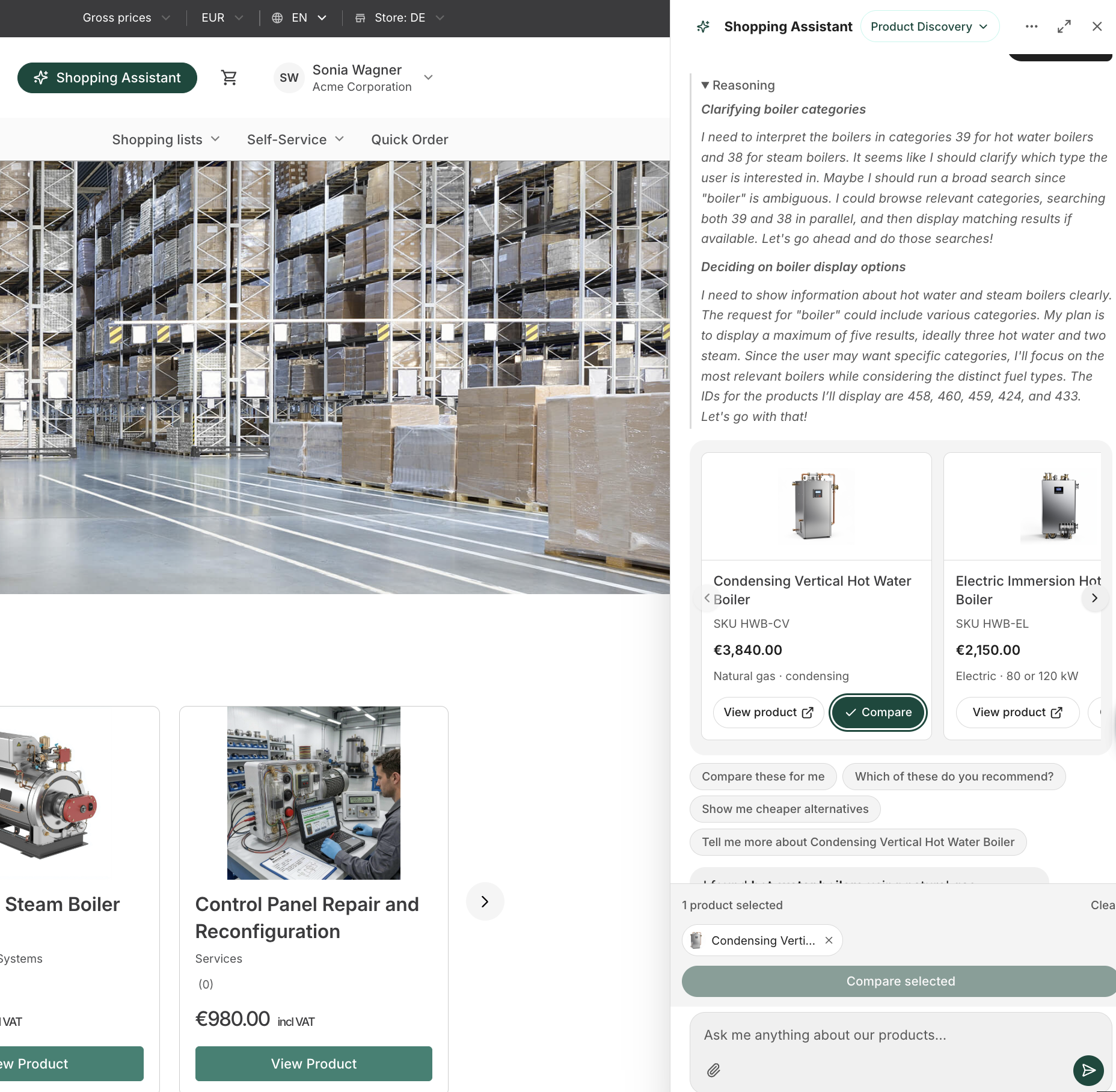
| Product cards | Shows the matching products as a scrollable carousel of cards with the image, name, price, rating, and a link to the product page. |
| Refinement chips | Suggests filters, such as a brand, to narrow the results, and links to the full search results when more products match. |
| Product comparison | Compares up to four products side by side in a table. Customers can show only the attributes that differ. |
| Guided choices | Asks a clarifying question with clickable answer options when the request is not specific enough. |
| Setup builder | Puts together a set of products that work together, for example a camera with accessories, within the budget of the customer. |
| Shop information | Answers questions from your CMS pages, for example about shipping or returns. |
| Page-aware answers | Uses the current product, category, search query, and active filters as context for the answer. |
| Suggested prompts | Offers starter questions as clickable chips. The chips change with the page type: product page, category page, search results, or any other page. |
| Attachments | Accepts images and PDF files, for example a photo of a product that the customer wants to find. |
| Chat history | Keeps the conversations of each customer for 30 days by default. Customers can reopen, delete, or bulk-delete conversations. |
| Agent selection | Routes each question to the most suitable agent automatically. Customers can also select an agent manually. The feature ships with the Product Discovery agent, and developers can add more agents. |
How customers use Storefront Assistant
Storefront Assistant is available only to logged-in customers. Guests do not see the chat.
- On the Storefront, click Shopping Assistant in the header. On a mobile device, tap the floating chat button.
- The assistant panel opens at the right side of the page. On a mobile device, it uses the full screen.
- Type a question, or click a suggested prompt.
- The assistant shows its progress, for example “Searching the catalog”, and then answers with product cards, a comparison, choices, or a setup.
- Optional: to compare products, click Compare on two or more product cards, and then click Compare selected.
- Optional: to continue an earlier conversation, open More options > Chat history.
Customers can expand the panel to full screen, copy an answer, or regenerate the last answer.
Example questions:
- “Show me cameras under 500 euros.”
- “Which of these is the best value?”
- “Compare Canon IXUS 160 with similar models.”
- “Help me find a gift for someone who likes photography.”
- “Put together a tablet setup for less than 800 euros.”
- “What is your return policy?”
Enable Storefront Assistant
To enable the feature, follow these steps:
- In the Back Office, go to AI Commerce > Storefront Assistant > General.
- Turn on Enable Storefront Assistant.
- Turn on Enable Product Discovery Agent.
- Click Save.
When you turn off Enable Storefront Assistant, the chat disappears from the Storefront for all customers. Changes apply without a deployment.
The assistant needs the API credentials of an AI vendor. For details, see Configure Storefront Assistant.
Configure Storefront Assistant
You can configure the following settings in the Back Office under AI Commerce > Storefront Assistant:
| SETTINGS GROUP | SETTING | DESCRIPTION |
|---|---|---|
| General | Enable Storefront Assistant | Shows or hides the chat on the Storefront. |
| General | Enable Product Discovery Agent | Turns the Product Discovery agent on or off. When no agent is on, the assistant cannot answer. |
| System Prompts | Product Discovery System Prompt | The instructions that the Product Discovery agent follows. The default prompt tells the agent to use only catalog data and never to invent products, prices, or links. |
| AI Vendor | AI Configuration | The AI vendor that the assistant uses: OpenAI, AWS Bedrock, or Anthropic. |
| AI Vendor | OpenAI Model, AWS Bedrock Model, Anthropic Model | The model of the selected vendor. The Back Office shows only the field of the selected vendor. The model must support streaming and tool calls. |
| Suggested Prompts | Product Page Prompts, Category Page Prompts, Search Results Prompts, Default Prompts | The starter questions for each page type. |
| Suggested Prompts | Product Results Prompts | The follow-up questions under the product cards in the chat. |
To set the API credentials of the AI vendor, go to AI Vendor in the Back Office. For details, see Set credentials in the Back Office.
Write suggested prompts
Suggested prompts are the clickable questions that customers see when they open the chat. Separate the prompts with a pipe character (|). The chat shows a maximum of four prompts for each page type. To show no prompts on a page type, leave the value empty.
To show the prompts in titled sections, separate the sections with a double pipe (||), and start each section with its title and a colon. The chat shows a maximum of four sections for each page type, with a maximum of four prompts in each section. The chat shows the titles as you enter them, so the titles are not translated for each locale.
You can use the following placeholders. The assistant replaces them with the data of the current page:
| PLACEHOLDER | REPLACED WITH | AVAILABLE IN |
|---|---|---|
{productName} |
The name of the current product, or of the first product in the chat results | Product Page Prompts, Product Results Prompts |
{categoryName} |
The name of the current category | Category Page Prompts |
{searchQuery} |
The search query of the customer | Search Results Prompts |
{productCount} |
The number of products in the chat results | Product Results Prompts |
Example of Product Page Prompts:
Show me cheaper alternatives to {productName}|Show me similar products|Compare {productName} with similar models
Example of Default Prompts with sections:
Learn more: What is new?|What is on sale? || Get recommendations: What do you recommend?
Data privacy
Storefront Assistant sends the messages and attachments of the customer, and the product data that the assistant finds, to the AI vendor that you select. The chat history is stored in your shop database and is visible only to the customer who started the conversation.
Developer resources
| RESOURCE | DESCRIPTION |
|---|---|
| Storefront Assistant | Technical overview: architecture, agents, tools, the stream protocol, and configuration options. |
| Install Storefront Assistant | Step-by-step installation guide. |
| Add a custom Storefront Assistant agent | How to add your own agent to the assistant. |
Thank you!
For submitting the form