
Workflows feature overview
Edit on GitHubThis feature is in Early Access. We’d love for you to try it out and share feedback as we work toward general availability.
The Workflows feature lets Back Office users design, adjust, and monitor multi-step business processes — such as B2B company onboarding, order escalations, or approval flows — directly in the Back Office, without a code deployment.
Business problems it solves
Multi-step business processes are often hard-coded into a project, which creates friction:
- Every process change needs a developer and a deployment. Adding a step, changing who approves it, or adjusting a timeout normally means a code change and a release.
- Process logic is invisible to the business. Without reading source code or asking a developer, business teams cannot see or explain how a process actually behaves.
- Ad hoc tracking does not scale. Teams fall back to spreadsheets, shared inboxes, or manual reminders to track where a company, order, or customer stands in a process, with no single source of truth.
The Workflows feature removes the deployment dependency. Unlike a classic state machine, which lives in a deployed code file and requires a release to change, a workflow is designed, versioned, and activated directly in the Back Office. A visual builder lets you draw the process—adding steps and linking them—on a canvas, so process design is in the hands of the people who own the process, without writing state-machine XML by hand.
How a workflow works
A workflow describes how a subject — which can be anything: a company, a user, a product, or any custom entity — moves through a sequence of steps as events occur, conditions are met, or timeouts elapse. A workflow starts when its subject reaches a specific application event, defined in a trigger: for example a company being created, a user registering, or a merchant being updated.
Consider onboarding a new B2B company. When a company is created, a workflow starts and walks it through a series of steps: business verification, then contract agreement, then customer group assignment, and finally approved. Some steps advance on their own once a condition is met (for example, the business has been verified); others wait for a Back Office user to confirm; and a step can time out if nothing happens. The whole process — its steps, their order, and the rules between them — is defined and adjusted in the Back Office, not in code.
The Back Office renders this as a diagram, so you can follow the flow without reading the underlying definition:
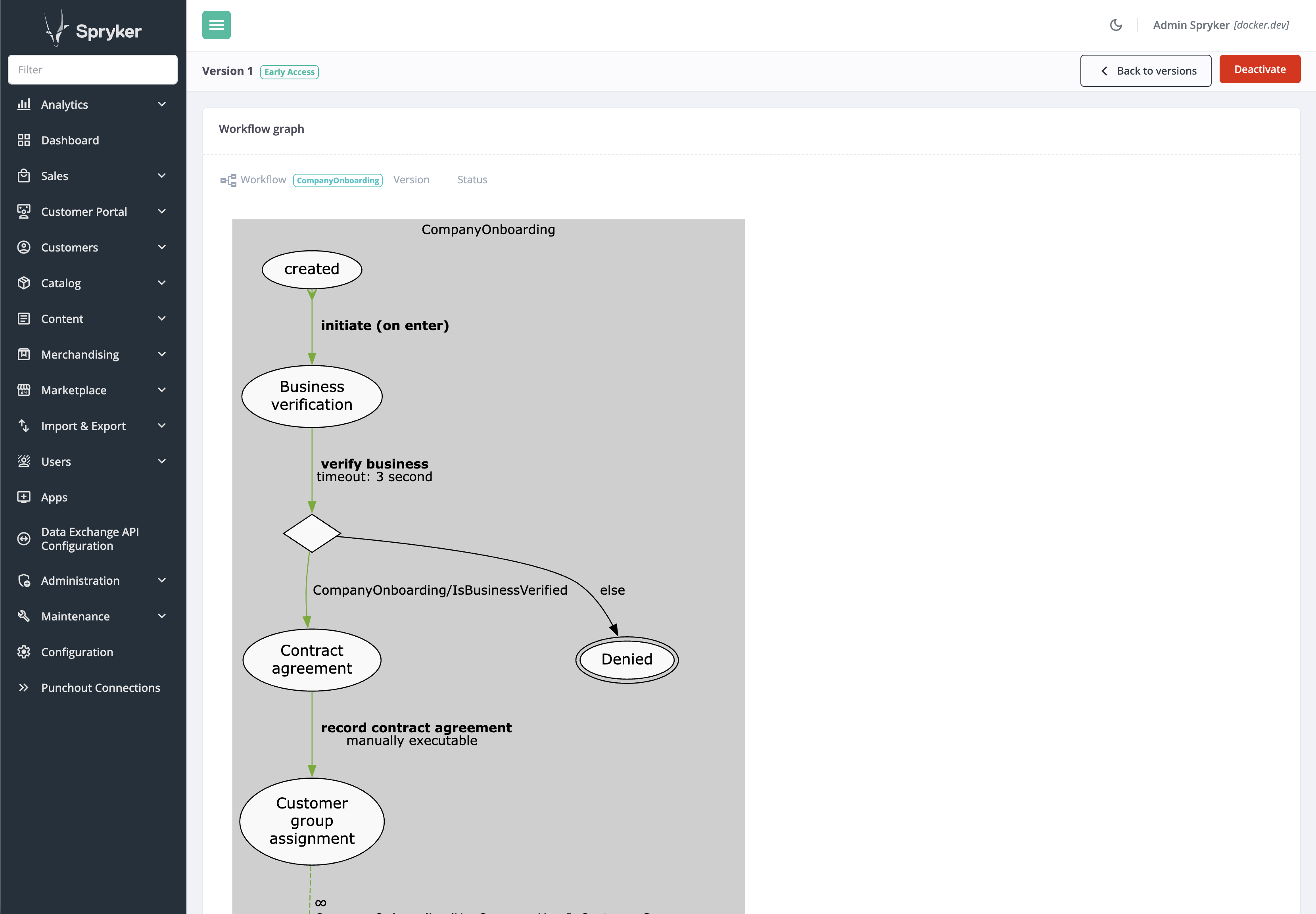
The example below simplifies this to its first decision point — verifying the business, then approving or denying — to show the underlying definition format from start to finish: a new company moves from created to approved, passing a verification check and an automatic waiting step along the way.
A workflow definition is an XML document in the state-machine-01 format. It has three parts: states, transitions, and events:
<statemachine xmlns="spryker:state-machine-01">
    <process name="CompanyOnboarding" main="true">

        <states>
            <state name="created"/>
            <state name="business verification"/>
            <state name="approved"/>
            <state name="denied"/>
        </states>

        <transitions>
            <!-- A plain event transition: the "initiate" event moves the subject forward. -->
            <transition happy="true">
                <source>created</source>
                <target>business verification</target>
                <event>initiate</event>
            </transition>

            <!-- A guarded transition: it fires only if the condition returns true. -->
            <transition happy="true" condition="CompanyOnboarding/IsBusinessVerified">
                <source>business verification</source>
                <target>approved</target>
                <event>verify business</event>
            </transition>

            <!-- The same event with no condition sends the subject the other way. -->
            <transition>
                <source>business verification</source>
                <target>denied</target>
                <event>verify business</event>
            </transition>
        </transitions>

        <events>
            <event name="initiate" onEnter="true"/>
            <event name="verify business" timeout="3 second"/>
        </events>

    </process>
</statemachine>
You do not write this XML by hand. On the Create workflow and New version pages, a visual builder lets you draw the states and transitions on a canvas and set each one’s properties in an inspector. To check the definition before saving, click Validate. The raw XML above is still available in the builder’s Advanced: raw XML panel for review or direct editing.
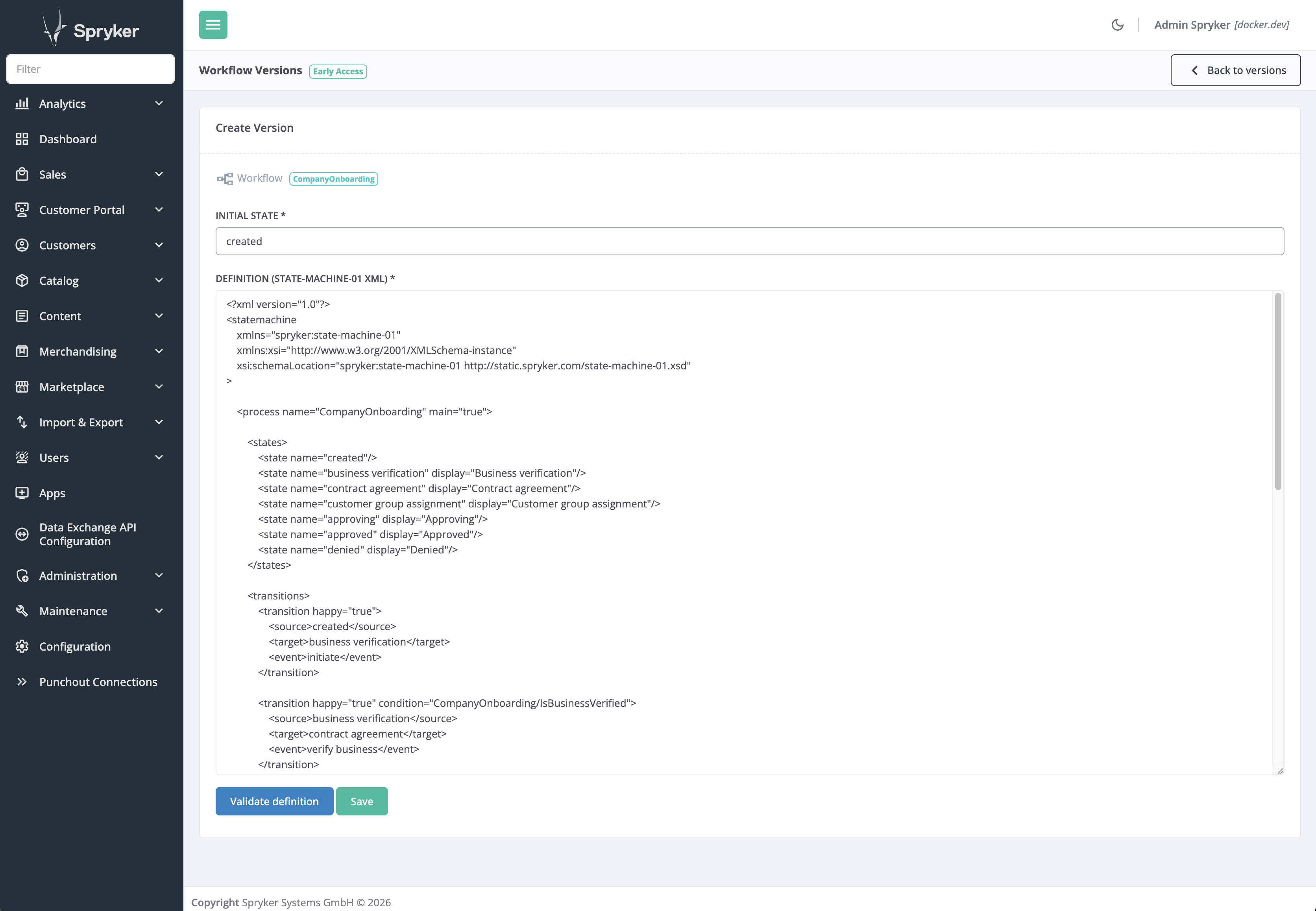
Here is how a company travels through this definition:
- The instance starts. A trigger (see Triggers) starts an instance for a new company. The instance begins in the initial state you set when you author the version — here,
created. - An
onEnterevent fires automatically. Theinitiateevent is markedonEnter="true", so the engine fires it as soon as the instance is increated, moving the company tobusiness verification. - A timeout waits, then a condition decides. The
verify businessevent has atimeout="3 second". After the timeout elapses, the engine evaluates the twoverify businesstransitions in order. The first is guarded by theCompanyOnboarding/IsBusinessVerifiedcondition: if it returnstrue, the company moves toapproved. If not, the unguarded transition sends it todenied.
Three ideas in that trace do the heavy lifting, and each maps to a piece of project code a developer can plug in:
| In the definition | What it means | You provide |
|---|---|---|
event |
A named step. It can fire automatically (onEnter), after a delay (timeout), on a user action (manual), or from application code. A timeout must be a positive duration in the <number> <unit> format, where the unit is second, minute, hour, day, week, month, or year — for example 30 seconds or 14 days. |
Nothing — events are declared in the XML. |
condition="…" |
A guard that lets a transition fire only when a business rule is true. | A condition plugin. |
command="…" |
Project logic to run during a transition (not shown above — for example, “mark the company approved”). | A command plugin. |
Core concepts
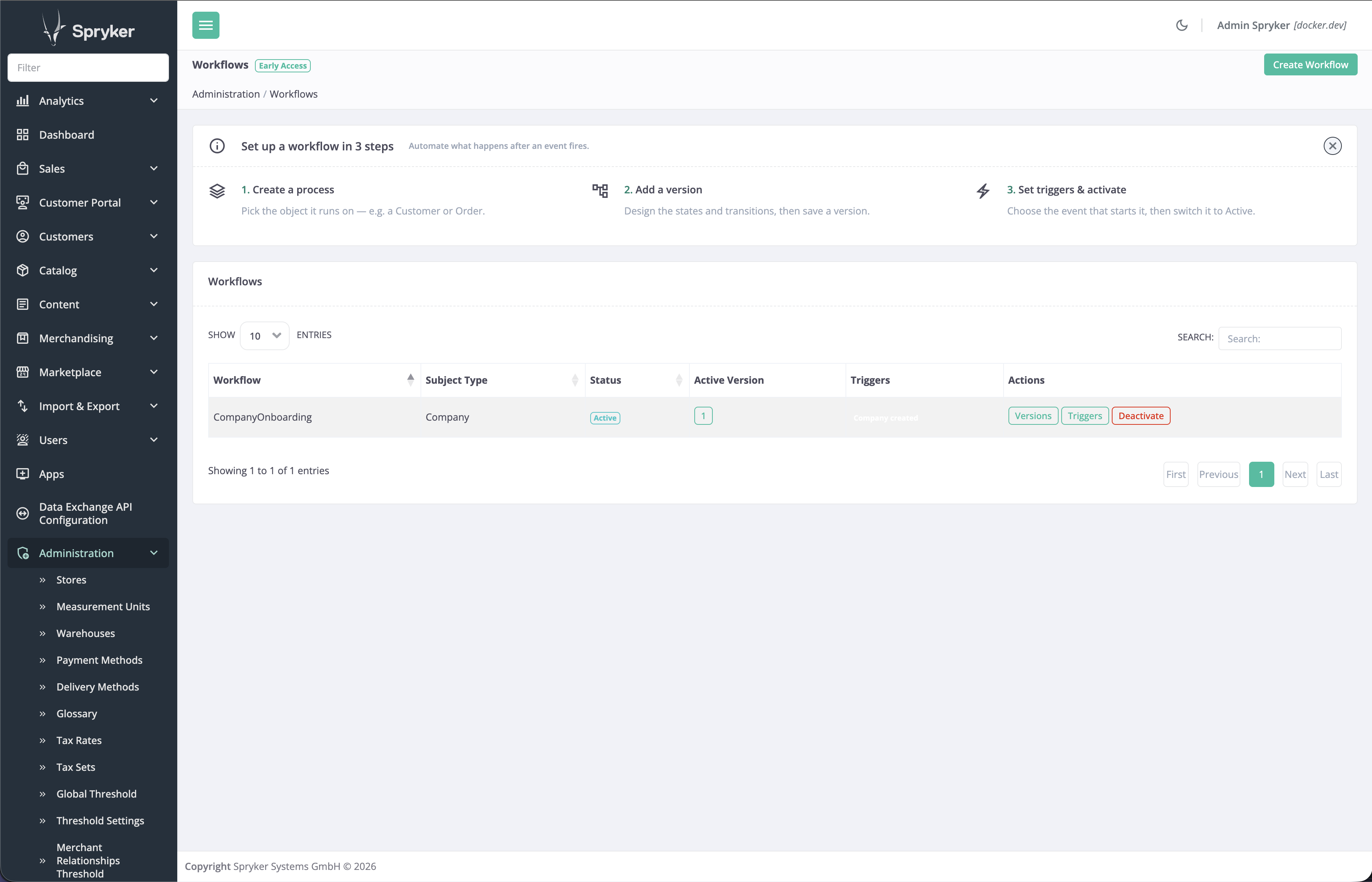
A workflow is built from four entities. The example above is a version of a process; running it for one company creates an instance; and what starts that instance is a trigger. You manage all of them in the Back Office under Administration > Workflows (shown at the top of this page).
| Concept | What it is |
|---|---|
| Process | The workflow itself: a named process bound to a subject type (for example Company). It is created once and never replaced — all versions and instances belong to it. |
| Version | One complete definition of the process at a point in time (the XML above): its states, transitions, and events, plus the initial state. A process can have many versions, but only one is active at a time. |
| Trigger | Connects an application event (for example “a company was created”) to the process, so that event automatically starts a new instance. |
| Instance | One subject running through the workflow — for example one specific company being onboarded. It tracks the subject’s current state. |
Why versions matter
Every instance is pinned to the version it started on. When you activate a newer version, running instances do not jump to it — they finish on the version they began with. Only new instances start on the newly active version.
This is what makes editing a live process safe. You publish an improved version for future subjects, while in-flight subjects complete on the exact rules they started with — no half-migrated instances and no transitions that suddenly point at states that no longer exist.
To change a definition, open the workflow and click New version. The builder opens with a copy of the current version, and Save as new version saves your changes as a new, inactive version. The active version keeps running until you make the new one active.
The following rules protect running instances:
- Making a version active, and activating or deactivating a workflow, asks for confirmation first.
- The active version cannot be deleted.
- A version that has instances cannot be deleted.
Subjects
A workflow is attached to a subject type, which you choose when you create the workflow. It is not limited to companies: the subject type is a label you define — Company, Customer, Product, or anything your project needs. The trigger you configure decides which application event starts an instance for that subject.
The Subject type field lists only subject types that have at least one registered trigger plugin. The demo shop provides the Company, Merchant, MerchantRelationship, and MerchantProduct subject types. To add your own, see Add a subject type to the Workflows feature.
For example, a process with subject type Company and a trigger on company creation starts one instance per created company, and each company then runs its own instance independently.
Instances
An instance is a single subject running through a workflow — for example one specific company being onboarded. Each instance is pinned to the version it started on and tracks its current state.
In the Back Office, the instances of a version are listed in Workflow activity on the version page. Open an instance to see its current state and Transition history, and to trigger any Manual events available from its current state — for example, a step that a Back Office user must confirm before the workflow continues.
Each instance and its transition history are kept in the database. This MVP does not ship an automated cleanup or retention job, so plan for periodic housekeeping if you expect a high volume of instances.
Transitions
A workflow advances through three kinds of transitions:
- Event transitions: triggered by an application event or a manual action in the Back Office.
- Condition transitions: advance automatically once a business condition becomes true.
- Timeout transitions: advance automatically after a defined period elapses.
Condition and timeout transitions have no incoming event to push them, so two console commands advance them on a schedule:
workflow:check-condition— advances every condition transition whose condition has becometrue.workflow:check-timeout— advances every timeout transition whose timeout has elapsed.
Without them, an instance that reaches a condition or timeout transition waits forever. These commands are not scheduled out of the box; the installation guide shows how to register them as recurring jobs so workflows progress on their own.
Triggers
A trigger connects an application event to a workflow so that a new instance starts automatically. For example, creating a company can trigger a new onboarding instance. You select one or more triggers on the Create workflow page, and you can change them later with Edit description and triggers. Triggers belong to the workflow, not to a version, so they apply to all its versions. Only triggers of the workflow’s subject type can be selected; the available triggers are provided by trigger plugins (see Extending a workflow).
Extending a workflow
The definition references project code by name in two places: condition="…" and command="…". A developer implements each as a plugin and registers it in the project WorkflowDependencyProvider (see the installation guide). The engine matches a plugin to a definition by two values: its getName() (the string used in the XML) and its getSubjectType() (so the same name can behave differently for different subjects).
Commands
A command runs project logic during a transition — for example, marking a company approved when it enters the approved state. Reference it in the definition as command="CompanyOnboarding/MarkCompanyActiveAndApproved", then implement WorkflowCommandPluginInterface so getName() returns that same string:
interface WorkflowCommandPluginInterface extends CommandPluginInterface
{
    public function getName(): string;

    public function getSubjectType(): string;
}
Conditions
A condition guards a transition: the workflow takes that transition only when the condition returns true — for example, “the business is verified.” Reference it as condition="CompanyOnboarding/IsBusinessVerified", then implement WorkflowConditionPluginInterface:
interface WorkflowConditionPluginInterface extends ConditionPluginInterface
{
    public function getName(): string;

    public function getSubjectType(): string;
}
Trigger plugins
A trigger plugin provides an application event that can start an instance. Unlike commands and conditions — which are named inside the definition XML — a trigger is chosen in the Back Office when you configure the workflow. A trigger plugin binds an application event (getEventName(), for example Entity.spy_company.create) to a subject type, so that whenever that event fires for that subject, a new instance starts. Implement StateMachineProcessTriggerPluginInterface:
interface StateMachineProcessTriggerPluginInterface
{
    public function getEventName(): string;

    public function getName(): string;

    public function getSubjectType(): string;

    public function getDescription(): string;
}
A trigger plugin only makes the event selectable. To start an instance when the event fires, the project also needs an event listener that calls WorkflowFacade::startStateMachineInstance(). For a complete example, see Add a subject type to the Workflows feature.
Provisioning workflows on installation
Workflows can be shipped with a project and provisioned automatically during installation through data import. This means a demo or production workflow is available immediately after setup, and re-importing the same workflow does not create duplicates. See the installation guide for details.
Thank you!
For submitting the form