Demo Preparation Wizard
Edit on GitHubThe demo-prep-wizard skill prepares a customer demo on a clone of the Spryker B2B Marketplace demoshop. It starts from the briefing, builds the demo, checks every demo point in the browser, and writes a handover report for the presenter.
The wizard asks only about content, look, and story. It makes the technical decisions itself and records each one in a decision log.
What the skill does
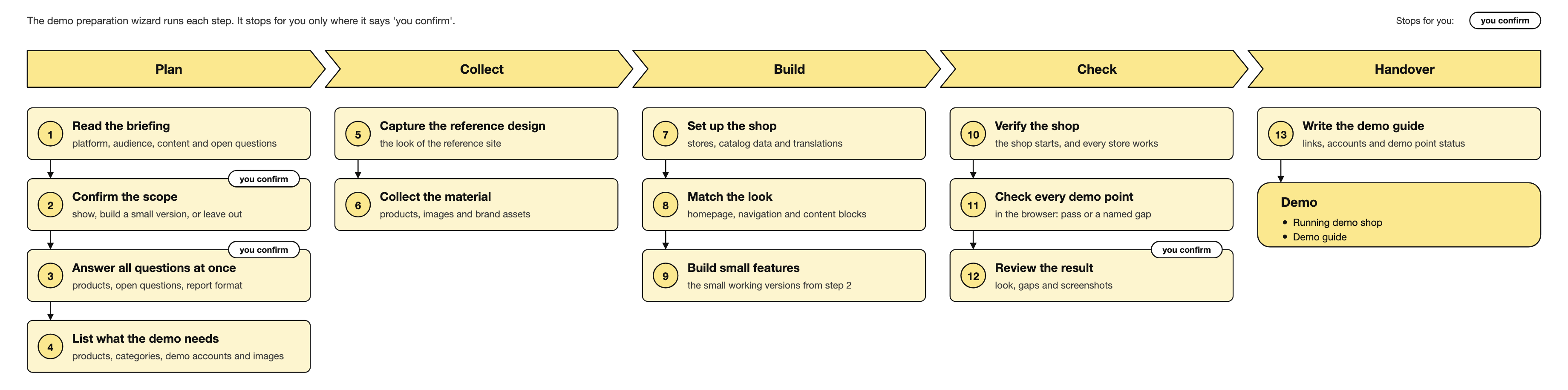
The wizard is an orchestrator. It does not harvest, design or import data itself. Each phase goes to a named skill:
| Phase | Skill | What happens |
|---|---|---|
| 1. Intake | demo-intake |
Reads the briefing — a .docx, .pdf or .txt file, a demo script, a reference URL, or a verbal brief — into one structured block. Everything the brief does not answer stays an open question. |
| 2. Requirements | demo-prep-wizard |
Puts every requirement of the brief into a routing table, which you confirm once. Then it asks all remaining questions in one sitting and derives the needs list: products, categories, facets, personas, content blocks and images, demo point by demo point. |
| 3. Design reference | match-reference-design |
Captures the reference site — the customer’s site or another site that you name — and writes a composition spec. |
| 4. Harvest | harvest-source-materials |
Collects product data, product images, editorial images and brand assets from the customer’s public site or a supplied export, into a folder beside the project. Only what the needs list asks for is collected. |
| 5. Build | project-starter-wizard, project-data, define-stores, translate-content, match-reference-design, boot-and-verify, spryker-customization |
Builds the demo on the project track. A small custom feature goes to spryker-customization with its demo preset. |
| 6. Check | spryker-verifier agent |
Checks the needs list against the data, then walks every demo point in the browser. Each demo point gets a pass or a named gap. |
| 7. Handover report | demo-run-sheet |
Writes the handover report for the presenter. |
A demo can start at any phase. For example, “Here is the briefing for the demo” starts at phase 1, and “I already have the material — build it” starts at phase 5. If a previous run left the state file, the wizard continues from the first open phase.
For the full flow, the design decisions, and the known limits, see the demo-prep-wizard README and the demo-run-sheet README in the plugin repository.
The routing table
The routing table is the only place where you confirm the scope. Each requirement of the brief gets one of three labels:
| Label | Meaning | Built by |
|---|---|---|
| Shown — look and content | The default for most of a demo: setup, data, design, or something that already works | The project track, no custom code |
| Shown — a small working version | A custom feature, with what it looks like and about how long it takes | spryker-customization at the PoC quality bar |
| Left out | Not worth the cost for the story. The handover report offers it as a talking point | Nobody |
A requirement that the source cannot supply is a named gap. The wizard never fills a gap with a substitute.
When the wizard asks you
The run has three moments with you:
- The routing table — you confirm the scope.
- The one sitting — every question the run needs, with the recommended option first: the products, the open questions from the intake, the questions of the demo fast path of the Project Starter Wizard, the format of the handover report, and the run mode as the last question. The other skills read their answers from the state file and do not ask again.
- The final review — the reference next to the result, the screenshots of the small working versions, the gaps, and the handover report.
In an autonomous run, only a hard stop interrupts the run between the sitting and the final review — for example, starting Docker or adding the /etc/hosts entry. In a collaborative run, the wizard asks “Continue to the next phase?” at each phase boundary.
The handover report
The handover report is the document that the presenter opens on a second screen during the call. The team that takes over the demo uses it too. It has seven sections:
- Environment — a link to each storefront, the Back Office and every other application that the demo uses.
- Demo accounts — per account: the person, the login, the company and role, what to use it for, and what not to use it for. The report does not contain passwords.
- Products — per product: the link, the point it makes, the stock per warehouse, and the prices.
- Categories — per category: the link, the products that are visible, and the facets that narrow the result.
- Demo points — one row per requirement of the brief, with how to show it and its status:
Ready,Ready, with a note,Not yet tested,Not built yet, orNot built. - Watch out during the demo — what can stop a live run, and what to do instead.
- How each part is built — per feature:
Standard,Configured,Custom,Custom (small),Custom (mocked), orContent page only (mocked).
Every link, login, price, stock value and facet comes from the running shop and is tested before it goes into the report. Ready means tested.
The wizard asks once for the format:
- HTML (default) —
.ai-dev/demo-handover-report.html. Open it in the browser, select all, copy, and paste it into a Google Doc, a Confluence page or a Word document. Headings, tables, links and status labels stay. - Markdown —
.ai-dev/demo-handover-report.md.
Run artifacts
The run writes these files under .ai-dev/ in the clone:
| File | Role |
|---|---|
demo-prep.md |
The state: the confirmed routing table, the answers of the sitting, the needs list, the decision log, and the accepted gaps. Resume reads this file. |
rehearsal.md |
Pass or gap per demo point, written after the last rebuild |
demo-handover-report.html or .md |
The handover report |
Before you start
- A clone of the Marketplace B2B Demo Shop, or a project that an earlier demo run built.
- The AI Dev SDK plugin, installed in Claude Code or GitHub Copilot — see Installation.
- A browser-automation MCP server, for the checks in the browser.
- The briefing, a demo script, or a reference URL.
Start the wizard with a prompt such as “We have a demo coming up. Here is the briefing.”, or invoke it directly:
/spryker-ai-dev-sdk:demo-prep-wizard
Thank you!
For submitting the form