
Install Search by Image
Edit on GitHubSearch by Image lets storefront customers upload a photo to find products. AI analyzes the image, identifies a search term, and redirects the customer to the search results page or the first matching product detail page. This document describes how to install the Search by Image feature.
Install the feature core
Follow the steps in the following sections to install the Search by Image feature core.
Prerequisites
Install the required features:
| NAME | VERSION | INSTALLATION GUIDE |
|---|---|---|
| AI Commerce | 202610.0 | Install AI Commerce |
| Configuration Management | 202610.0 | Install the Configuration Management feature |
| Catalog | 202610.0 |
1) Add translations
Append the glossary according to your configuration:
data/import/common/common/glossary.csv
>ai_commerce.search_by_image.form.image.label,Search by image,en_US
ai_commerce.search_by_image.form.image.label,Bildersuche,de_DE
ai_commerce.search_by_image.form.image.error.mime_type,"This image type is not supported. Please upload a JPEG, PNG, WebP, or GIF.",en_US
ai_commerce.search_by_image.form.image.error.mime_type,"Dieses Bildformat wird nicht unterstützt. Bitte laden Sie ein JPEG, PNG, WebP oder GIF hoch.",de_DE
ai_commerce.search_by_image.error.no_image_provided,Please select an image to search.,en_US
ai_commerce.search_by_image.error.no_image_provided,Bitte wählen Sie ein Bild für die Suche aus.,de_DE
ai_commerce.search_by_image.error.search_failed,Search by Image failed. Please try again.,en_US
ai_commerce.search_by_image.error.search_failed,Bildsuche fehlgeschlagen. Bitte versuchen Sie es erneut.,de_DE
ai_commerce.search_by_image.error.unavailable,Search by Image is currently unavailable. Please try again later.,en_US
ai_commerce.search_by_image.error.unavailable,Bildsuche ist derzeit nicht verfügbar. Bitte versuchen Sie es später erneut.,de_DE
ai_commerce.search_by_image.error.disabled,Search by Image is currently disabled.,en_US
ai_commerce.search_by_image.error.disabled,Bildsuche ist derzeit deaktiviert.,de_DE
ai_commerce.search_by_image.search,Search,en_US
ai_commerce.search_by_image.search,Suchen,de_DE
ai_commerce.search_by_image.upload_image,Upload image,en_US
ai_commerce.search_by_image.upload_image,Bild hochladen,de_DE
ai_commerce.search_by_image.upload_image_to_find_products,Upload an image to find similar products.,en_US
ai_commerce.search_by_image.upload_image_to_find_products,"Laden Sie ein Bild hoch, um ähnliche Produkte zu finden.",de_DE
ai_commerce.error.file.size.invalid,"File size is too big.",en_US
ai_commerce.error.file.size.invalid,"Ungültige Gesamtdateigröße.",de_DE
ai_commerce.search_by_image.image.description,"Max up to %size% MB. Allowed file formats %format%",en_US
ai_commerce.search_by_image.image.description,"Maximal bis zu %size%. Erlaubte Dateiformate: %format%",de_DE
Import the data:
console data:import glossary
Make sure that the configured data has been added to the spy_glossary_key and spy_glossary_translation tables.
2) Set up transfer objects
Generate transfer changes:
console transfer:generate
Make sure the following transfers have been created:
| TRANSFER | TYPE | EVENT | PATH |
|---|---|---|---|
| SearchByImageRequest | class | created | src/Generated/Shared/Transfer/SearchByImageRequestTransfer.php |
| SearchByImageResponse | class | created | src/Generated/Shared/Transfer/SearchByImageResponseTransfer.php |
| SearchByImagePromptResponse | class | created | src/Generated/Shared/Transfer/SearchByImagePromptResponseTransfer.php |
3) Register plugins
Register the following plugins:
| PLUGIN | SPECIFICATION | PREREQUISITES | NAMESPACE |
|---|---|---|---|
| SearchByImageRouteProviderPlugin | Registers the routes required for the Search by Image request handling. | SprykerFeature\Yves\AiCommerce\SearchByImage\Plugin\Router | |
| ImageSearchAiWidget | Renders the camera icon and image upload dialog next to the search input. | SprykerFeature\Yves\AiCommerce\SearchByImage\Widget |
src/Pyz/Yves/Router/RouterDependencyProvider.php
<?php

namespace Pyz\Yves\Router;

use SprykerFeature\Yves\AiCommerce\SearchByImage\Plugin\Router\SearchByImageRouteProviderPlugin;
use SprykerShop\Yves\ShopApplication\Plugin\Provider\ShopControllerEventHandlerPlugin;

class RouterDependencyProvider extends SprykerRouterDependencyProvider
{
    /**
     * @return array<\Spryker\Yves\RouterExtension\Dependency\Plugin\RouteProviderPluginInterface>
     */
    protected function getRouteProvider(): array
    {
        return [
            // ...
            new SearchByImageRouteProviderPlugin(),
        ];
    }
}
Warm up the router cache:
console router:cache:warm-up
src/Pyz/Yves/ShopApplication/ShopApplicationDependencyProvider.php
<?php

namespace Pyz\Yves\ShopApplication;

use SprykerFeature\Yves\AiCommerce\SearchByImage\Widget\ImageSearchAiWidget;
use SprykerShop\Yves\ShopApplication\ShopApplicationDependencyProvider as SprykerShopApplicationDependencyProvider;

class ShopApplicationDependencyProvider extends SprykerShopApplicationDependencyProvider
{
    /**
     * @return array<string>
     */
    protected function getGlobalWidgets(): array
    {
        return [
            // ...
            ImageSearchAiWidget::class,
        ];
    }
}
Make sure that the ImageSearchAiWidget is registered and the camera icon is rendered next to the search bar when the feature is enabled.
4) Configure AiFoundation for Search by Image
For a base AiFoundation setup, see Configure AiFoundation.
Using a dedicated AI configuration for Search by Image is recommended because each named configuration is tracked separately in the AiFoundation audit log. This lets you isolate and review all AI calls made by the image search flow independently from other AI features in your project.
To use a dedicated AI model configuration for Search by Image instead of the default one, follow these steps:
- Define the Search by Image configuration name and Back Office setting keys at the project level:
src/Pyz/Shared/AiCommerce/AiCommerceConstants.php
<?php

declare(strict_types = 1);

namespace Pyz\Shared\AiCommerce;

use SprykerFeature\Shared\AiCommerce\AiCommerceConstants as SprykerFeatureAiCommerceConstants;

interface AiCommerceConstants extends SprykerFeatureAiCommerceConstants
{
    public const string CONFIGURATION_KEY_OPENAI_API_TOKEN = 'ai_vendor:openai:general:api_token';
    public const string CONFIGURATION_KEY_SEARCH_BY_IMAGE_AI_CONFIGURATION = 'ai_commerce:search_by_image:ai_vendor:ai_configuration';
    public const string CONFIGURATION_KEY_SEARCH_BY_IMAGE_OPENAI_MODEL = 'ai_commerce:search_by_image:ai_vendor:openai_model';

    public const string AI_CONFIGURATION_SEARCH_BY_IMAGE_OPENAI = 'AI_COMMERCE:AI_CONFIGURATION_SEARCH_BY_IMAGE_OPENAI';
}
- In
config/Shared/config_ai.php, register a named configuration entry keyed by theAI_CONFIGURATION_SEARCH_BY_IMAGE_OPENAIconstant:
$config[\Spryker\Shared\AiFoundation\AiFoundationConstants::AI_CONFIGURATIONS][\Pyz\Shared\AiCommerce\AiCommerceConstants::AI_CONFIGURATION_SEARCH_BY_IMAGE_OPENAI] = [
    'provider_name' => \Spryker\Shared\AiFoundation\AiFoundationConstants::PROVIDER_OPENAI_RESPONSES,
    'provider_config' => [
        'key' => \Spryker\Shared\AiFoundation\AiFoundationConstants::CONFIGURATION_REFERENCE_PREFIX . \Pyz\Shared\AiCommerce\AiCommerceConstants::CONFIGURATION_KEY_OPENAI_API_TOKEN,
        'model' => \Spryker\Shared\AiFoundation\AiFoundationConstants::CONFIGURATION_REFERENCE_PREFIX . \Pyz\Shared\AiCommerce\AiCommerceConstants::CONFIGURATION_KEY_SEARCH_BY_IMAGE_OPENAI_MODEL,
        'parameters' => [
            'reasoning' => [
                'effort' => 'minimal',
            ],
        ],
    ],
];
- Return the configuration name from
AiCommerceConfig. Search by Image reads this value from the Client-layer configuration, so override it in the ClientAiCommerceConfig. The method reads the vendor selected in the Back Office and returns the matching configuration name, defaulting to the OpenAI configuration:
src/Pyz/Client/AiCommerce/AiCommerceConfig.php
<?php

declare(strict_types = 1);

namespace Pyz\Client\AiCommerce;

use Pyz\Shared\AiCommerce\AiCommerceConstants;
use SprykerFeature\Client\AiCommerce\AiCommerceConfig as SprykerFeatureAiCommerceConfig;

class AiCommerceConfig extends SprykerFeatureAiCommerceConfig
{
    public function getSearchByImageAiConfigurationName(): ?string
    {
        return $this->getModuleConfig(
            AiCommerceConstants::CONFIGURATION_KEY_SEARCH_BY_IMAGE_AI_CONFIGURATION,
            AiCommerceConstants::AI_CONFIGURATION_SEARCH_BY_IMAGE_OPENAI,
        );
    }
}
To offer AWS Bedrock and Anthropic as selectable providers for Search by Image, see Configure multiple AI providers.
5) Sync configuration
Define the AI configuration and model settings for Search by Image in data/configuration/ai_commerce.configuration.yml. These settings back the configuration:: references registered in config/Shared/config_ai.php, so they must exist before syncing:
data/configuration/ai_commerce.configuration.yml
features:
    - key: ai_commerce
      tabs:
          - key: search_by_image
            enabled: true
            groups:
                - key: ai_vendor
                  name: AI Vendor
                  description: AI configuration and vendor model used for the Search by Image feature. Only the model field matching the selected AI Configuration is shown.
                  enabled: true
                  order: 1
                  scopes:
                      - global
                  settings:
                      - key: ai_configuration
                        name: AI Configuration
                        description: AI configuration used for the Search by Image feature.
                        type: radio
                        default_value: 'AI_COMMERCE:AI_CONFIGURATION_SEARCH_BY_IMAGE_OPENAI'
                        enabled: true
                        secret: false
                        storefront: true
                        order: 1
                        scopes:
                            - global
                        options:
                            - value: 'AI_COMMERCE:AI_CONFIGURATION_SEARCH_BY_IMAGE_OPENAI'
                              label: OpenAI
                            - value: 'AI_COMMERCE:AI_CONFIGURATION_SEARCH_BY_IMAGE_AWS'
                              label: AWS Bedrock
                            - value: 'AI_COMMERCE:AI_CONFIGURATION_SEARCH_BY_IMAGE_ANTHROPIC'
                              label: Anthropic
                      - key: openai_model
                        name: OpenAI Model
                        description: The OpenAI model used for the Search by Image AI configuration. Model must support image input and structured output.
                        type: string
                        default_value: 'gpt-5-nano'
                        enabled: true
                        secret: false
                        storefront: false
                        order: 2
                        scopes:
                            - global
                        dependencies:
                            - when:
                                  any:
                                      - setting: ai_commerce:search_by_image:ai_vendor:ai_configuration
                                        operator: equals
                                        value: 'AI_COMMERCE:AI_CONFIGURATION_SEARCH_BY_IMAGE_OPENAI'
                      - key: aws_model
                        name: AWS Bedrock Model
                        description: The AWS Bedrock model identifier used for the Search by Image AI configuration. Model must support image input and structured output.
                        type: string
                        default_value: 'eu.anthropic.claude-haiku-5-5'
                        enabled: true
                        secret: false
                        storefront: false
                        order: 3
                        scopes:
                            - global
                        dependencies:
                            - when:
                                  any:
                                      - setting: ai_commerce:search_by_image:ai_vendor:ai_configuration
                                        operator: equals
                                        value: 'AI_COMMERCE:AI_CONFIGURATION_SEARCH_BY_IMAGE_AWS'
                      - key: anthropic_model
                        name: Anthropic Model
                        description: The Anthropic model used for the Search by Image AI configuration. Model must support image input and structured output.
                        type: string
                        default_value: 'claude-haiku-5-5'
                        enabled: true
                        secret: false
                        storefront: false
                        order: 4
                        scopes:
                            - global
                        dependencies:
                            - when:
                                  any:
                                      - setting: ai_commerce:search_by_image:ai_vendor:ai_configuration
                                        operator: equals
                                        value: 'AI_COMMERCE:AI_CONFIGURATION_SEARCH_BY_IMAGE_ANTHROPIC'
Sync the Search by Image configuration to the database:
console configuration:sync
6) Enable the feature
Enable the feature in the Back Office Configuration:
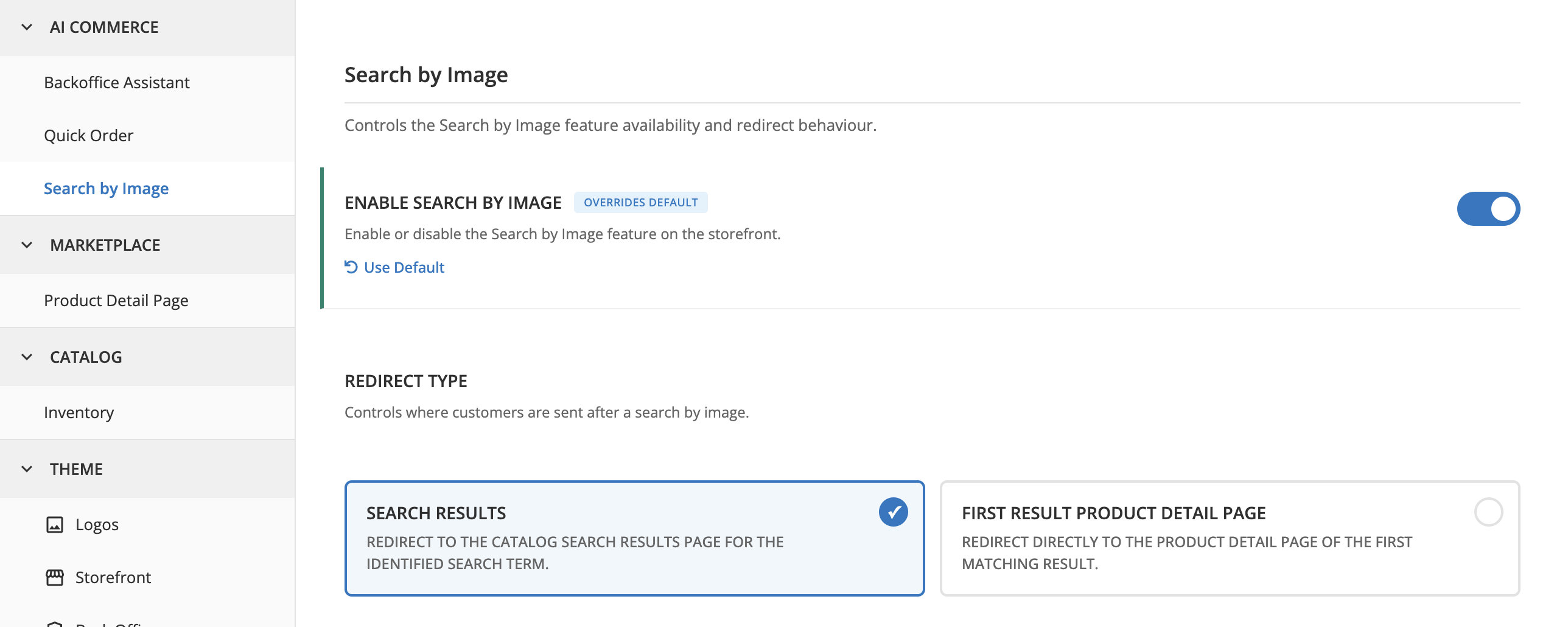
- In the Back Office, go to Configuration.
- Navigate to AI Commerce > Search by Image > Search by Image.
- Turn on Enable Search by Image.
- Set Redirect type to the desired behavior:
- Search results — redirects the customer to the catalog search results page for the identified search term.
- First result product detail page — redirects the customer directly to the product detail page of the first matching result.
- Click Save.
On the Storefront, make sure the camera icon is visible next to the search bar.
Integrate the feature frontend
The Twig template changes in this section reflect the current implementation. These templates may be updated in future releases. Review the latest demo shop templates before applying them at the project level.
1) Add icon sprites
Do this step only if you have overridden icon-sprite.twig in the ShopUi module at the project level. If you have not overridden this template, skip to 2) Update the search form template.
In src/Pyz/Yves/ShopUi/Theme/default/components/atoms/icon-sprite/icon-sprite.twig, add the following SVG symbol definitions inside the {% block sprite %} block:
<symbol id=":upload-image" viewBox="0 -960 960 960" fill="currentColor">
    <title id=":upload-image">Upload Image</title>
    <path d="M480-480ZM224.62-160q-27.62 0-46.12-18.5Q160-197 160-224.62v-510.76q0-27.62 18.5-46.12Q197-800 224.62-800h280v40h-280q-10.77 0-17.7 6.92-6.92 6.93-6.92 17.7v510.76q0 10.77 6.92 17.7 6.93 6.92 17.7 6.92h510.76q10.77 0 17.7-6.92 6.92-6.93 6.92-17.7v-280h40v280q0 27.62-18.5 46.12Q763-160 735.38-160H224.62Zm46.15-144.62h418.46L560-476.92 440-325.38l-80-96.16-89.23 116.92ZM680-600v-80h-80v-40h80v-80h40v80h80v40h-80v80h-40Z"/>
</symbol>
<symbol id=":visual-search" viewBox="0 -960 960 960" fill="currentColor">
    <title id=":visual-search">Visual Search</title>
    <path d="M367-367q-47-47-47-113t47-113q47-47 113-47t113 47q47 47 47 113t-47 113q-47 47-113 47t-113-47Zm169.5-56.5Q560-447 560-480t-23.5-56.5Q513-560 480-560t-56.5 23.5Q400-513 400-480t23.5 56.5Q447-400 480-400t56.5-23.5ZM480-480ZM200-120q-33 0-56.5-23.5T120-200v-160h80v160h160v80H200Zm400 0v-80h160v-160h80v160q0 33-23.5 56.5T760-120H600ZM120-600v-160q0-33 23.5-56.5T200-840h160v80H200v160h-80Zm640 0v-160H600v-80h160q33 0 56.5 23.5T840-760v160h-80Z"/>
</symbol>
2) Update the search form template
Do this step only if you have overridden search-form.twig in the ShopUi module at the project level. If you have not overridden this template, skip to 3) Update the header template.
In src/Pyz/Yves/ShopUi/Theme/default/components/molecules/search-form/search-form.twig, add the ImageSearchAiWidget inside the search input area. Place it after the <input> element and before the submit button:
{% if data.byImage and widgetGlobalExists('ImageSearchAiWidget') %}
    {% widget 'ImageSearchAiWidget' with {
        data: {
            dataSearchId: attributes['data-search-id'],
        },
    } only %}{% endwidget %}
{% endif %}
3) Update the header template
Do this step only if you have overridden header.twig in the ShopUi module at the project level. If you have not overridden this template, skip to 6) Apply the frontend changes.
In src/Pyz/Yves/ShopUi/Theme/default/components/organisms/header/header.twig, pass byImage: true in the data block when including the search form molecule:
{% include molecule('search-form', 'SearchPage') with {
    ...
    data: {
        byImage: true,
    },
} only %}
4) Add the project-level component files
Create the following project-level files to register and style the search-by-image component.
src/Pyz/Yves/AiCommerce/Theme/default/components/molecules/search-by-image/index.ts
import './search-by-image';
import register from 'ShopUi/app/registry';

export default register(
    'search-by-image',
    () =>
        import(
            /* webpackMode: "lazy" */
            /* webpackChunkName: "search-by-image" */
            'AiCommerce/components/molecules/search-by-image/search-by-image'
        ),
);
src/Pyz/Yves/AiCommerce/Theme/default/components/molecules/search-by-image/search-by-image.scss
@include ai-commerce-search-by-image {
    position: absolute;
    right: rem(40);
    top: 50%;
    translate: 0 -50%;
    z-index: $setting-zi-search-suggestions + 2;

    @include helper-breakpoint(lg) {
        right: rem(10);
    }

    &__popup-trigger {
        @include helper-effect-transition(rotate);
        border: none;
        width: rem(32);
        height: rem(32);
        background: none;
        cursor: pointer;
        display: flex;
        align-items: center;
        justify-content: center;

        &:hover {
            rotate: 90deg;
        }
    }
}
src/Pyz/Yves/AiCommerce/Theme/default/components/molecules/search-by-image/search-by-image.twig
{% extends molecule('search-by-image', '@SprykerFeature:AiCommerce') %}

{% block triggerFileButton %}
    {% set triggerButtonClassname = "search-by-image__popup-trigger search-by-image__popup-trigger--#{data.dataSearchId}" %}
    {{ parent() }}
{% endblock %}

{% block triggerPhotoButton %}
    {% set triggerButtonClassname = "search-by-image__popup-trigger search-by-image__popup-trigger--#{data.dataSearchId}" %}
    {{ parent() }}
{% endblock %}
5) Update TypeScript configuration
In tsconfig.yves.json, add the AiCommerce/* path alias to the compilerOptions.paths section:
"AiCommerce/*": ["./vendor/spryker-feature/ai-commerce/src/SprykerFeature/Yves/AiCommerce/Theme/default/*"]
Make sure the AiCommerce/* entry is added alongside the other module path aliases in the paths object.
6) Apply the frontend changes
Apply the frontend changes:
docker/sdk cli npm install
docker/sdk cli console frontend:project:install-dependencies
docker/sdk cli console frontend:yves:build
On the Storefront, make sure the camera icon is displayed next to the search bar. Click the icon, upload an image, and verify that you are redirected to either the search results page or the matching product detail page, depending on the configured redirect type.
Thank you!
For submitting the form