
AI Dev MCP Server
Edit on GitHubThe AiDev module ships an MCP server that gives AI assistants live access to your running Spryker application: transfer objects, module interfaces, order management system (OMS) state machines, CSV data, and read-only database queries. This page describes what the server exposes, how to extend it, and how to debug it.
The ai-dev:mcp-server command exists only after the spryker-sdk/ai-dev module is installed in your project and its console commands are registered. To install the module and register the server in your assistant, see Installation.
About Model Context Protocol (MCP)
The Model Context Protocol (MCP) is an open-source standard for connecting AI applications to external systems. For Spryker developers, MCP allows AI assistants like Claude or Copilot to understand your project, improving the quality of AI-generated code and recommendations.
Learn more about MCP at modelcontextprotocol.io.
How the server runs
The module provides the server through the ai-dev:mcp-server console command, which runs inside your project’s Docker container over the MCP stdio transport:
docker/sdk console ai-dev:mcp-server -q
The command starts the server, registers all configured MCP tool plugins, and listens for requests from AI assistants. You do not usually run it by hand — your assistant starts it. For the registration steps per assistant, see Register the MCP server.
Available MCP tools
The AiDev module provides the following built-in tools that AI assistants can use:
| Tool name | Description |
|---|---|
getTransferStructureByName |
Retrieves the structure of a Spryker transfer object by its name. Returns all properties with their types and metadata. |
getTransferStructureByNamespace |
Retrieves the structure of a Spryker transfer object by its fully qualified namespace. |
getInterfaceMethodsByNamespace |
Retrieves all method signatures, parameters, return types, and PHPDoc for a given interface FQN (Fully Qualified Name). |
getOmsTransitionsByState |
Retrieves OMS state machine transitions for a specific state. Returns all transitions that start from the given state, optionally filtered by process name. |
getOrderOmsTransitions |
Retrieves OMS state machine transitions for a specified order from the order’s current state. Helps identify the current state and possible transitions. |
executeQuery |
Executes read-only database queries (SELECT, SHOW, DESCRIBE, EXPLAIN) for accessing project data without modification capabilities. |
getSprykerModules |
Lists all available Spryker modules from project and vendor directories. |
getSprykerModuleMap |
Retrieves detailed module metadata including class paths, method signatures, and extension points. |
searchAlgoliaDocumentation |
Enables keyword-based Spryker documentation search through Algolia integration. |
analyzeCsvFile |
Analyzes CSV file structure without loading full content. Returns headers, row count, and sample rows. Supports optional column analysis with unique values and null counts. |
transformCsv |
Transforms and modifies CSV files with three operation modes: APPEND (add new rows), REPLACE (overwrite target), and UPDATE (modify existing rows in-place). Supports column mappings, row filters, value transformations, default values, and automatic backup creation. |
deleteCsvRows |
Deletes rows from CSV files based on filter criteria with multiple operators (equals, not_equals, in, not_in, contains, not_contains, starts_with, ends_with, empty, not_empty). Includes safety checks and automatic backup creation. |
splitOdsToCsv |
Splits ODS (OpenDocument Spreadsheet) files into separate CSV files per sheet. Skips empty sheets and returns details about created files. Useful for converting Google Sheets exports to Spryker-compatible CSVs. |
AI assistants can automatically discover and use these tools when connected to the MCP server.
Extension points
The AiDev module provides plugin interfaces for extending the MCP server with custom functionality.
AiDevMcpToolPluginInterface
Implement this interface to add custom MCP tools that AI assistants can use to query or interact with your application.
Interface location: SprykerSdk\Zed\AiDev\Dependency\AiDevMcpToolPluginInterface
Integration: Register your tool plugins in AiDevDependencyProvider::getMcpToolPlugins():
<?php

namespace Pyz\Zed\AiDev;

use SprykerSdk\Zed\AiDev\AiDevDependencyProvider as SprykerAiDevDependencyProvider;
use Pyz\Zed\AiDev\Communication\Plugins\CustomAiDevMcpToolPlugin;

class AiDevDependencyProvider extends SprykerAiDevDependencyProvider
{
    /**
     * @return array<\SprykerSdk\Zed\AiDev\Dependency\AiDevMcpToolPluginInterface>
     */
    protected function getMcpToolPlugins(): array
    {
        return array_merge(parent::getMcpToolPlugins(), [
            new CustomAiDevMcpToolPlugin(),
        ]);
    }
}
Configuration
You can configure the AiDev module through the AiDevConfig class. Refer to the module’s configuration class for the available options and their default values.
Debug the MCP server
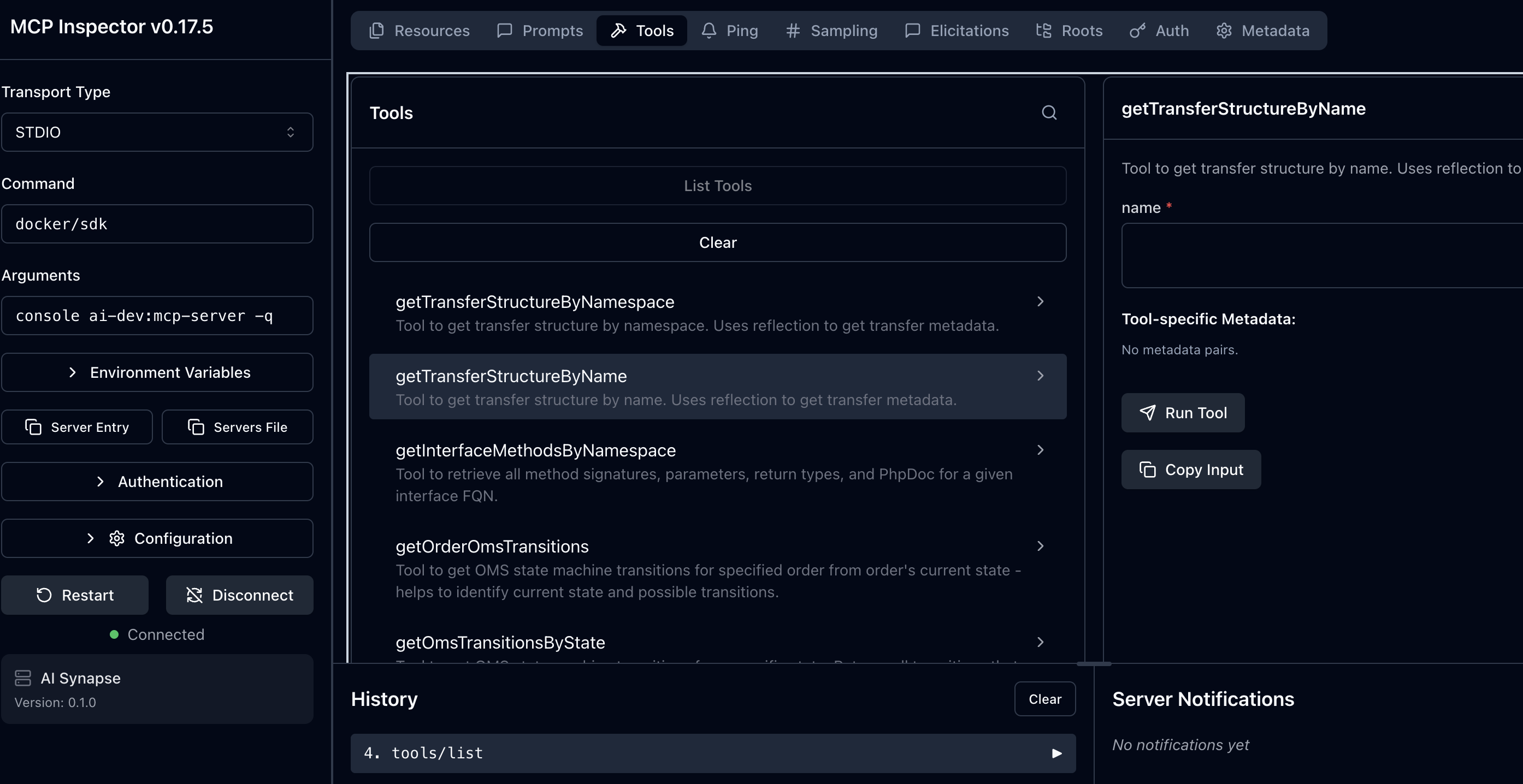
Before you connect the MCP server to an AI assistant, you can test and debug it with the MCP Inspector. The inspector provides a web interface to interact with your MCP server, test tools, and verify that everything works correctly.
Go to your Spryker project directory and run:
npx @modelcontextprotocol/inspector docker/sdk console ai-dev:mcp-server -q
This command:
- Starts the MCP Inspector in your browser
- Connects to your local MCP server
- Displays all available tools
- Lets you test tool calls interactively
To run the inspector with Xdebug:
npx @modelcontextprotocol/inspector docker/sdk cli -x console ai-dev:mcp-server
The MCP Inspector requires Node.js on your system. The npx command automatically downloads and runs the inspector without a global installation.
Thank you!
For submitting the form